> ## Documentation Index
> Fetch the complete documentation index at: https://developers.circle.com/llms.txt
> Use this file to discover all available pages before exploring further.
# Modular Wallets Console Setup
This guide demonstrates how to create a client key and configure passkey
settings on the Circle Console.. This is needed to enable the basic
functionality provided by modular wallets. Once these steps are completed,
proceed to the
[Modular Wallets Quickstart](/wallets/modular/create-a-wallet-and-send-gasless-txn).
If you're building a web application, you need to ensure on the Circle Console
that the Client Key's **Allowed Domain** input value matches exactly the
Passkey's **Domain Name** configuration at the time of your product launch.
These two settings must be consistent for your application to function
correctly.
## Create Client Key
Perform the steps below to create your client key.
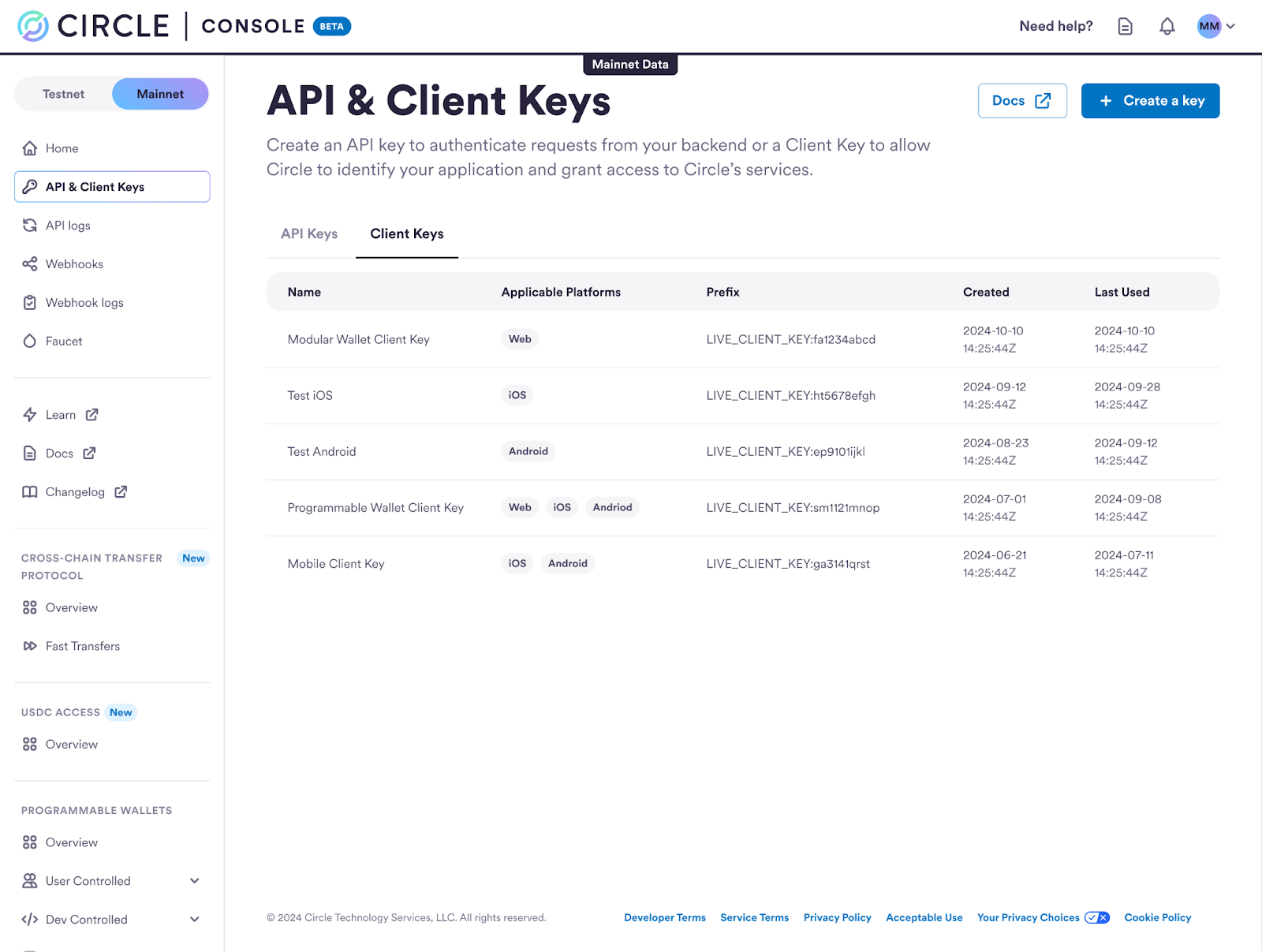
1. Login to the [Circle Console](https://console.circle.com/), navigate to the
**API & Client Keys** section, and click on `Create a key`.
 2. Select the **Client Key** option and type your client **Key Name**.
Each client key is bound to your application for identification and
authorization. Therefore, depending on your application setup, you may be able
to customize the following fields:
* Web **Allowed Domain**; for example, `your.website.com`, `localhost`, or
`chrome-extension://`
* iOS **Bundle ID**; for example, `com.yourcompany.yourapp`
* Android
* Package Name; for example, `com.yourcompany.yourapp`
* Signature (SHA256); for example, `XX:XX:…:XX` (where `X`: `[0-9A-F]`)
**Platform Settings**
1. If you run your web application locally, you can use `localhost` for the
**Allowed Domain**. If you host your web application under a domain server,
say `your.website.com`, you can use that domain server URL. For Chrome
extensions, use the extension's URL in the format
`chrome-extension://` as the **Allowed Domain**. You can find
the extension ID on the Chrome Extensions page (`chrome://extensions`).
2. If your application runs on multiple platforms, you can either configure the
settings for each platform under such **Client Key**, or create a new
**Client Key** for enhanced security; the latter approach is recommended.
2. Select the **Client Key** option and type your client **Key Name**.
Each client key is bound to your application for identification and
authorization. Therefore, depending on your application setup, you may be able
to customize the following fields:
* Web **Allowed Domain**; for example, `your.website.com`, `localhost`, or
`chrome-extension://`
* iOS **Bundle ID**; for example, `com.yourcompany.yourapp`
* Android
* Package Name; for example, `com.yourcompany.yourapp`
* Signature (SHA256); for example, `XX:XX:…:XX` (where `X`: `[0-9A-F]`)
**Platform Settings**
1. If you run your web application locally, you can use `localhost` for the
**Allowed Domain**. If you host your web application under a domain server,
say `your.website.com`, you can use that domain server URL. For Chrome
extensions, use the extension's URL in the format
`chrome-extension://` as the **Allowed Domain**. You can find
the extension ID on the Chrome Extensions page (`chrome://extensions`).
2. If your application runs on multiple platforms, you can either configure the
settings for each platform under such **Client Key**, or create a new
**Client Key** for enhanced security; the latter approach is recommended.
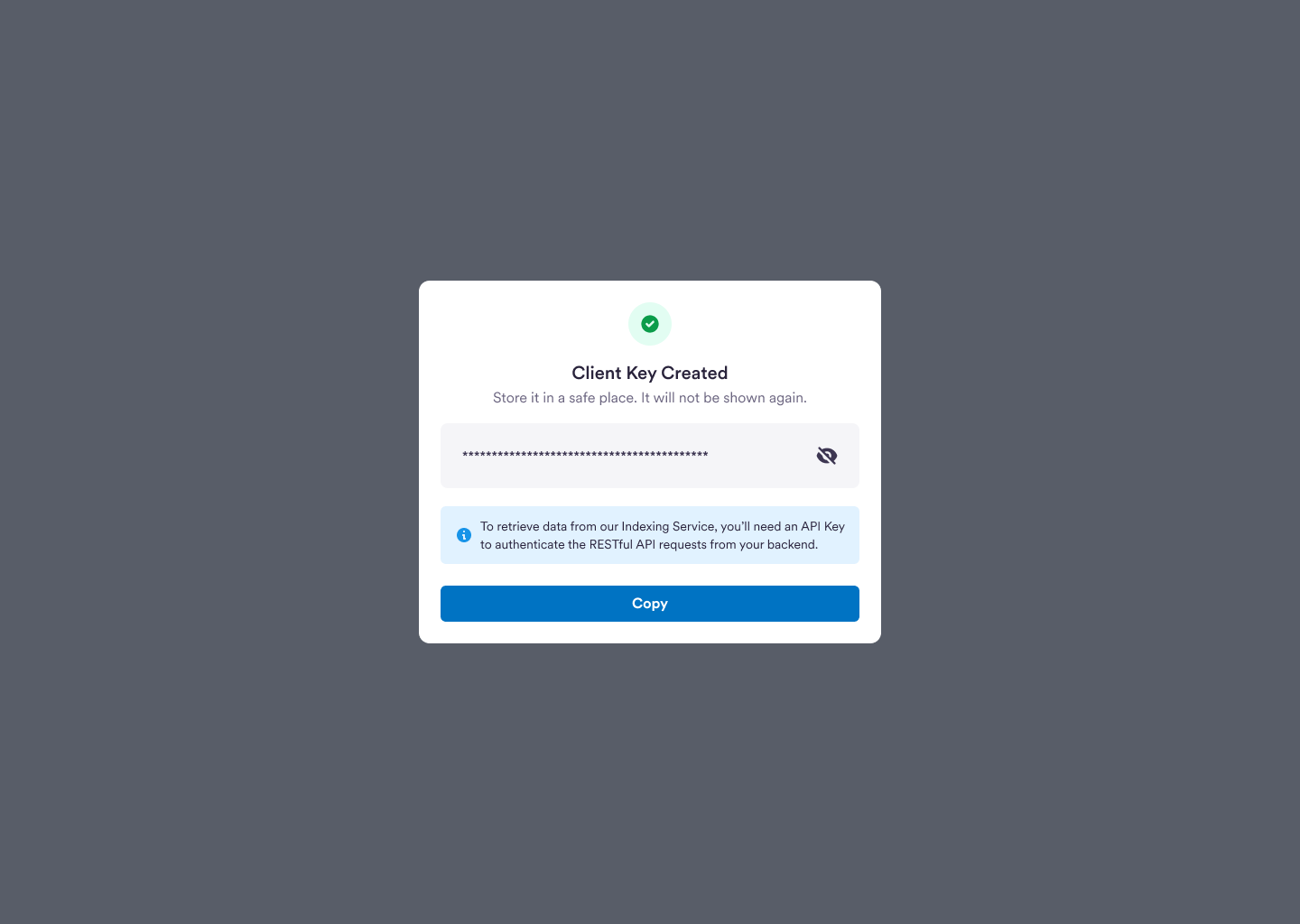
 3. Verify that the **Client Key** was created.
Once the information provided in the previous steps is validated, the system
generates a client key. Please store it in a safe place, as it won't be
displayed on the Console again.
Circle provides a built-in indexing service, allowing you to access
transaction data per wallet faster and easier. You can check the transaction
and `userOps` details through the Circle Console, or if you'd like to retrieve
data from Circle's Indexing Service directly, you'll need to create an API Key
to authenticate the RESTful API requests from your backend. Check the Modular
Wallets API reference [here](/api-reference/wallets/buidl/list-transfers).
3. Verify that the **Client Key** was created.
Once the information provided in the previous steps is validated, the system
generates a client key. Please store it in a safe place, as it won't be
displayed on the Console again.
Circle provides a built-in indexing service, allowing you to access
transaction data per wallet faster and easier. You can check the transaction
and `userOps` details through the Circle Console, or if you'd like to retrieve
data from Circle's Indexing Service directly, you'll need to create an API Key
to authenticate the RESTful API requests from your backend. Check the Modular
Wallets API reference [here](/api-reference/wallets/buidl/list-transfers).
 ## Configure Passkey Domain
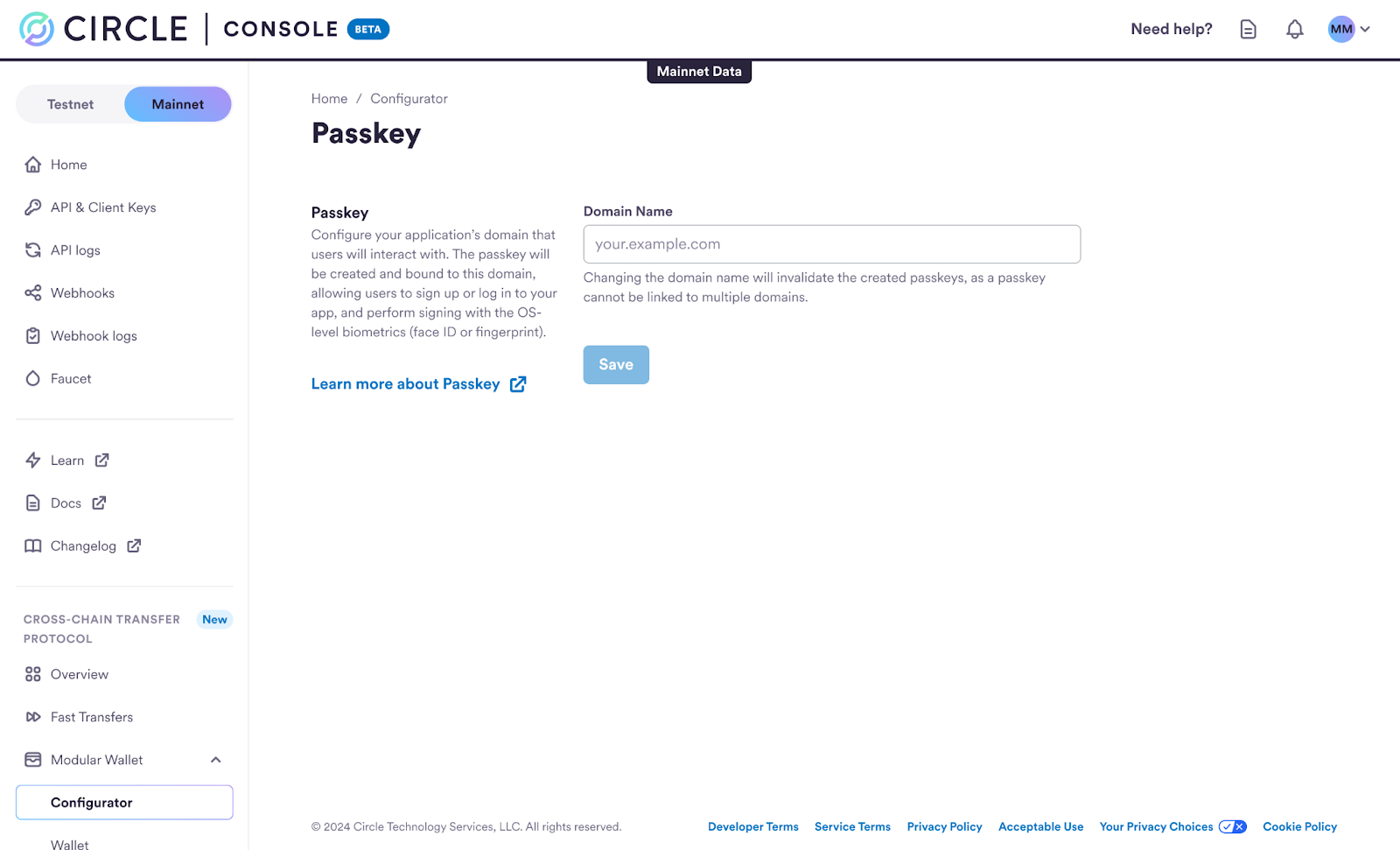
Perform the steps below to configure the **Domain Name** for your Passkey.
Enter the domain name of your application where users will be onboarded. Each
passkey created will be associated with this domain.
**Passkey for Mobile Apps**
To enable passkey support for your iOS or Android application, you'll have to
configure a web domain to associate your app with a website that your app owns,
as passkeys on mobile-native apps are also domain-bound, similar to web
applications.
Configuration is required to enable Passkeys on mobile-native applications:
* **iOS**: A JSON file is required at the domain root:\
`/.well-known /apple-app-site-association`. Refer to
[this resource](https://developer.apple.com/documentation/xcode/configuring-an-associated-domain)
for more details.
* **Android**: A JSON file is required at the domain root:\
`/.well-known/assetlinks.json`. Refer to
[this resource](https://developer.android.com/identity/sign-in/credential-manager#add-support-dal)
for more details.
## Configure Passkey Domain
Perform the steps below to configure the **Domain Name** for your Passkey.
Enter the domain name of your application where users will be onboarded. Each
passkey created will be associated with this domain.
**Passkey for Mobile Apps**
To enable passkey support for your iOS or Android application, you'll have to
configure a web domain to associate your app with a website that your app owns,
as passkeys on mobile-native apps are also domain-bound, similar to web
applications.
Configuration is required to enable Passkeys on mobile-native applications:
* **iOS**: A JSON file is required at the domain root:\
`/.well-known /apple-app-site-association`. Refer to
[this resource](https://developer.apple.com/documentation/xcode/configuring-an-associated-domain)
for more details.
* **Android**: A JSON file is required at the domain root:\
`/.well-known/assetlinks.json`. Refer to
[this resource](https://developer.android.com/identity/sign-in/credential-manager#add-support-dal)
for more details.
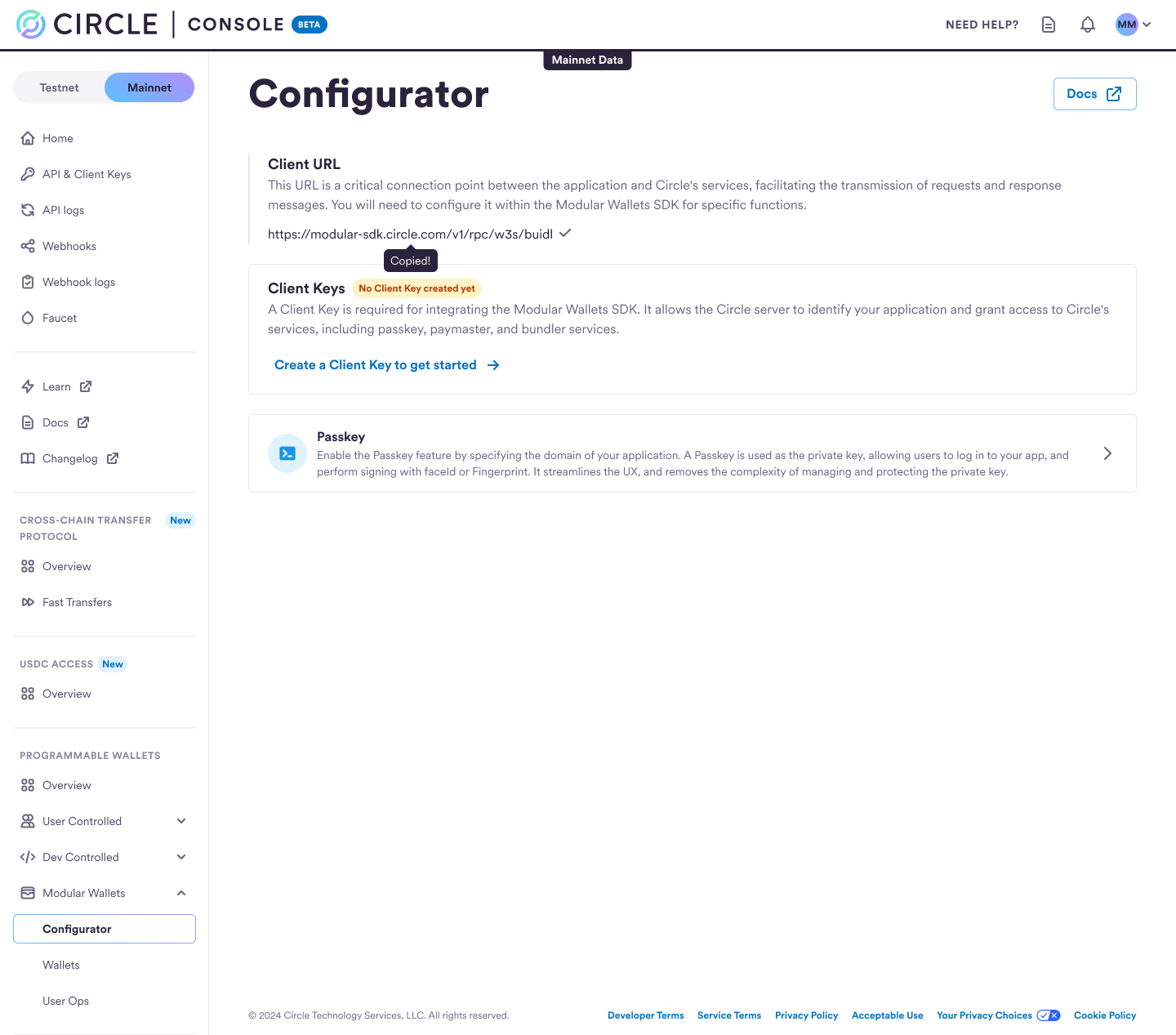
 ## Retrieve Client URL
Visit the Configurator page to retrieve the **Client URL**, or copy from here:
`https://modular-sdk.circle.com/v1/rpc/w3s/buidl`. This URL is required for the
following **modular wallets SDK** methods:
* `toPasskeyTransport()`
* `toModularTransport()`: When using this method, you must specify the
blockchain network. For more details, refer to the
[Modular Wallets Quickstart](/wallets/modular/create-a-wallet-and-send-gasless-txn).
## Retrieve Client URL
Visit the Configurator page to retrieve the **Client URL**, or copy from here:
`https://modular-sdk.circle.com/v1/rpc/w3s/buidl`. This URL is required for the
following **modular wallets SDK** methods:
* `toPasskeyTransport()`
* `toModularTransport()`: When using this method, you must specify the
blockchain network. For more details, refer to the
[Modular Wallets Quickstart](/wallets/modular/create-a-wallet-and-send-gasless-txn).