This quickstart walks you through deploying a smart contract using the compiled bytecode and ABI using Circle Contracts. Circle Contracts provides an API for deploying, exploring, and interacting with smart contracts. The platform offers a powerful toolset for developers to build decentralized applications and for businesses to transition onchain. This guide can also be followed to deploy smart contracts on the other supported blockchains by changing the blockchain parameter in your request. Additionally, you can deploy to Mainnet by swapping out the Testnet API key for a Mainnet API key. See the Testnet vs Mainnet guide for more details.

Prerequisites

Before you begin, ensure that you:
  1. Create a Developer Account and acquire an API key in the Console.
  2. Make sure to register your Entity Secret prior to this Quickstart.

Step 1: Project setup

Set up your local development environment and install the required dependencies.

1.1 Set up a new project

Create a new directory, navigate to it and initialize a new project with default settings
mkdir scp-bytecode-deploy
cd scp-bytecode-deploy
npm init -y
npm pkg set type=module

1.2 Install dependencies

In the project directory, install the required dependencies. This guide uses SDKs for Circle developer-controlled wallets and Contracts.
npm install @circle-fin/developer-controlled-wallets @circle-fin/smart-contract-platform

Step 2: Create a wallet and fund it with testnet tokens

In this section, you will create a developer-controlled wallet with the SDK and fund it with testnet USDC to pay for the gas fees needed to deploy the smart contract. If you already have a developer-controlled wallet, skip to Step 3.

2.1 Setup and run a create-wallet script

Import the developer-controlled wallets SDK and initialize the client. You will require your API key and Entity Secret for this. Note that your API key and Entity Secret are sensitive credentials. Do not commit them to Git or share them publicly. Store them securely in environment variables or a secrets manager.
Developer-controlled wallets are created in a wallet set, which is the source from which individual wallet keys are derived.
import { initiateDeveloperControlledWalletsClient } from "@circle-fin/developer-controlled-wallets";

const client = initiateDeveloperControlledWalletsClient({
  apiKey: "<YOUR_API_KEY>",
  entitySecret: "<YOUR_ENTITY_SECRET>",
});

// Create a wallet set
const walletSetResponse = await client.createWalletSet({
  name: "WalletSet 1",
});
console.log("Created WalletSet", walletSetResponse.data?.walletSet);

// Create a wallet on Arc Testnet
const walletsResponse = await client.createWallets({
  blockchains: ["ARC-TESTNET"],
  count: 1,
  walletSetId: walletSetResponse.data?.walletSet?.id ?? "",
});
console.log("Created Wallets", walletsResponse.data?.wallets);
If you are not using the developer-controlled wallets SDK, you can call the API directly as well. You will need to make 2 requests, one to create the wallet set and one to create the wallet. Make sure to replace the Entity Secret ciphertext and idempotency key.
curl --request POST \
  --url https://api.circle.com/v1/w3s/developer/walletSets \
  --header 'Authorization: Bearer <token>' \
  --header 'Content-Type: application/json' \
  --data '
{
  "entitySecretCiphertext": "<string>",
  "idempotencyKey": "<string>",
  "name": "WalletSet 1"
}
'
The wallet set ID is required for creating the wallet.
curl --request POST \
  --url https://api.circle.com/v1/w3s/developer/wallets \
  --header 'Authorization: Bearer <token>' \
  --header 'Content-Type: application/json' \
  --data '
{
  "idempotencyKey": "<string>",
  "blockchains": [
    "ARC-TESTNET"
  ],
  "entitySecretCiphertext": "<string>",
  "walletSetId": "<WALLET_SET_ID>",
  "accountType": "EOA",
  "count": 1,
  ]
}
'
You should end up with a new developer-controlled wallet, and the response will look something like this:
[
  {
    "id": "a2f67c91-b7e3-5df4-9c8e-42bbd51a9fcb",
    "state": "LIVE",
    "walletSetId": "5c3e9f20-8d4b-55a1-a63b-c21f44de8a72",
    "custodyType": "DEVELOPER",
    "refId": "",
    "name": "",
    "address": "0x9eab451f27dca39bd3f5d76ef28c86cc0b3a72df",
    "blockchain": "ARC-TESTNET",
    "accountType": "EOA",
    "updateDate": "2025-11-07T01:35:03Z",
    "createDate": "2025-11-07T01:35:03Z"
  }
]

2.3 Fund the wallet with test USDC

Obtain some testnet USDC for executing transactions like making transfers and paying gas fees for those transactions. Circle’s Testnet Faucet provides testnet USDC and can be used once per hour to obtain additional USDC.

2.4 Check the wallet’s balance

You can check your wallet’s balance from the Developer Console or programmatically by making a request to GET /wallets/{id}/balances with the wallet ID of the wallet you created.
const response = await client.getWalletTokenBalance({
  id: "<WALLET_ID>",
});

Step 3: Compile a smart contract

In this section, you will compile and deploy a minimal smart contract for an onchain payment inbox using Contracts. Users pay by approving and depositing USDC, payments are recorded via events, and the owner can withdraw the accumulated balance.
This contract is intentionally minimal and for learning purposes only. Smart contracts that manage real funds typically require additional security patterns, testing, and audits, and often rely on community-reviewed libraries such as OpenZeppelin.
// SPDX-License-Identifier: MIT
pragma solidity ^0.8.20;

interface IERC20 {
    function transfer(address to, uint256 amount) external returns (bool);
    function transferFrom(address from, address to, uint256 amount) external returns (bool);
    function balanceOf(address account) external view returns (uint256);
}

contract MerchantTreasuryUSDC {
    address public immutable owner;
    IERC20 public immutable usdc;

    event PaymentReceived(address indexed sender, uint256 amount);
    event FundsWithdrawn(address indexed to, uint256 amount);

    constructor(address _owner, address _usdc) {
        require(_owner != address(0), "Invalid owner");
        require(_usdc != address(0), "Invalid USDC");
        owner = _owner;
        usdc = IERC20(_usdc);
    }

    function deposit(uint256 amount) external {
        require(amount > 0, "Invalid amount");
        bool ok = usdc.transferFrom(msg.sender, address(this), amount);
        require(ok, "USDC transferFrom failed");
        emit PaymentReceived(msg.sender, amount);
    }

    function withdraw() external {
        require(msg.sender == owner, "Unauthorized");

        uint256 amount = usdc.balanceOf(address(this));
        require(amount > 0, "No funds");

        bool ok = usdc.transfer(owner, amount);
        require(ok, "USDC transfer failed");
        emit FundsWithdrawn(owner, amount);
    }

    function balance() external view returns (uint256) {
        return usdc.balanceOf(address(this));
    }
}
  • constructor(address _owner): Sets the treasury owner and the USDC token address at deployment
  • receive() (payable): Transfers approved USDC from the caller into the contract and emits PaymentReceived(sender, amount)
  • withdraw(): Allows only the owner to withdraw the entire USDC balance; emits FundsWithdrawn(to, amount)
  • balance() (view): Returns the contract’s current USDC balance

3.1 Obtain ABI and bytecode from Remix IDE

  1. Open the Remix IDE.
  2. Create a new file in the contracts folder called MerchantTreasury.sol.
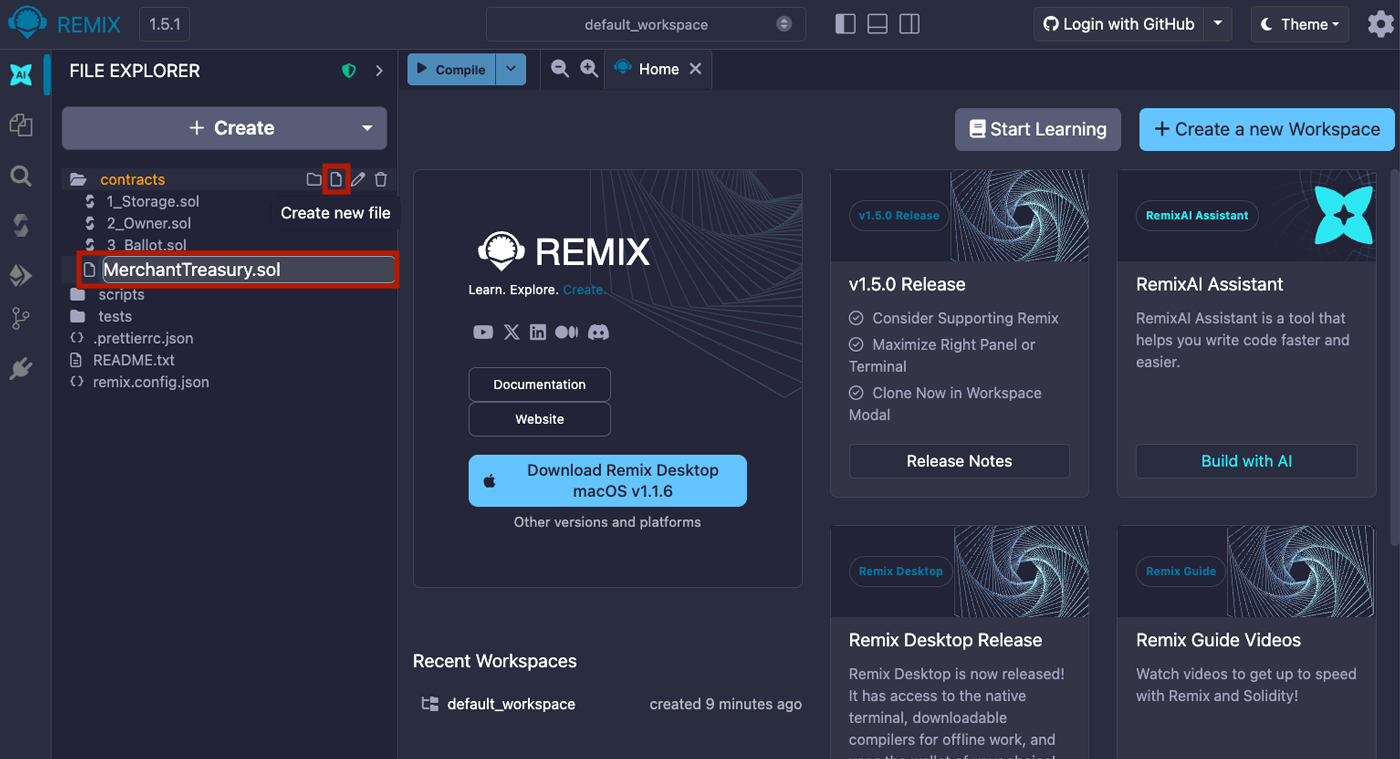
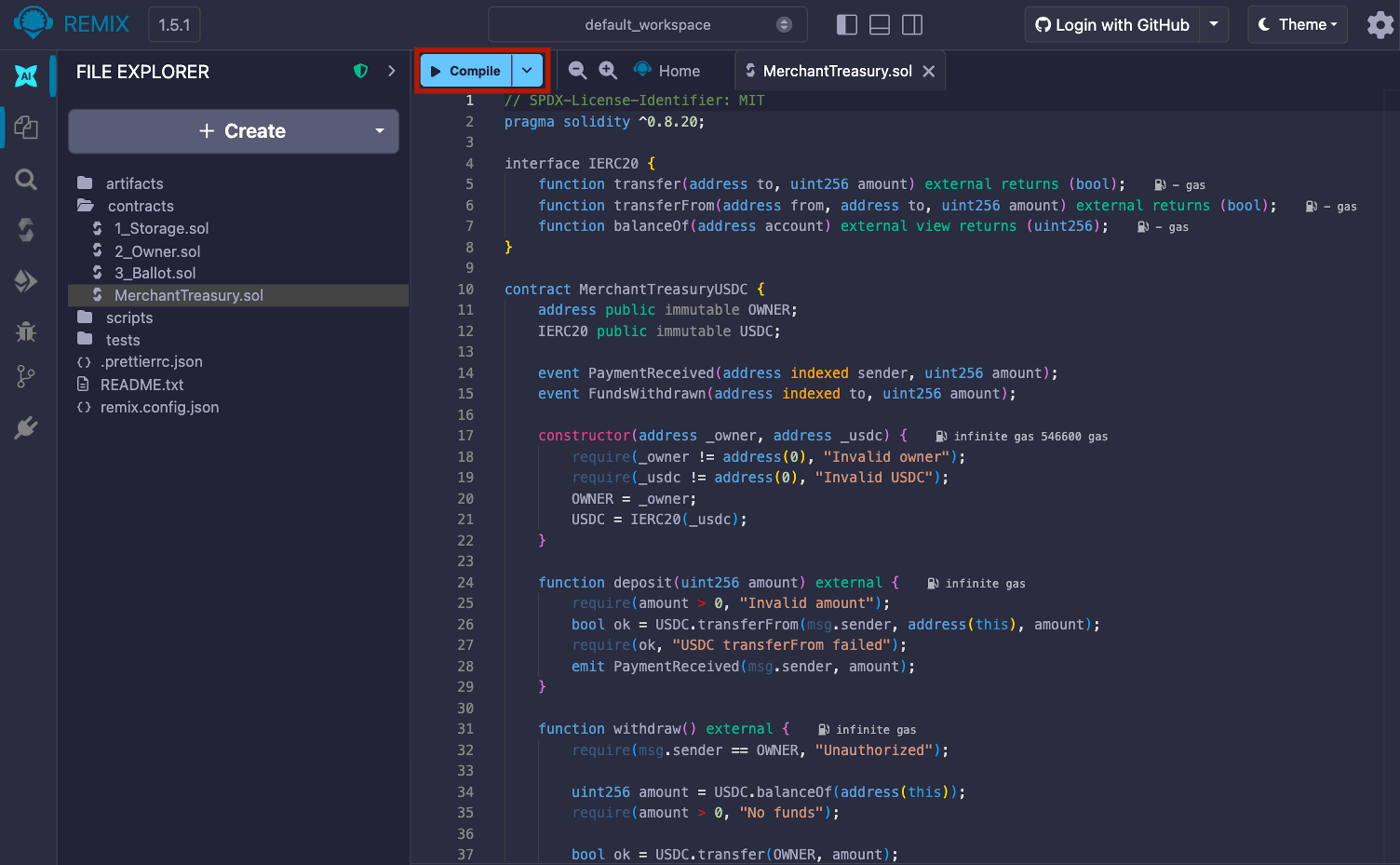
  3. Copy and paste the Solidity code into the file, then click on the Compile button.
  4. Navigate to the Solidity Compiler tab from the left sidebar. Under Contracts, make sure MerchantTreasuryUSDC (Merchant Treasury.sol) is selected. You should see the option to copy the ABI and Bytecode. These values will be used in the next step.
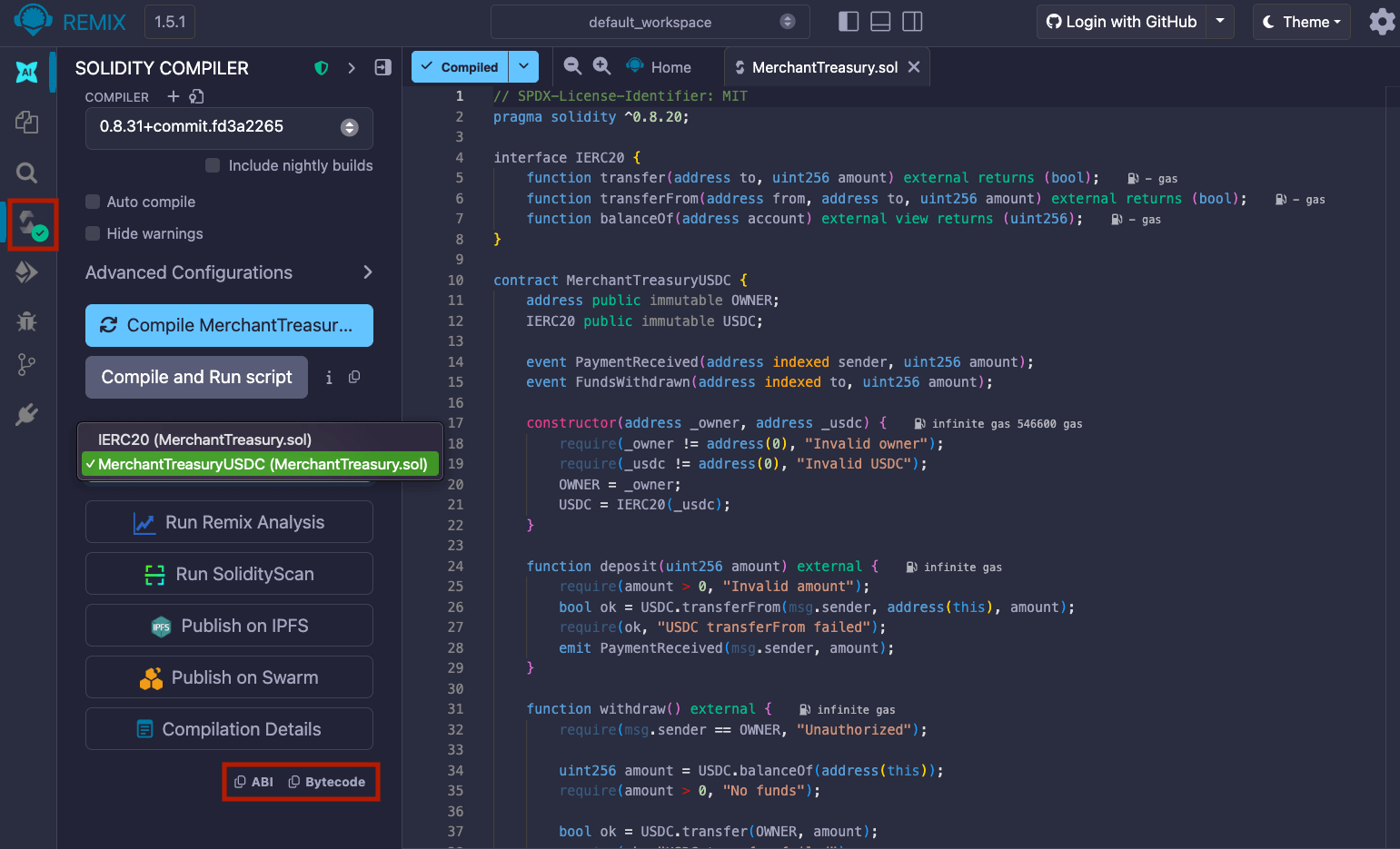
    1. The compiler output is available under Compilation Details. For more information on the Solidity compiler’s outputs, see using the compiler.
    2. The Application Binary Interface (ABI) is the standard way to interact with contracts on an EVM from outside the blockchain and for contract-to-contract interaction.

Step 4: Deploy the smart contract

In this section, you will deploy the smart contract on Arc using the contract’s ABI and bytecode, which you have compiled in the previous step. Import and initialize the Contracts SDK, then copy the ABI JSON and raw bytecode over from Remix. Note that you need to append 0x to the raw bytecode. The constructorParameters correspond to the arguments encoded in the contract’s deployment bytecode. Since different contracts define different constructors, these parameters vary based on the specific contract you deployed. For this specific example, the parameter is the wallet address of the owner of the contract.
import { initiateSmartContractPlatformClient } from "@circle-fin/smart-contract-platform";

const client = initiateSmartContractPlatformClient({
  apiKey: "<YOUR_API_KEY>",
  entitySecret: "<YOUR_ENTITY_SECRET>",
});

const abiJson = PASTE_YOUR_ABI_JSON_HERE;

const bytecode = "0xPASTE_YOUR_BYTECODE_HERE";

const response = await client.deployContract({
  name: "MerchantTreasury Contract",
  description:
    "Contract to receive payments and allow an owner to withdraw funds",
  blockchain: "ARC-TESTNET",
  walletId: "<WALLET_ID>",
  abiJson: JSON.stringify(abiJson, null, 2),
  bytecode: bytecode,
  constructorParameters: [
    "<WALLET_ADDRESS>", // Initial owner of the contract
    "0x3600000000000000000000000000000000000000", // USDC contract address on Arc Testnet
  ],
  fee: {
    type: "level",
    config: {
      feeLevel: "MEDIUM",
    },
  },
});
console.log(response.data);
After running the script successfully, you should receive a response object that looks like this:
{
  contractId: 'xxxxxxxx-xxxx-7xxx-8xxx-xxxxxxxxxxxx',
  transactionId: 'xxxxxxxx-xxxx-5xxx-axxx-xxxxxxxxxxxx'
}
You can check the status of the deployment from the Developer Console or run getContract from the SDK directly.
const response = await circleContractSdk.getContract({
  id: "<CONTRACT_ID>",
});
Once your contract is deployed, you will be able to interact with it from your application and mint new NFTs with it. You should be able to see it from the console and on the Arc Testnet Explorer.