

- Static Resources customize the UI layout during build time.
- Programmatic Customization modifies the layout at run time.
Note:You can combine static and programmatic approaches for customization.
Text, Color, and Font Customization
For text-related customization, there are two types of customization, dynamic and static:- For dynamic customization, update the source code’s desired string, color, and font (as typeface).
JavaScript
new TextConfig(text, color, font)
new TextConfig(text, gradientColorArray, font)
- For static customization, please refer to Static Resource to add or update resource files for Android and iOS respectively. To avoid the static customization being overwritten by the dynamic customization, use the undefined value for the text argument when initializing with the TextConfig() constructor, for example:
JavaScript
new TextConfig(undefined, color, font) // text remains static customization
new TextConfig(text, undefined, undefined) // color and font remain static customization
Note:The detail of supporting scope can be found in the index table and the note
column. For Android, if the app still customizes those unsupported values, it
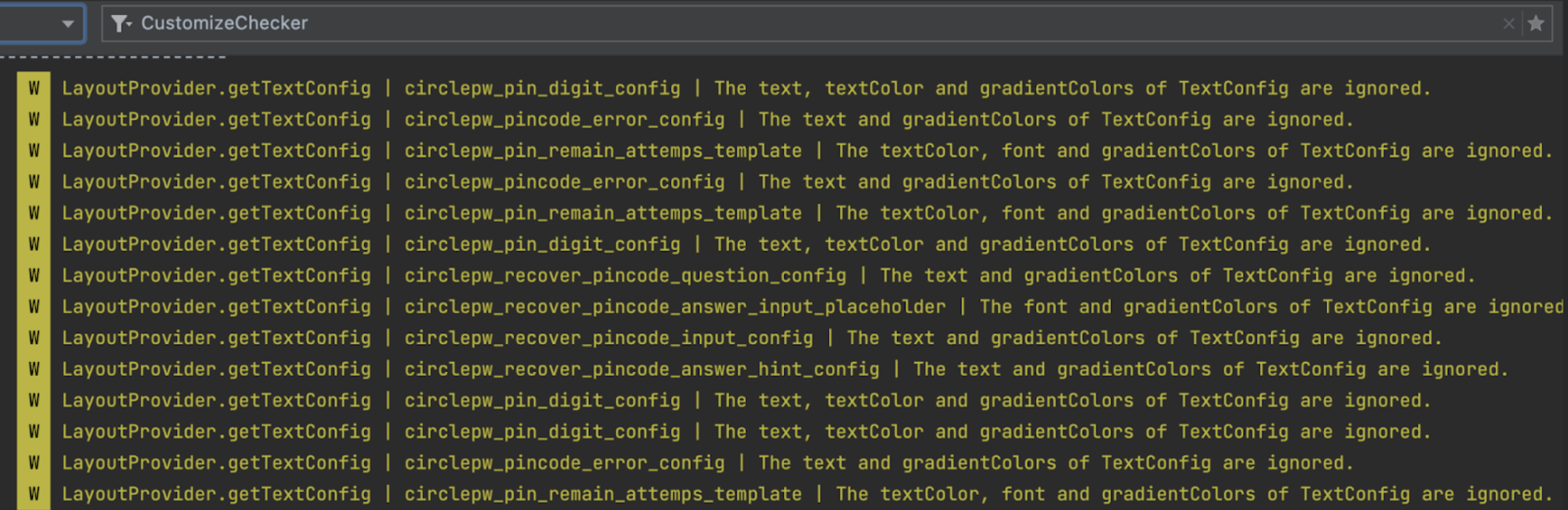
will give a WARN level log printed to logcat, filtered with CustomizeChecker for
log abstraction.
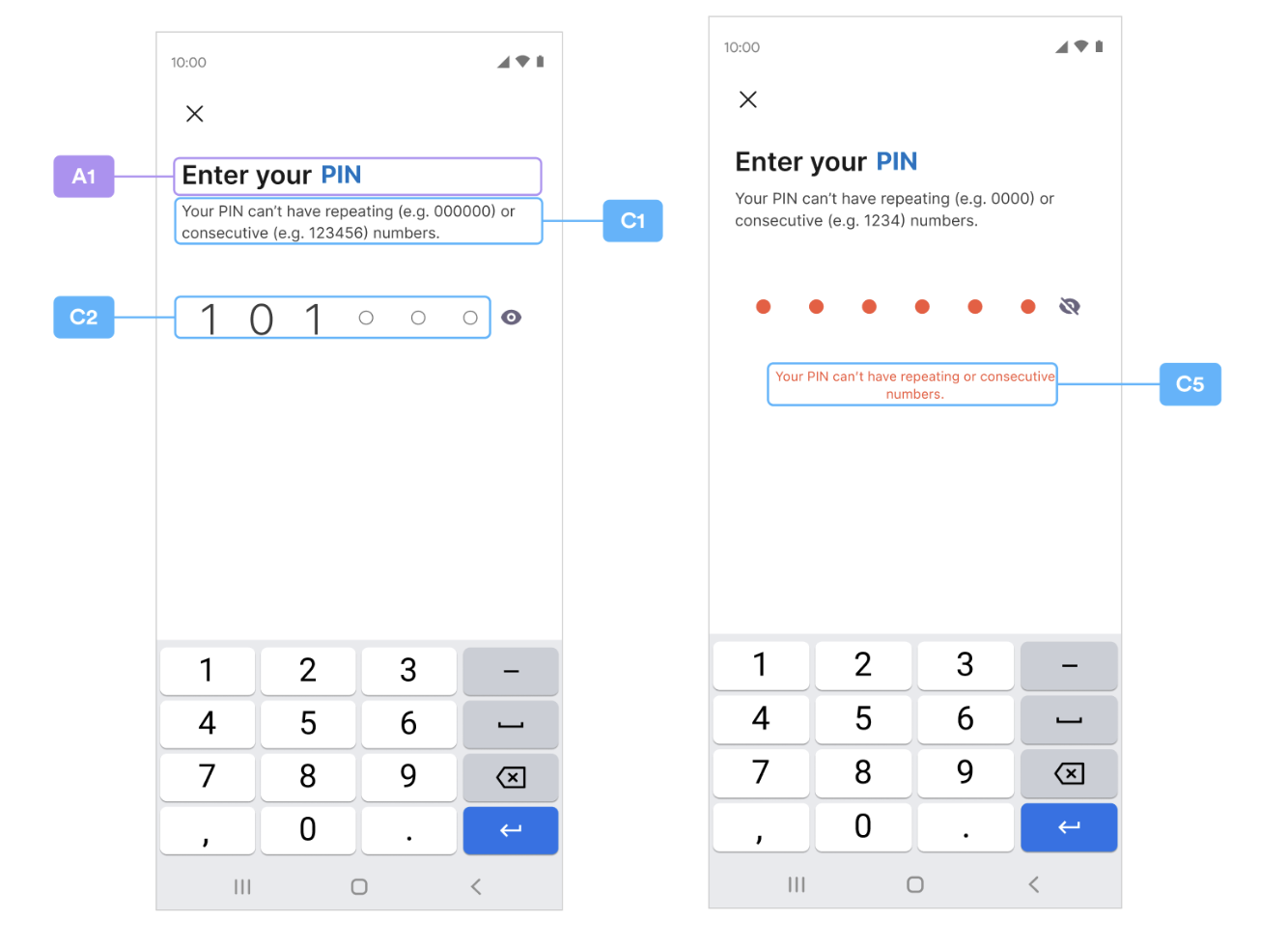
New PIN Code
A1 / C1~C5
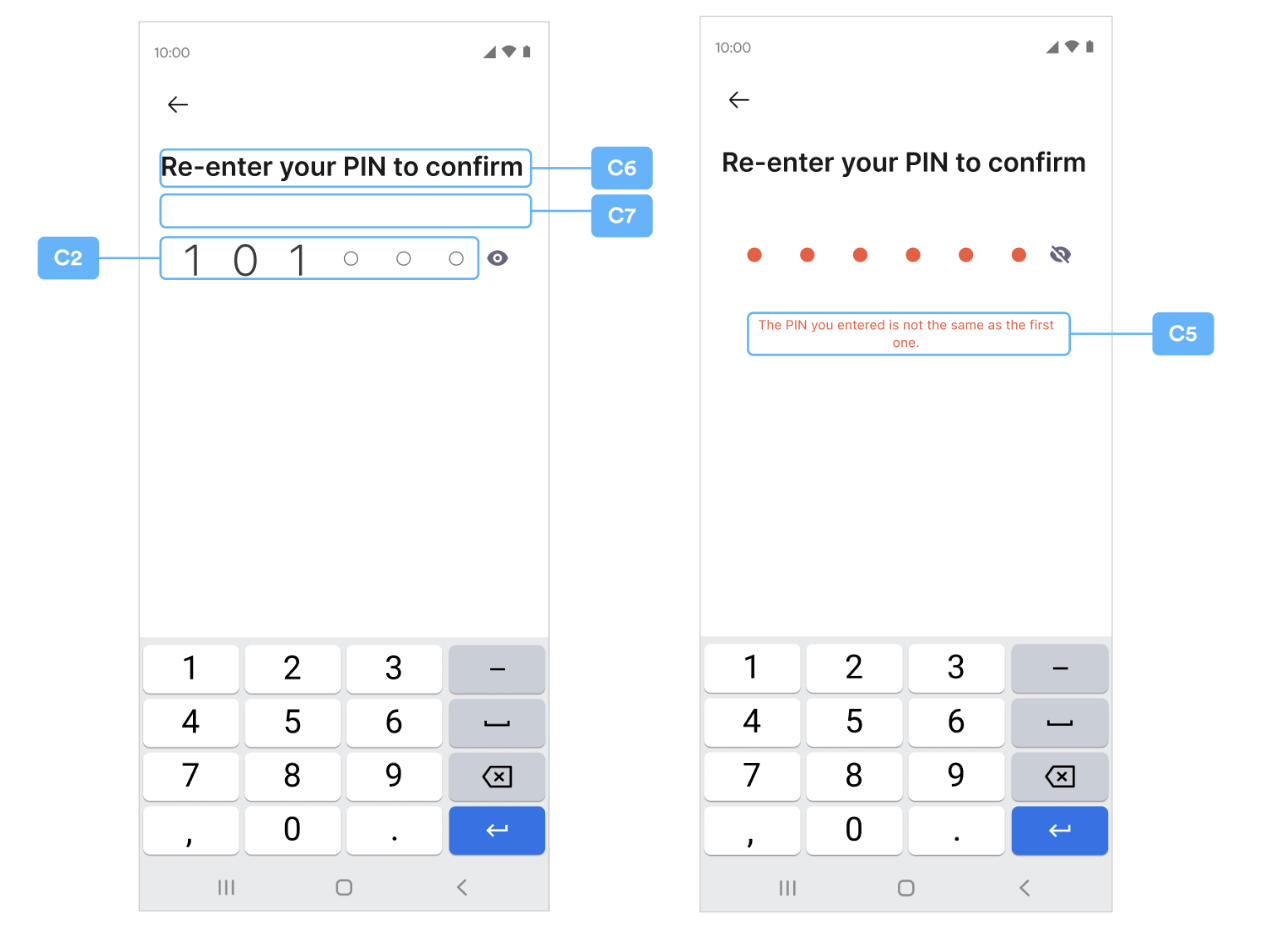
Confirm PIN Code
C6~C7
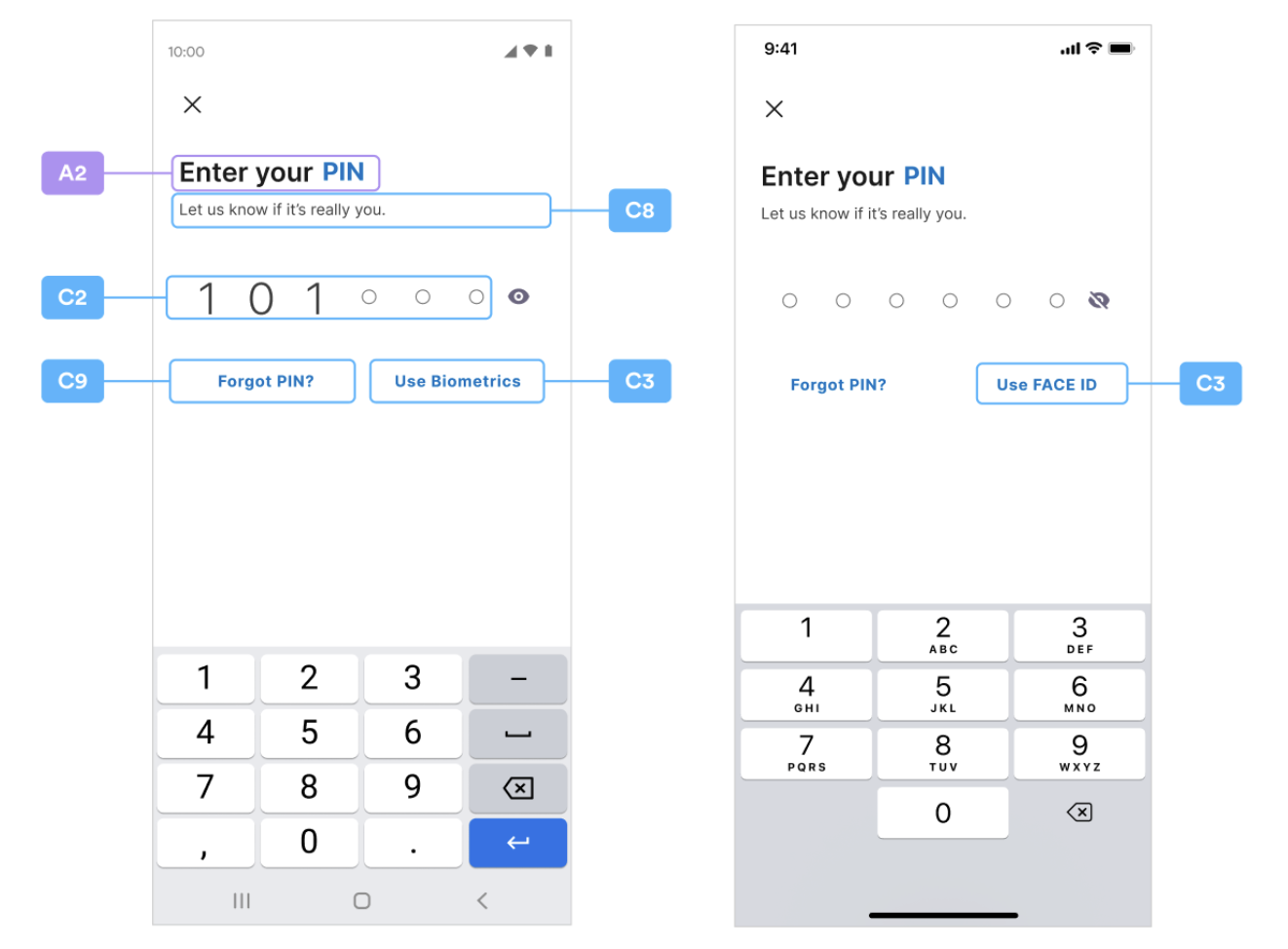
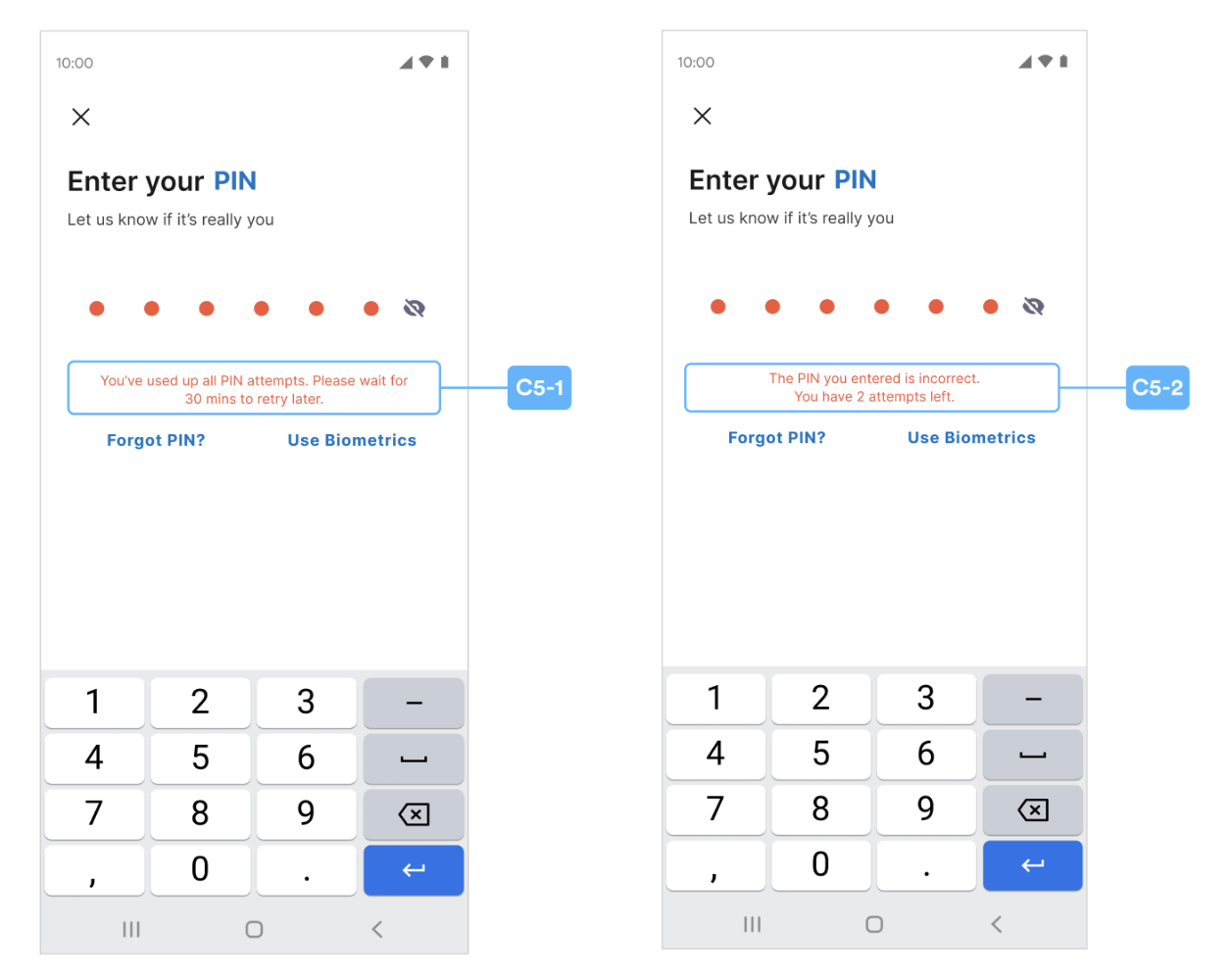
Enter PIN Code
A2 / C8~C9, C5-1, C5-2
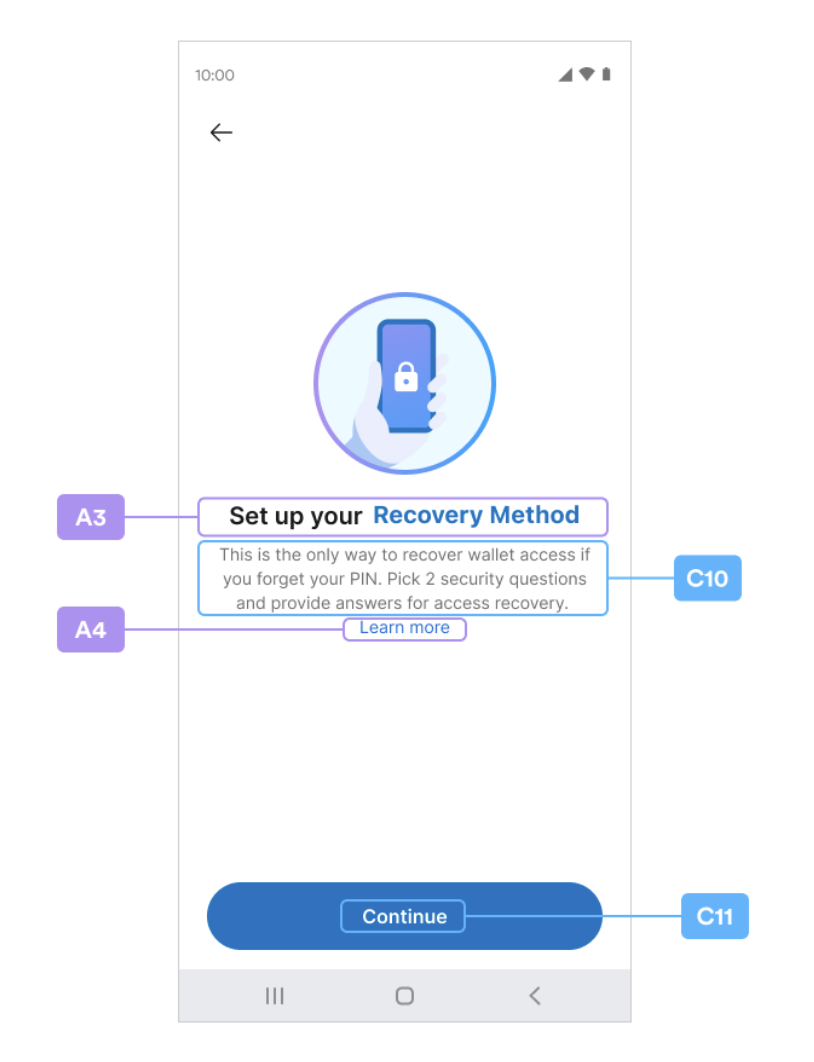
Security Intros
A3A4 / C10C11
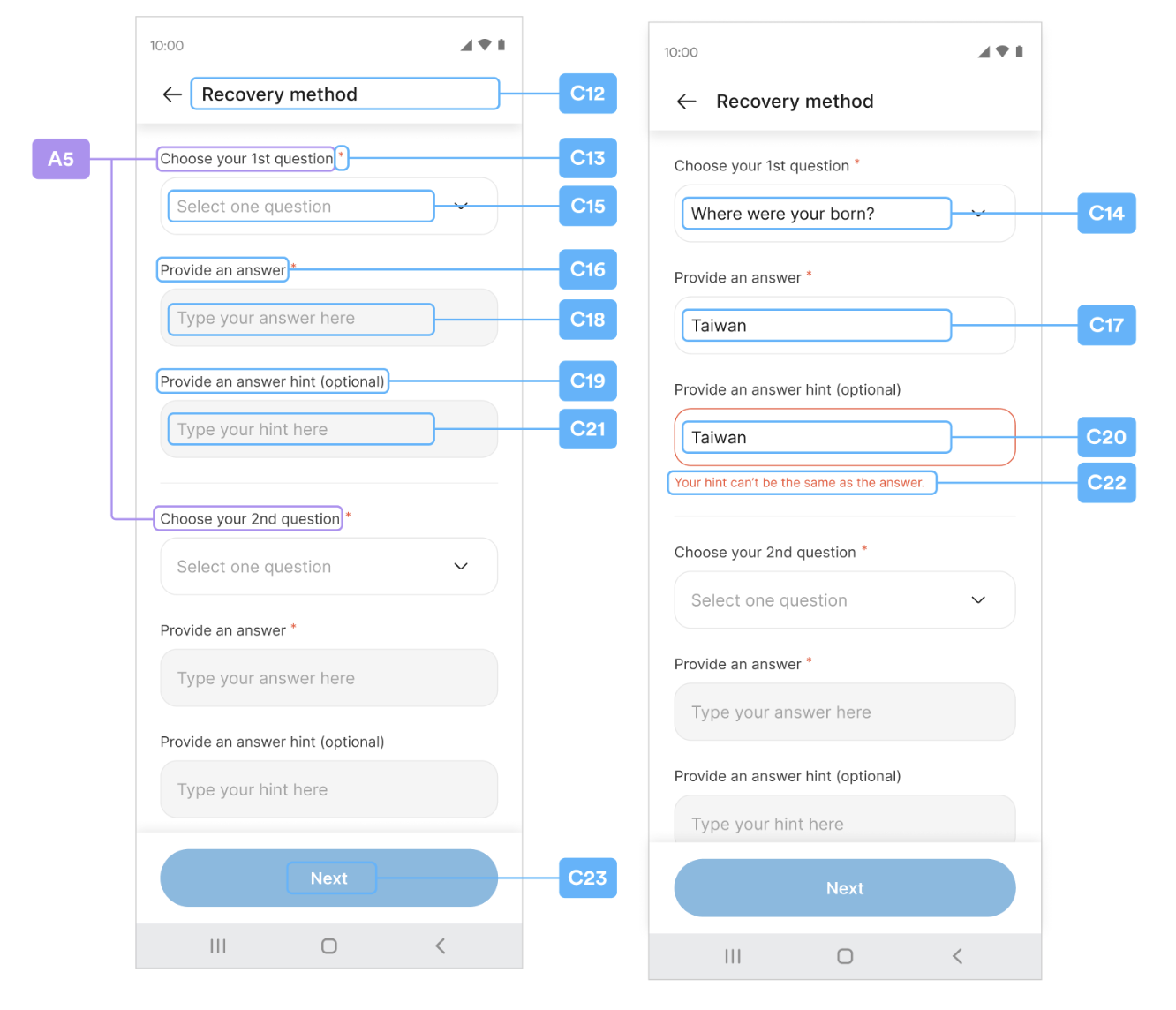
Security Questions Customization
Please reference the Security Question section in the SDK for how to customize the question by usingsetSecurityQuestions method.
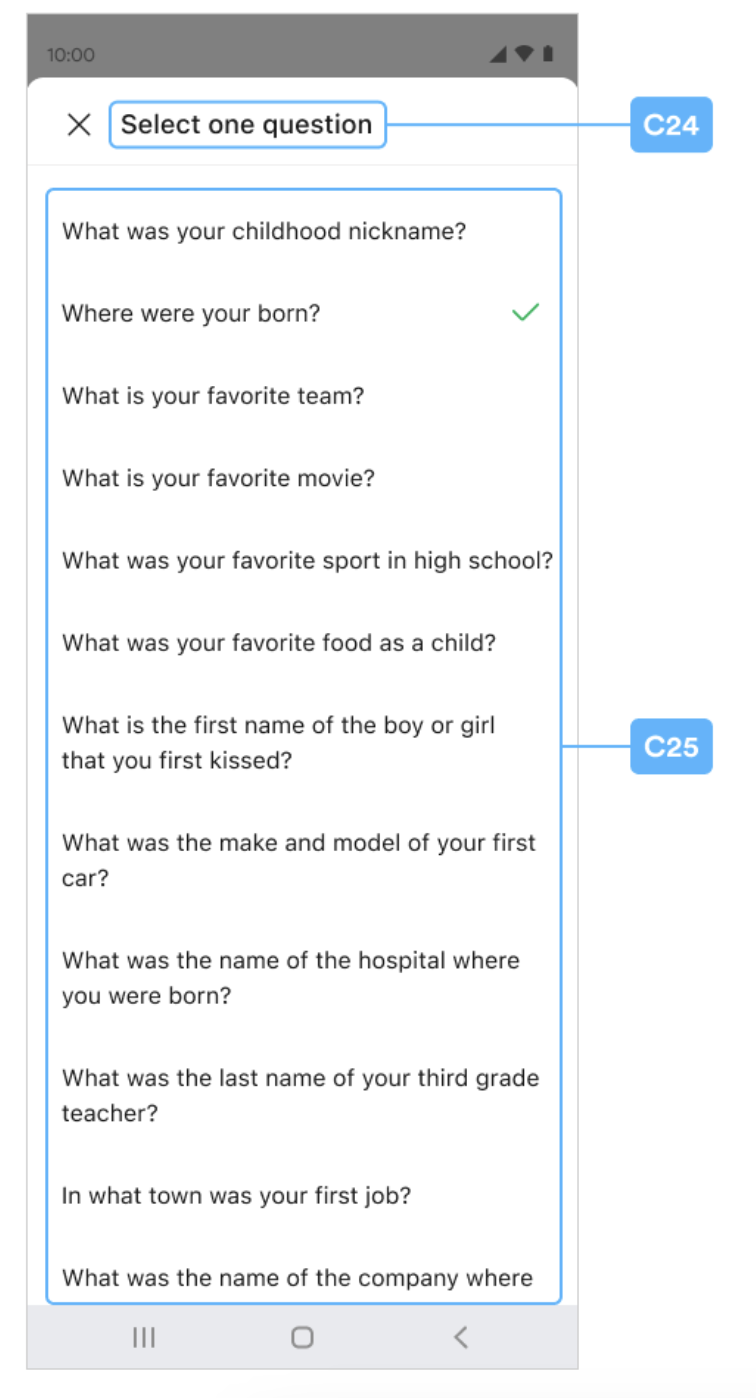
A5 / C12~C25
Security Summary
A6 / C26~C32
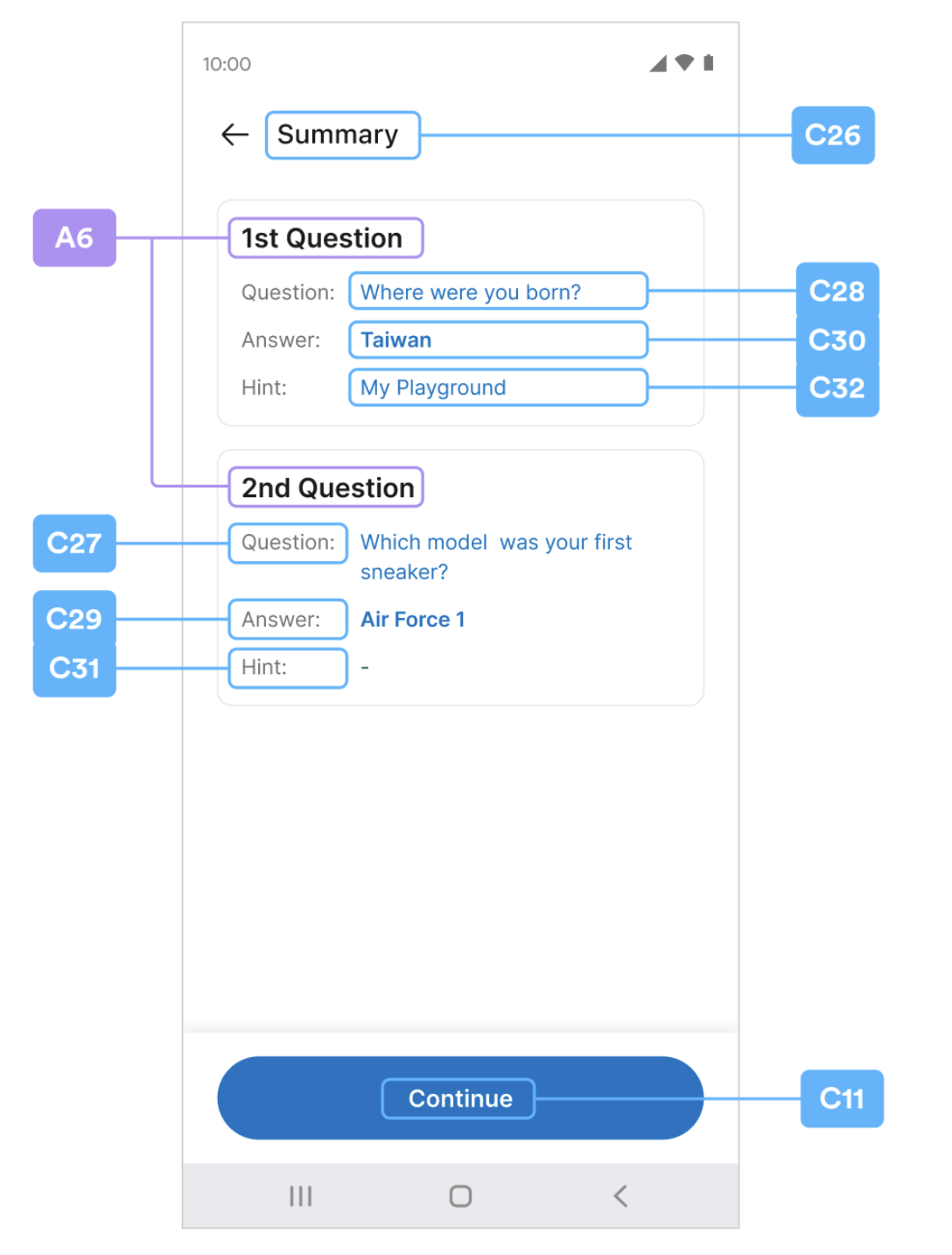
Security Confirm
C33~C37 / B1
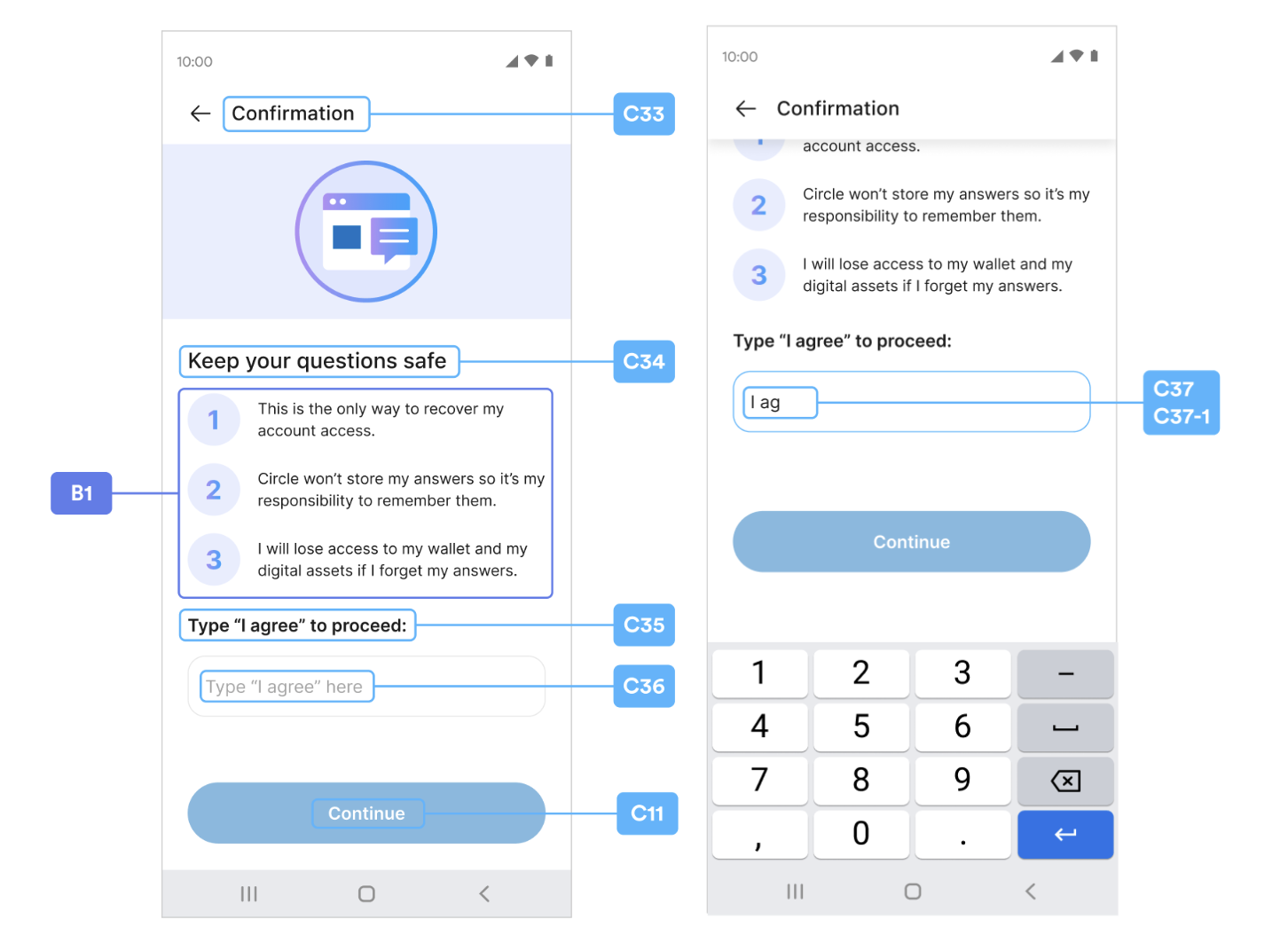
Recover PIN Code
A7 / C39~C47
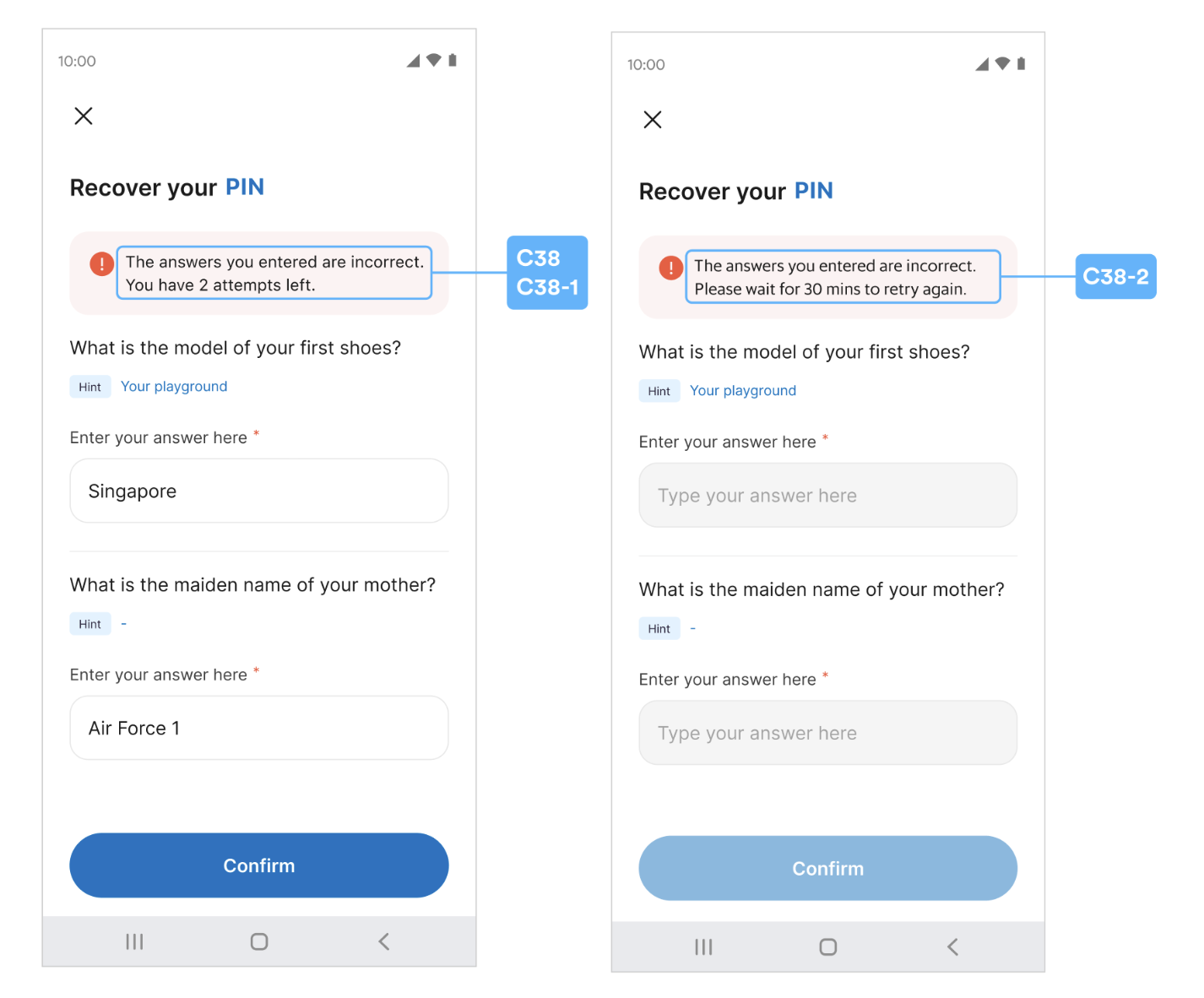
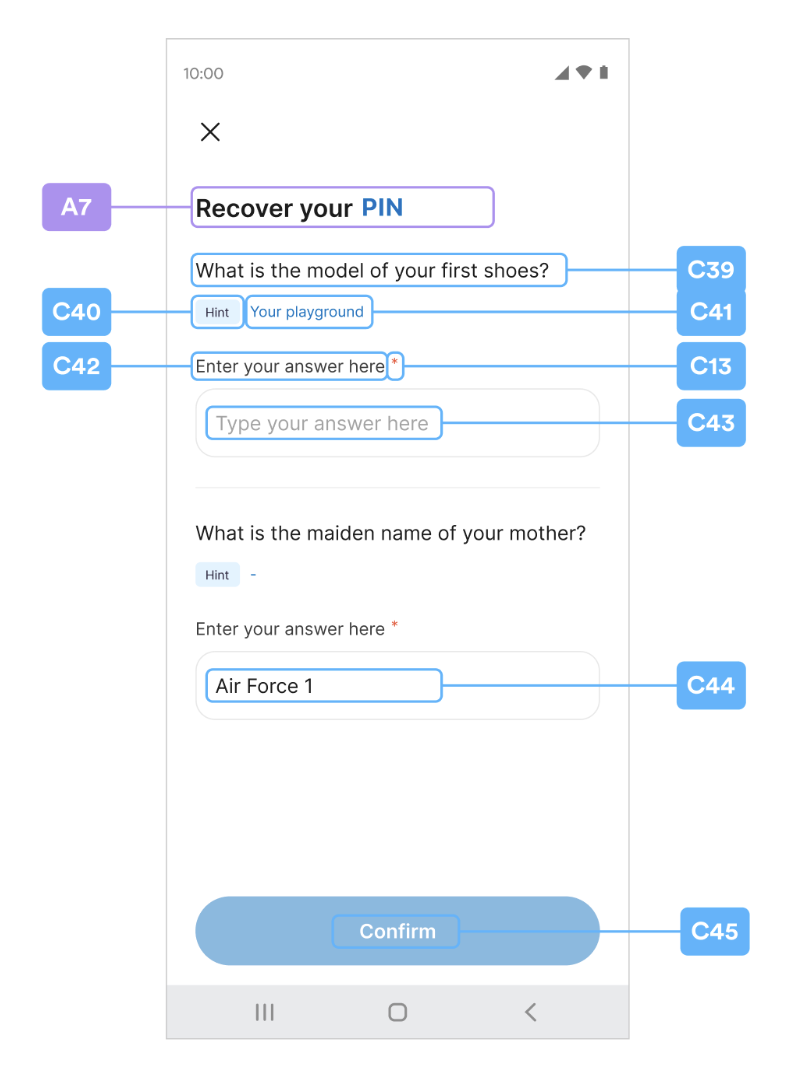
Biometrics Prompt
C46~C60
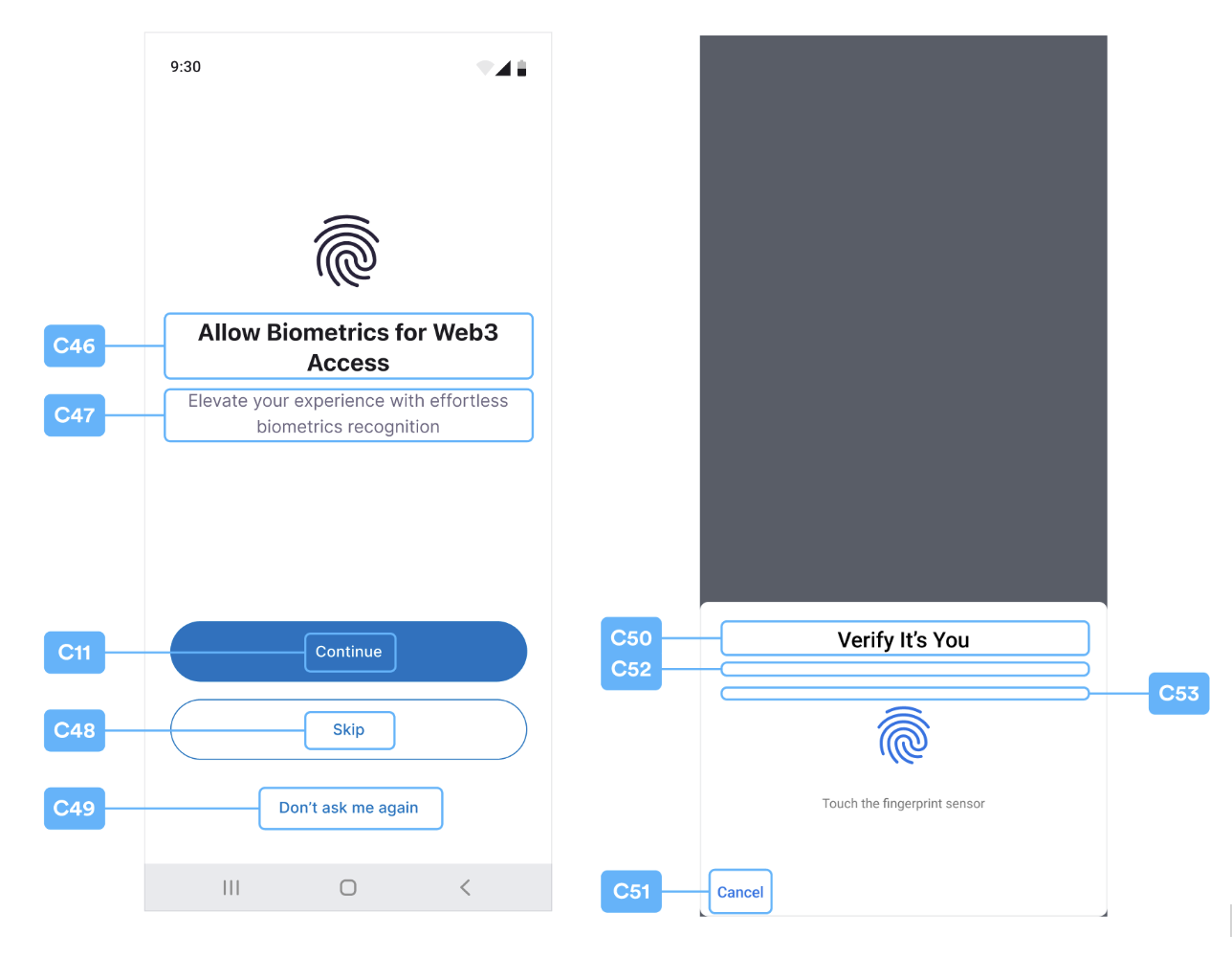
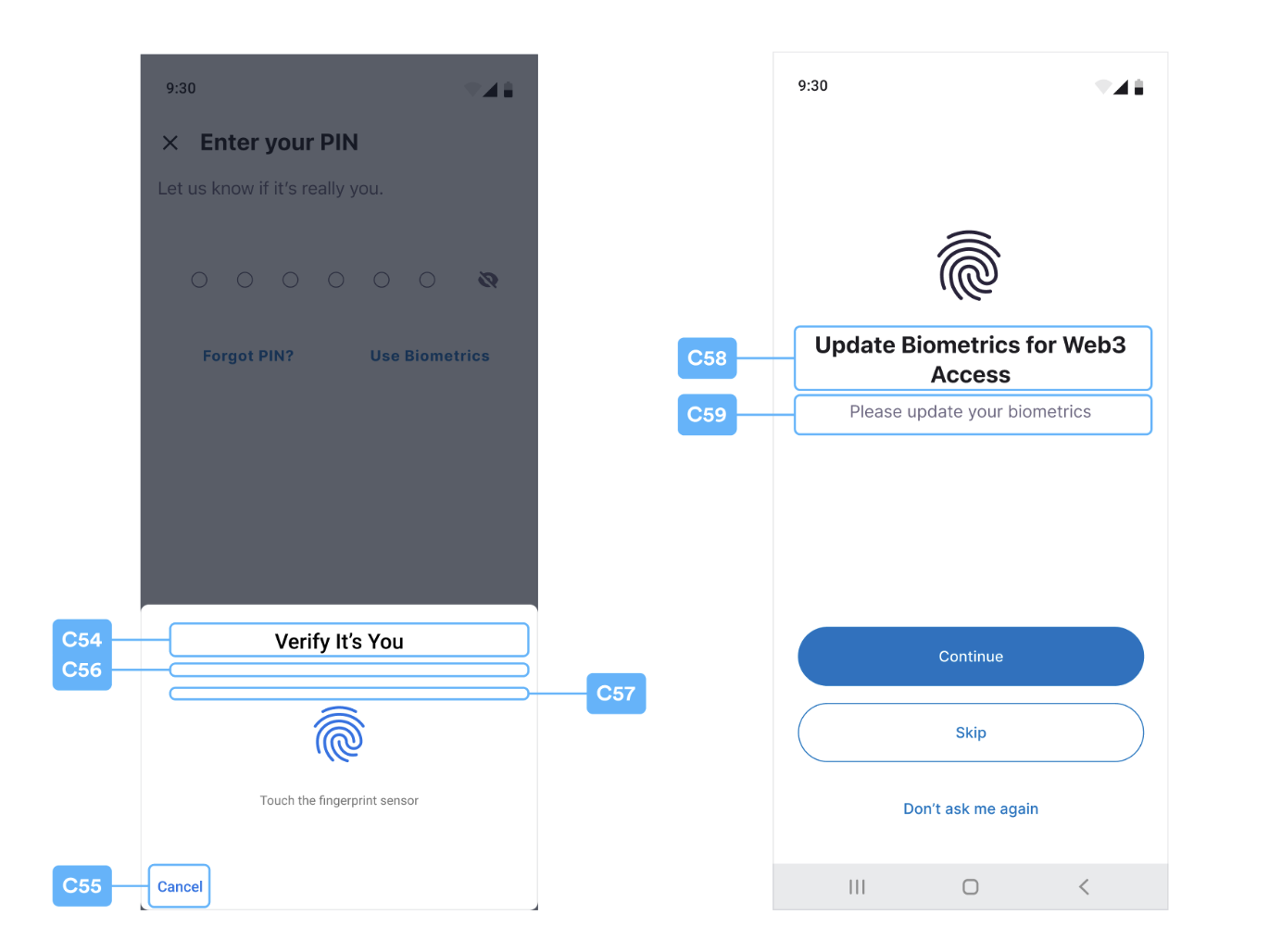

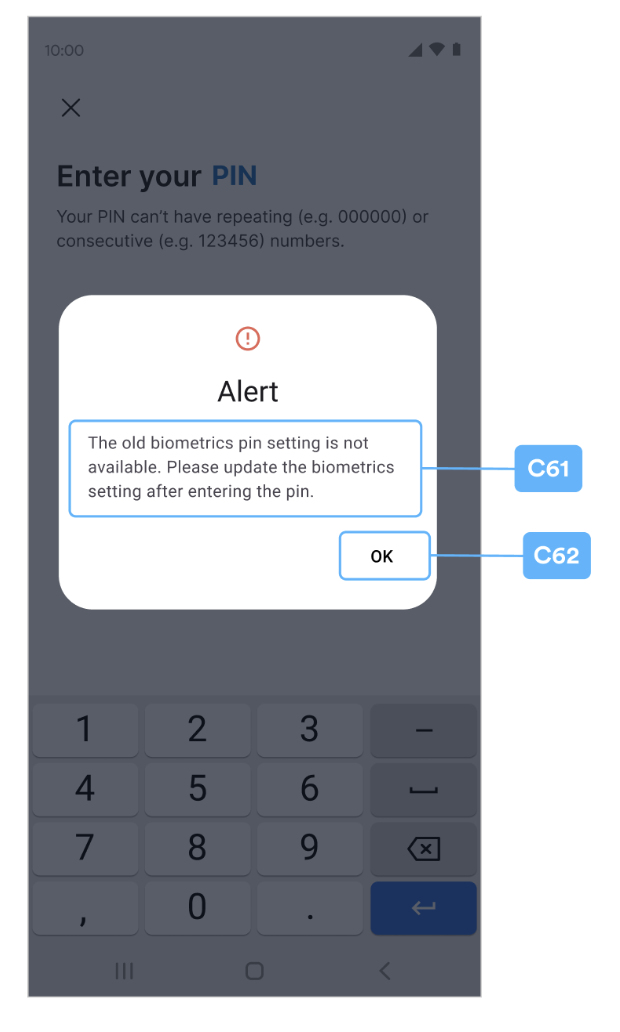
Alert Pop Window
C61~C62
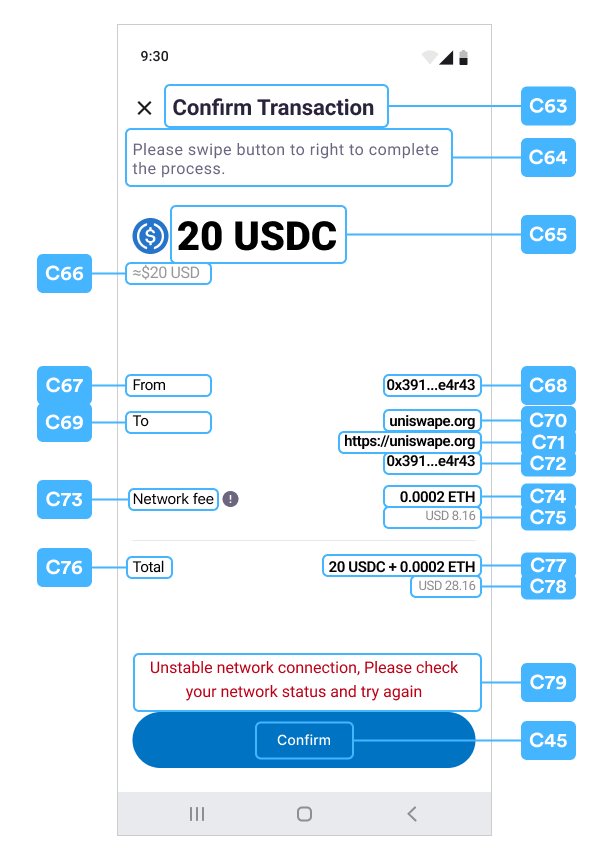
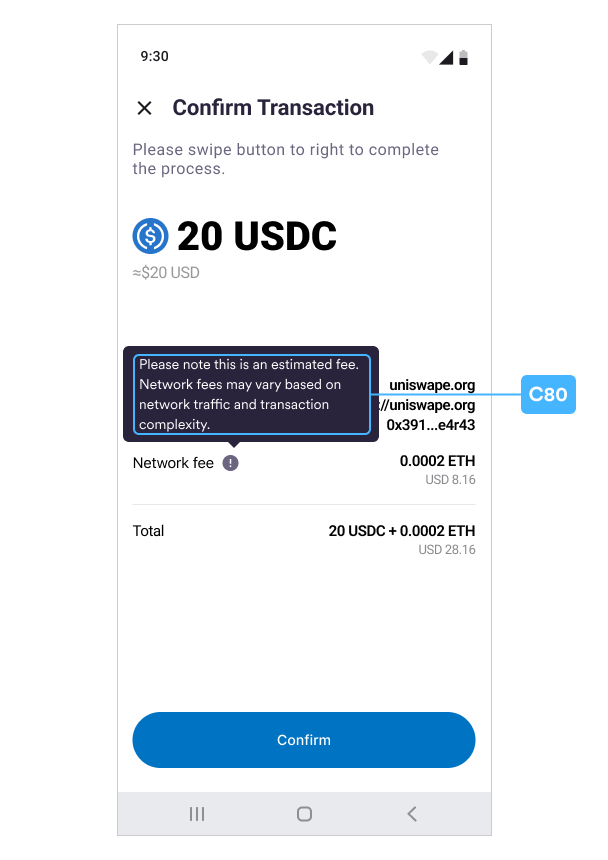
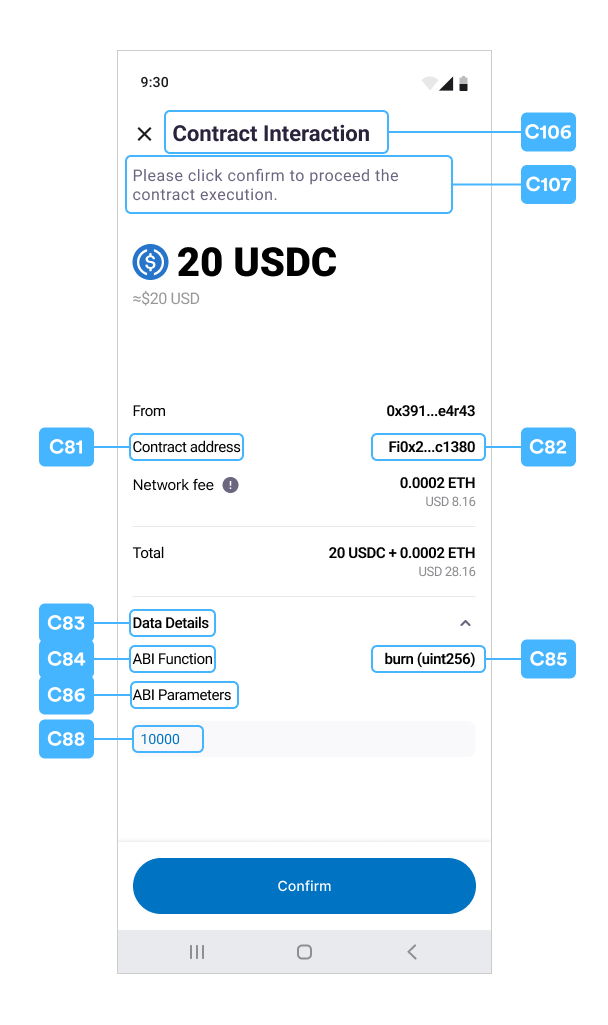
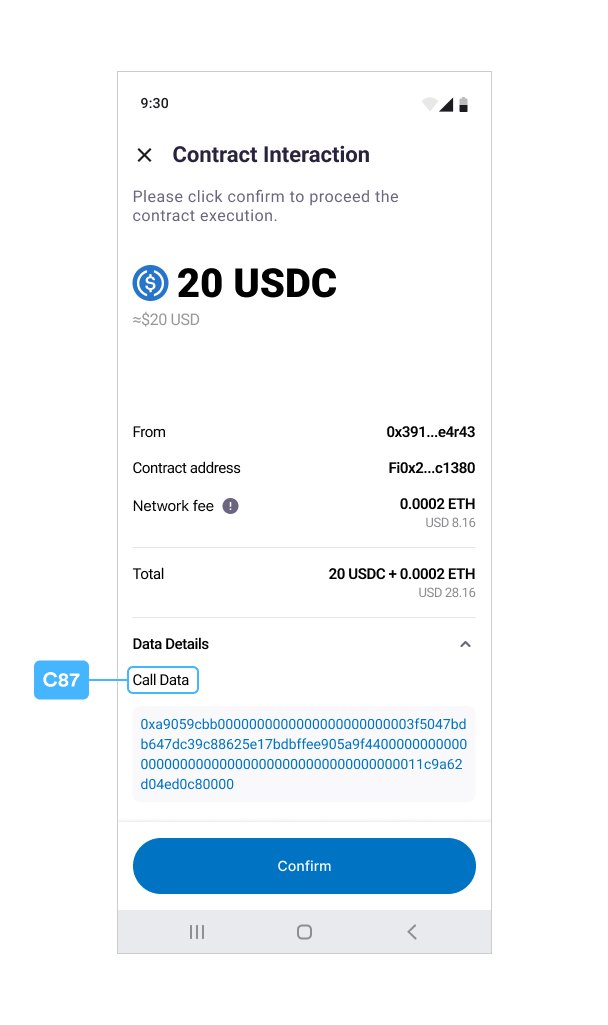
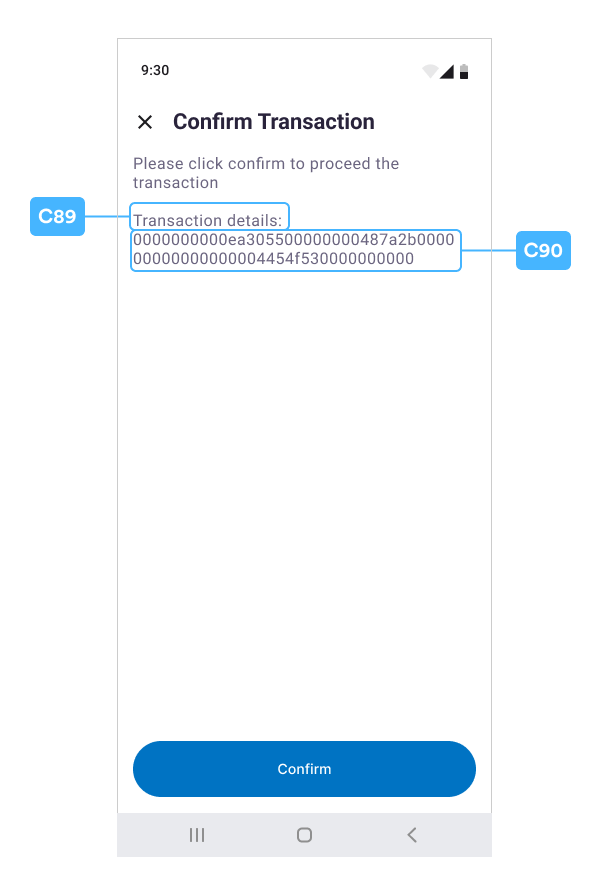
Confirm Transaction
C63~C90
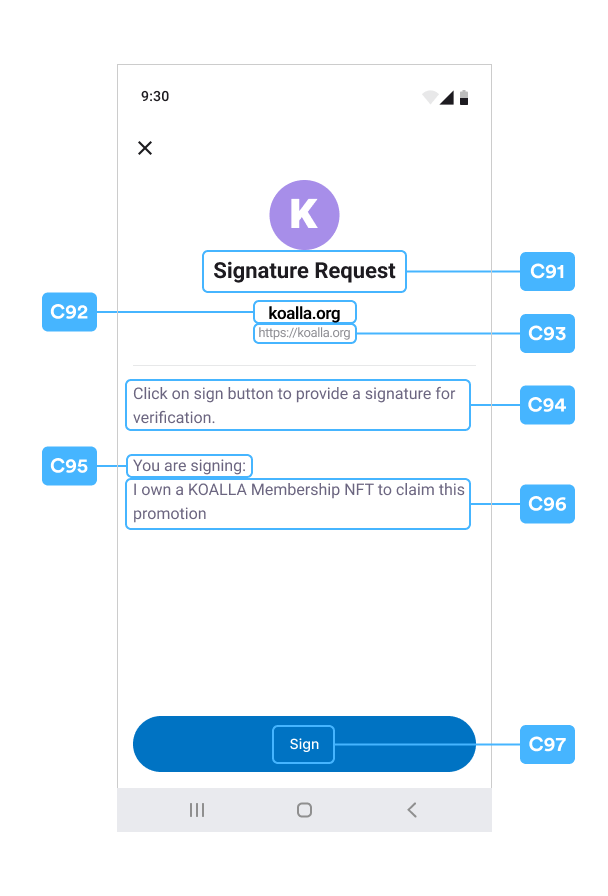
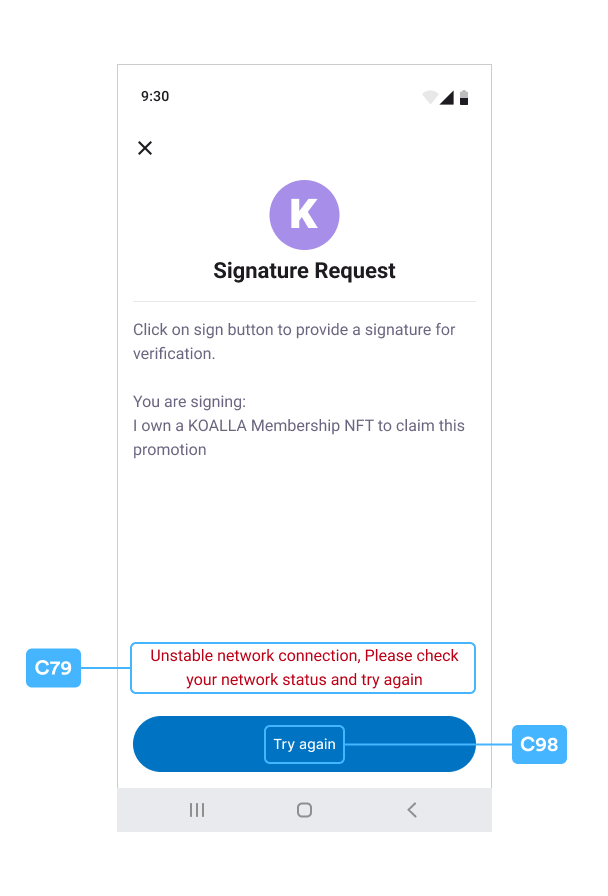
Signature Request
C91~C98
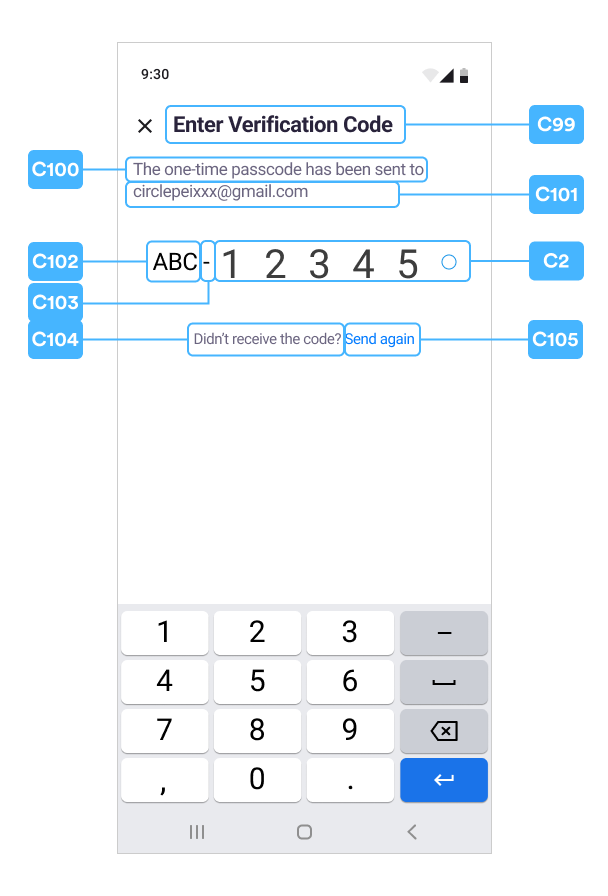
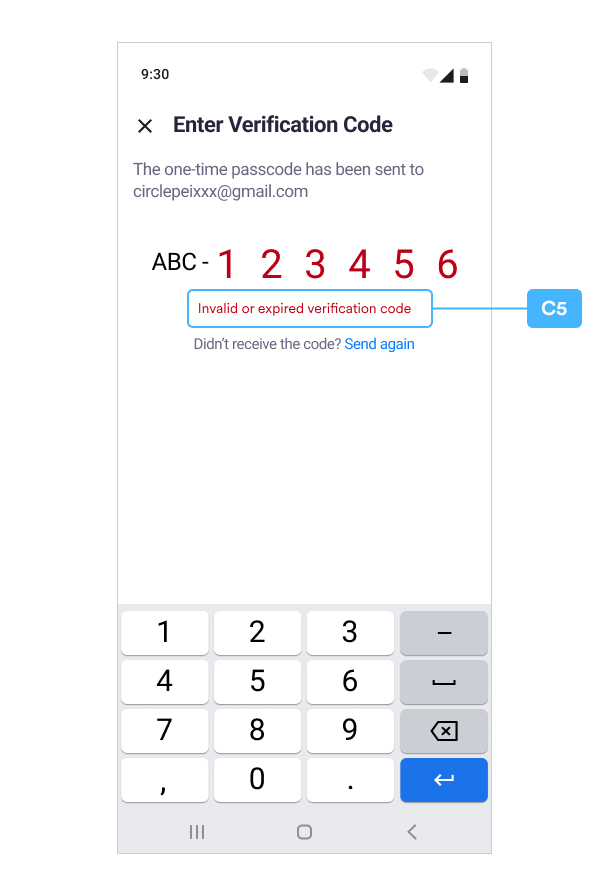
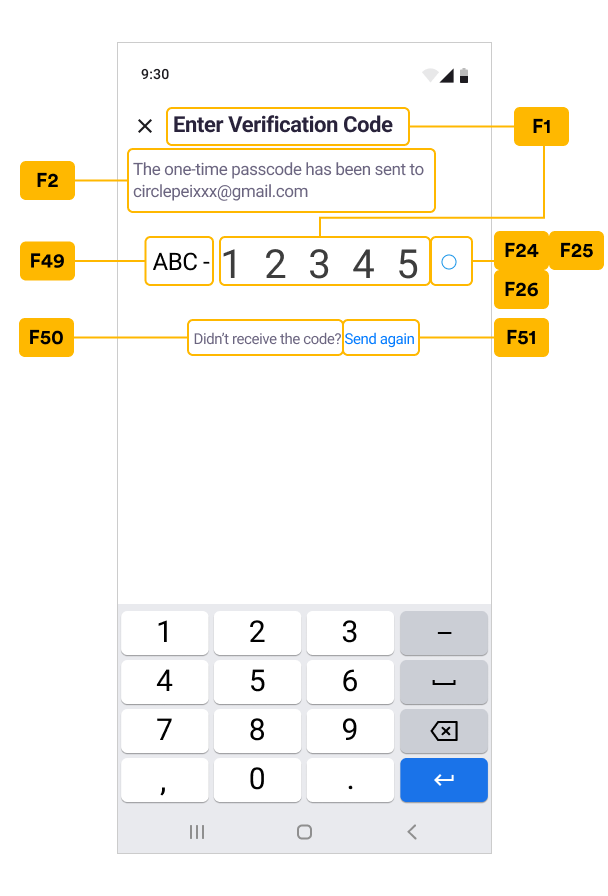
Verify OTP
C99~C105
A Index Table -TextsKey
Put the configs in a map then call WalletSdk.setTextConfigsMap(). For example:JavaScript
  const map = new Map()
  map.set(TextsKey.securityQuestionHeaders, [
    new TextConfig('Choose your 1st question'),
    new TextConfig('Choose your 2nd question')
  ])

  WalletSdk.setTextConfigsMap(map)
| Programmatic Customization | Static Resources | Note🔖 | |||||||||
|---|---|---|---|---|---|---|---|---|---|---|---|
| Android | iOS CirclePWTheme.json | ||||||||||
| # | TextsKey | TextConfigs length | TextConfig.text | TextConfig.textColor | TextConfig.font | TextConfig.gradientColors | colors.xml | styles.xml | color | font | |
| A1 | newPinCodeHeadline | <=2 | ✅ | ✅🔖 | ✅ | ✅🔖 | circlepw_text_main | circlepw_heading3 | text_main | semibold | textColor will be applied if gradientColors is null. |
| A2 | enterPinCodeHeadline | <=2 | ✅ | ✅🔖 | ✅ | ✅🔖 | circlepw_text_main | circlepw_heading3 | text_main | semibold | textColor will be applied if gradientColors is null. |
| A3 | securityIntroHeadline | <=2 | ✅ | ✅🔖 | ✅ | ✅🔖 | circlepw_text_main | circlepw_heading4 | text_main | semibold | textColor will be applied if gradientColors is null. |
| A4 | securityIntroLink | 2🔖 | ✅ | ✅🔖 | ✅🔖 | ❌ | circlepw_text_action | circlepw_body2 | text_action | regular | TextConfigs: [DisplayText, URL]Only display when the array length is not less then 2 and the URL is not empty.Set color / font according to TextConfig[0]. |
| A5 | securityQuestionHeaders | <= 5🔖 | ✅ | ✅🔖 | ✅🔖 | ❌ | circlepw_text_auxiliary | circlepw_body2 | text_auxiliary | regular | TextConfigs over the length limit will be ignored. |
| A6 | securitySummaryQuestionHeaders | Same as securityQuestionHeaders (A5) | ✅ | ✅ | ✅ | ❌ | circlepw_text_main2 | circlepw_heading5 | text_main2 | semibold | TextConfigs over the length limit will be ignored. |
| A7 | recoverPinCodeHeadline | Free | ✅ | ✅🔖 | ✅ | ✅🔖 | circlepw_text_main | circlepw_heading3 | text_main | semibold | textColor will be applied if gradientColors is null. |
B Index Table - IconTextsKey
Use this Index Table to reference the dynamic special Icon, Text, Color, and Font Customization. Both the icon image and the text fields are dynamically configured together.You can use IconTextConfig() constructor with local image or remote image URL. For example:
JavaScript
new IconTextConfig(
      require('../assets/image/local_icon.png'),
      new TextConfig(text, color, font)
    )

new IconTextConfig(
      {uri: 'https://remote_image'}
      new TextConfig(text, color, font)
    )
JavaScript
 const map = new Map()
 map.set(IconTextsKey.securityConfirmationItems, [
    new IconTextConfig(
      require('../assets/image/local_icon.png'),
      new TextConfig(text, color, font),
    ),
  ])
  WalletSdk.setIconTextConfigsMap(map)
| Programmatic Customization | Static Resources | Note🔖 | |||||||||
|---|---|---|---|---|---|---|---|---|---|---|---|
| Android | iOS CirclePWTheme.json | ||||||||||
| # | IconTextsKey | TextConfigs length | TextConfig.text | TextConfig.textColor | TextConfig.font | TextConfig.gradientColors | colors.xml | styles.xml | color | font | |
| B1 | securityConfirmationItems | <=4🔖 | ✅ | ✅ | ✅ | ❌ | circlepw_text_main | circlepw_body2 | text_main | regular | textColor will be applied if gradientColors is null. |
C Index Table - TextKey
For programmatic customization, put the configs in a map then call WalletSdk.setTextConfigMap(). For example:JavaScript
   const map = new Map()
  map.set(
    TextKey.circlepw_recover_pincode_answer_input_placeholder,
    new TextConfig(
      'Type your answer here',
      colors.placeholder,
      'Inter-Regular',
    ),
  )
  WalletSdk.setTextConfigMap(map)
Note:The
gradientColors field is not supported for the Keys in this table. If you
dynamically set the color as gradientColor, the effect will be ignored and the
Android WARN level log will be printed.| Programmatic Customization | Static Resources | Note | |||||||||
|---|---|---|---|---|---|---|---|---|---|---|---|
| TextConfig | Android | iOS CirclePWLocalizable.json | iOS CirclePWTheme.json | ||||||||
| # | TextKey | text | textColor | font | strings.xml | colors.xml | styles.xml | string | color | font | |
| C1 | circlepw_new_pincode_subhead | ✅ | ✅ | ✅ | circlepw_new_pincode_subhead | circlepw_text_auxiliary | circlepw_body2 | circlepw_new_pincode_subhead | text_auxiliary | regular | |
| C2 | ❌ | ❌ | ❌ | ❌ | ❌ | circlepw_text_main | circlepw_pinDigitText | ❌ | text_main | light | Normal |
| circlepw_success | circlepw_pinDigitText | success | Succeed | ||||||||
| circlepw_error | circlepw_pinDigitText | error | Failed | ||||||||
| C3 | circlepw_enter_pincode_use_biometrics | ✅ | ✅ | ✅ | circlepw_enter_pincode_use_biometrics🔖 | circlepw_pressed_assist_text_color | circlepw_actionText | circlepw_enter_pincode_use_biometrics🔖 | text_action | semibold | For Android, the default text is “Use Biometrics”. For iOS, the default text is “Use FACE ID”. |
| C5 | circlepw_pincode_error_config | ❌🔖 | ✅ | ✅ | ❌🔖 | circlepw_error | circlepw_body2 | ❌🔖 | error | regular | For text, see Error Message:incorrectUserPin(155112), userPinLocked(155119), pinCodeNotMatched(155703) |
| C5-1 | circlepw_pin_remain_attemps_template | ✅🔖 | ❌ | ❌ | circlepw_pin_remain_attemps_template | ❌ | ❌ | ❌ | ❌ | ❌ | e.g. You have %s attempts left. |
| C5-2 | circlepw_pin_lock_period_template | ✅🔖 | ❌ | ❌ | circlepw_pin_lock_period_template | ❌ | ❌ | ❌ | ❌ | ❌ | e.g. You’ve used up all PIN attempts. Please wait for %s mins to retry later.. |
| C6 | circlepw_confirm_pincode_headline | ✅ | ✅ | ✅ | circlepw_confirm_pincode_headline | circlepw_text_main | circlepw_heading3 | circlepw_confirm_pincode_headline | text_main | semibold | |
| C7 | circlepw_confirm_pincode_subhead | ✅ | ✅ | ✅ | circlepw_confirm_pincode_subhead | circlepw_text_auxiliary | circlepw_body2 | circlepw_confirm_pincode_subhead | text_auxiliary | regular | |
| C8 | circlepw_enter_pincode_subhead | ✅ | ✅ | ✅ | circlepw_enter_pincode_subhead | circlepw_text_auxiliary | circlepw_body2 | circlepw_enter_pincode_subhead | text_auxiliary | regular | |
| C9 | circlepw_enter_pincode_forgot_pin | ✅ | ✅ | ✅ | circlepw_enter_pincode_forgot_pin | circlepw_text_action | circlepw_actionText | circlepw_enter_pincode_forgot_pin | text_action / text_action_pressed | semibold | |
| C10 | circlepw_security_intros_description | ✅ | ✅ | ✅ | circlepw_security_intros_description | circlepw_text_auxiliary2 | circlepw_body2 | circlepw_security_intros_description | text_auxiliary2 | regular | |
| C11 | circlepw_continue | ✅ | ✅ | ✅ | circlepw_continue | circlepw_main_bt_text | circlepw_mainButtonText | circlepw_continue | main_bt_text | semibold | Normal |
| circlepw_main_bt_text_pressed | main_bt_text_pressed | Pressed | |||||||||
| circlepw_disabled_main_bt_text | main_bt_text_disabled | Disabled | |||||||||
| C12 | circlepw_security_questions_title | ✅ | ✅ | ✅ | circlepw_security_questions_title | circlepw_text_main | circlepw_toolbarTitle | circlepw_security_questions_title | text_main | medium | |
| C13 | circlepw_security_questions_required_mark | ✅ | ✅ | ✅ | circlepw_security_questions_required_mark | circlepw_error | circlepw_metadata1 | circlepw_security_questions_required_mark | error | regular | |
| C14 | circlepw_security_questions_question_input_config | ❌ | ✅ | ✅ | ❌ | circlepw_text_main | circlepw_body1 | ❌ | text_main | regular | |
| C15 | circlepw_security_questions_question_placeholder | ✅🔖 | ✅🔖 | ❌ | circlepw_security_questions_question_placeholder | circlepw_placeholder | circlepw_body1 | circlepw_security_questions_question_placeholder | text_placeholder | regular | Set TextView’s textColorHint and hint. Apply circlepw_security_questions_question_input_config (C14)‘s font. |
| C16 | circlepw_security_questions_answer_header | ✅ | ✅ | ✅ | circlepw_security_questions_answer_header | circlepw_text_auxiliary | circlepw_body2 | circlepw_security_questions_answer_header | text_auxiliary | regular | |
| C17 | circlepw_security_questions_answer_input_config | ❌ | ✅ | ✅ | ❌ | circlepw_text_main | circlepw_body1 | ❌ | text_main | regular | |
| C18 | circlepw_security_questions_answer_placeholder | ✅🔖 | ✅🔖 | ❌🔖 | circlepw_security_questions_answer_placeholder | circlepw_placeholder | circlepw_body1 | circlepw_security_questions_answer_placeholder | text_placeholder | regular | Set TextView’s textColorHint and hint. Apply circlepw_security_questions_answer_input_config (C17)‘s font. |
| C19 | circlepw_security_questions_answer_hint_header | ✅ | ✅ | ✅ | circlepw_security_questions_answer_hint_header | circlepw_text_auxiliary | circlepw_body2 | circlepw_security_questions_answer_hint_header | text_auxiliary | regular | |
| C20 | circlepw_security_questions_answer_hint_input_config | ❌ | ✅ | ✅ | ❌ | circlepw_text_main | circlepw_body1 | ❌ | text_main | regular | |
| C21 | circlepw_security_questions_answer_hint_placeholder | ✅🔖 | ✅🔖 | ❌🔖 | circlepw_security_questions_answer_hint_placeholder | circlepw_placeholder | circlepw_body1 | circlepw_security_questions_answer_hint_placeholder | text_placeholder | regular | Set TextView’s textColorHint and hint. Apply circlepw_security_questions_answer_hint_input_config (C20)‘s font. |
| C22 | circlepw_security_questions_error_config | ❌🔖 | ✅ | ✅ | ❌🔖 | circlepw_error | circlepw_metadata1 | ❌ | error | regular | For text, see Error Message:hintsMatchAnswers(155705) |
| C23 | circlepw_next | ✅ | ✅ | ✅ | circlepw_next | circlepw_main_bt_text | circlepw_mainButtonText | circlepw_next | main_bt_text | semibold | Normal |
| circlepw_main_bt_text_pressed | main_bt_text_pressed | Pressed | |||||||||
| circlepw_disabled_main_bt_text | main_bt_text_disabled | Disabled | |||||||||
| C24 | circlepw_select_question_title | ✅ | ✅ | ✅ | circlepw_select_question_title | circlepw_text_main | circlepw_toolbarTitle | circlepw_select_question_title | text_main | medium | |
| C25 | circlepw_select_question_item_config | ❌ | ✅ | ✅ | ❌ | circlepw_text_main | circlepw_body1 | ❌ | text_main | regular | |
| C26 | circlepw_security_summary_title | ✅ | ✅ | ✅ | circlepw_security_summary_title | circlepw_text_main | circlepw_toolbarTitle | circlepw_security_summary_title | text_main | medium | |
| C27 | circlepw_question_label | ✅ | ✅ | ✅ | circlepw_question_label | circlepw_text_auxiliary2 | circlepw_body2 | circlepw_question + “:” | text_auxiliary2 | regular | |
| C28 | circlepw_security_summary_question_value_config | ❌ | ✅ | ✅ | ❌ | circlepw_text_summary | circlepw_body2 | ❌ | text_summary | regular | |
| C29 | circlepw_answer_label | ✅ | ✅ | ✅ | circlepw_answer_label | circlepw_text_auxiliary2 | circlepw_body2 | circlepw_answer + “:“ | text_auxiliary2 | regular | |
| C30 | circlepw_security_summary_answer_value_config | ❌ | ✅ | ✅ | ❌ | circlepw_text_summary | circlepw_caption2 | ❌ | text_summary_highlight | semibold | |
| C31 | circlepw_hint_label | ✅ | ✅ | ✅ | circlepw_hint_label | circlepw_text_auxiliary2 | circlepw_body2 | circlepw_hint + “:“ | text_auxiliary2 | regular | |
| C32 | circlepw_security_summary_hint_value_config | ❌ | ✅ | ✅ | ❌ | circlepw_text_summary | circlepw_body2 | ❌ | text_summary | regular | |
| C33 | circlepw_security_confirm_title | ✅ | ✅ | ✅ | circlepw_security_confirm_title | circlepw_text_main | circlepw_toolbarTitle | circlepw_security_confirm_title | text_main | medium | |
| C34 | circlepw_security_confirm_headline | ✅ | ✅ | ✅ | circlepw_security_confirm_headline | circlepw_text_main | circlepw_heading4 | circlepw_security_confirm_headline | text_main | medium | |
| C35 | circlepw_security_confirm_input_headline | ✅ | ✅ | ✅ | circlepw_security_confirm_input_headline | circlepw_text_main2 | circlepw_caption1 | circlepw_security_confirm_input_headline | text_main2 | semibold | |
| C36 | circlepw_security_confirm_input_placeholder | ✅🔖 | ✅🔖 | ❌🔖 | circlepw_security_confirm_input_placeholder | circlepw_placeholder | circlepw_body1 | circlepw_security_confirm_input_placeholder | text_placeholder | regular | Set TextView’s textColorHint and hint. Apply circlepw_security_confirm_input_config (C37)‘s font. |
| C37 | circlepw_security_confirm_input_config | ❌ | ✅ | ✅ | ❌ | circlepw_text_main | circlepw_body1 | ❌ | text_main2 | regular | |
| C37-1 | circlepw_security_confirm_input_match | ✅ | ❌ | ❌ | circlepw_security_confirm_input_match | ❌ | ❌ | circlepw_security_confirm_input_match | ❌ | ❌ | The text is the answer that requires user type. e.g. I agree |
| C38 | circlepw_recover_pincode_error_config | ❌🔖 | ✅ | ✅ | ❌🔖 | circlepw_text_main | circlepw_body2 | ❌ | text_main | regular | For text, see Error Message:incorrectSecurityAnswers(155115), securityAnswersLocked(155120) |
| C38-1 | circlepw_answer_remain_attemps_template | ✅🔖 | ❌ | ❌ | circlepw_answer_remain_attemps_template | ❌ | ❌ | e.g. You have %s attempts left. | |||
| C38-2 | circlepw_answer_lock_period_template | ✅🔖 | ❌ | ❌ | circlepw_answer_lock_period_template | ❌ | ❌ | e.g. Please wait for %s mins to retry later | |||
| C39 | circlepw_recover_pincode_question_config | ❌ | ✅ | ✅ | ❌ | circlepw_text_main2 | circlepw_body1 | ❌ | text_main2 | regular | |
| C40 | circlepw_hint_tag | ✅ | ✅ | ✅ | circlepw_hint_tag | circlepw_tag_text | circlepw_metadata2 | circlepw_hint | recover_pin_hint_title | regular | |
| C41 | circlepw_recover_pincode_answer_hint_config | ❌ | ✅ | ✅ | ❌ | circlepw_tag_following_text | circlepw_metadata1 | ❌ | recover_pin_hint | regular | |
| C42 | circlepw_recover_pincode_answer_input_header | ✅ | ✅ | ✅ | circlepw_recover_pincode_answer_input_header | circlepw_text_auxiliary | circlepw_body2 | circlepw_recover_pincode_answer_input_header | text_auxiliary | regular | |
| C43 | circlepw_recover_pincode_answer_input_placeholder | ✅🔖 | ✅🔖 | ❌🔖 | circlepw_recover_pincode_answer_input_placeholder | circlepw_placeholder | circlepw_body1 | circlepw_recover_pincode_answer_input_placeholder | text_placeholder | regular | Set TextView’s textColorHint and hint. Apply circlepw_recover_pincode_input_config (C44)‘s font. |
| C44 | circlepw_recover_pincode_input_config | ❌ | ✅ | ✅ | ❌ | circlepw_text_main | circlepw_body1 | ❌ | text_main | regular | |
| C45 | circlepw_confirm | ✅ | ✅ | ✅ | circlepw_confirm | circlepw_main_bt_text | circlepw_mainButtonText | circlepw_confirm | main_bt_text | semibold | |
| circlepw_main_bt_text_pressed | main_bt_text_pressed | ||||||||||
| circlepw_disabled_main_bt_text | main_bt_text_disabled | ||||||||||
| C46 | circlepw_pin_biometrics_allow_title | ✅ | ✅ | ✅ | circlepw_pin_biometrics_allow_title | circlepw_text_main | circlepw_heading3 | circlepw_pin_biometrics_allow_title | text_prompt | bold | |
| C47 | circlepw_pin_biometrics_allow_subtitle | ✅ | ✅ | ✅ | circlepw_pin_biometrics_allow_subtitle | circlepw_text_auxiliary | circlepw_body2 | circlepw_pin_biometrics_allow_subtitle | text_prompt2 | regular | |
| C48 | circlepw_skip | ✅ | ✅ | ✅ | circlepw_skip | circlepw_second_bt_text | circlepw_secondButton | circlepw_skip | second_bt_text | semibold | Normal |
| circlepw_second_bt_text | Pressed | ||||||||||
| circlepw_second_bt_text_disabled | Disabled | ||||||||||
| C49 | circlepw_pin_biometrics_disable | ✅ | ✅ | ✅ | circlepw_pin_biometrics_disable | circlepw_plain_bt_text | circlepw_plainButton | circlepw_pin_biometrics_disable | plain_bt_text | semibold | Normal |
| circlepw_plain_bt_text | Pressed | ||||||||||
| circlepw_plain_bt_text_disabled | Disabled | ||||||||||
| C50 | circlepw_pin_biometrics_encrypt_title | ✅ | ❌ | ❌ | circlepw_pin_biometrics_encrypt_title | ❌ | ❌ | ❌ | ❌ | ❌ | Android only. |
| C51 | circlepw_pin_biometrics_encrypt_negative_text | ✅ | ❌ | ❌ | circlepw_pin_biometrics_encrypt_negative_text | ❌ | ❌ | ❌ | ❌ | ❌ | Android only. |
| C52 | circlepw_pin_biometrics_encrypt_subtitle | ✅ | ❌ | ❌ | circlepw_pin_biometrics_encrypt_subtitle | ❌ | ❌ | ❌ | ❌ | ❌ | Android only. |
| C53 | circlepw_pin_biometrics_encrypt_desc | ✅ | ❌ | ❌ | circlepw_pin_biometrics_encrypt_desc | ❌ | ❌ | ❌ | ❌ | ❌ | Android only. |
| C54 | circlepw_pin_biometrics_decrypt_title | ✅ | ❌ | ❌ | circlepw_pin_biometrics_decrypt_title | ❌ | ❌ | ❌ | ❌ | ❌ | Android only. |
| C55 | circlepw_pin_biometrics_decrypt_negative_text | ✅ | ❌ | ❌ | circlepw_pin_biometrics_decrypt_negative_text | ❌ | ❌ | ❌ | ❌ | ❌ | Android only. |
| C56 | circlepw_pin_biometrics_decrypt_subtitle | ✅ | ❌ | ❌ | circlepw_pin_biometrics_decrypt_subtitle | ❌ | ❌ | ❌ | ❌ | ❌ | Android only. |
| C57 | circlepw_pin_biometrics_decrypt_desc | ✅ | ❌ | ❌ | circlepw_pin_biometrics_decrypt_desc | ❌ | ❌ | ❌ | ❌ | ❌ | Android only. |
| C58 | circlepw_pin_biometrics_update_title | ✅🔖 | ✅ | ✅ | circlepw_pin_biometrics_update_title | circlepw_text_main | circlepw_heading3 | circlepw_pin_biometrics_update_title | text_prompt | bold | After the auto-fill PIN verify fails, the following biometrics setting page title will use this. |
| C59 | circlepw_pin_biometrics_update_subtitle | ✅🔖 | ✅ | ✅ | circlepw_pin_biometrics_update_subtitle | circlepw_text_auxiliary | circlepw_body2 | circlepw_pin_biometrics_update_subtitle | text_prompt2 | regular | After the auto-fill PIN verify fails, the following biometrics setting page subtitle will use this. |
| C60 | ❌ | ❌ | ❌ | ❌ | ❌ | ❌ | ❌ | circlepw_pin_touch_id_dialog_subtitle | ❌ | ❌ | iOS only. info.plist |
| C61 | circlepw_alert_pop_window_description_config | ❌🔖 | ✅ | ✅ | ❌🔖 | circlepw_alert_pop_description_text | circlepw_body2 | ❌ | ❌ | ❌ | For text, see Error Message: biometricsKeyPermanentlyInvalidated(155710). Android only. |
| C62 | circlepw_alert_pop_window_confirm | ✅ | ✅ | ✅ | circlepw_alert_pop_window_confirm | circlepw_alert_pop_btn_text | circlepw_actionText | ❌ | ❌ | ❌ | Android only. |
| C63 | circlepw_transaction_request_title | ✅ | ✅ | ✅ | circlepw_transaction_request_title | circlepw_text_main | circlepw_heading3 | circlepw_transaction_request_title | text_main | medium | |
| C64 | circlepw_transaction_request_subtitle | ✅ | ✅ | ✅ | circlepw_transaction_request_subtitle | circlepw_text_auxiliary | circlepw_body2 | circlepw_transaction_request_subtitle | text_auxiliary | regular | |
| C65 | circlepw_transaction_request_main_currency | ✅🔖 | ✅ | ✅ | ❌ | circlepw_text_prompt | circlepw_txAmountMainText | circlepw_transaction_request_main_currency | text_prompt | heavy | |
| C66 | circlepw_transaction_request_exchange_value | ✅ | ✅ | ✅ | ❌ | circlepw_text_exchange | circlepw_txExchangeText | circlepw_transaction_request_exchange_value | text_exchange | semibold | |
| C67 | circlepw_transaction_request_from_label | ✅ | ✅ | ✅ | circlepw_transaction_request_from_label | circlepw_text_prompt | circlepw_txInfoText | circlepw_transaction_request_from_label | text_prompt | regular | |
| C68 | circlepw_transaction_request_from | ✅ | ✅ | ✅ | ❌ | circlepw_text_prompt | circlepw_txInfoValueText | circlepw_transaction_request_from | text_prompt | regular | |
| C69 | circlepw_transaction_request_to_label | ✅ | ✅ | ✅ | circlepw_transaction_request_to_label | circlepw_text_prompt | circlepw_txInfoText | circlepw_transaction_request_to_label | text_prompt | regular | |
| C70 | circlepw_transaction_request_to_config | ❌ | ✅ | ✅ | ❌ | circlepw_text_prompt | circlepw_txInfoValueText | ❌ | text_prompt | semibold | |
| C71 | circlepw_transaction_request_to_contract_name | ✅ | ✅ | ✅ | ❌ | circlepw_text_prompt | circlepw_txInfoValueText | circlepw_transaction_request_to_contract_name | text_prompt | semibold | |
| C72 | circlepw_transaction_request_to_contract_url | ✅ | ✅ | ✅ | ❌ | circlepw_text_prompt | circlepw_txInfoValueText | circlepw_transaction_request_to_contract_url | text_prompt | semibold | |
| C73 | circlepw_transaction_request_network_fee_label | ✅ | ✅ | ✅ | circlepw_transaction_request_network_fee_label | circlepw_text_prompt | circlepw_txInfoText | circlepw_transaction_request_network_fee_label | text_prompt | regular | |
| C74 | circlepw_transaction_request_network_fee | ✅ | ✅ | ✅ | ❌ | circlepw_text_prompt | circlepw_txInfoValueText | circlepw_transaction_request_network_fee | text_prompt | semibold | |
| C75 | circlepw_transaction_request_exchange_network_fee | ✅ | ✅ | ✅ | ❌ | circlepw_text_exchange | circlepw_txInfoExchangeText | circlepw_transaction_request_exchange_network_fee | text_exchange | regular | |
| C76 | circlepw_transaction_request_total_label | ✅ | ✅ | ✅ | circlepw_transaction_request_total_label | circlepw_text_prompt | circlepw_txInfoText | circlepw_transaction_request_total_label | text_prompt | regular | |
| C77 | circlepw_transaction_request_total_config | ❌ | ✅ | ✅ | ❌ | circlepw_text_prompt | circlepw_txInfoValueText | ❌ | text_prompt | semibold | |
| C78 | circlepw_transaction_request_exchange_total_value | ✅ | ✅ | ✅ | ❌ | circlepw_text_exchange | circlepw_txInfoExchangeText | circlepw_transaction_request_exchange_total_value | text_exchange | regular | |
| C79 | circlepw_transaction_request_error_config | ❌ | ✅ | ✅ | ❌ | circlepw_error | circlepw_body2 | ❌ | error | regular | |
| C80 | circlepw_transaction_request_fee_tip | ✅ | ✅ | ✅ | circlepw_transaction_request_fee_tip | circlepw_tip_text | circlepw_feeTipText | circlepw_transaction_request_fee_tip | tip_text | regular | |
| C81 | circlepw_contract_interaction_contract_address_label | ✅ | ✅ | ✅ | circlepw_contract_interaction_contract_address_label | circlepw_text_prompt | circlepw_txInfoText | circlepw_contract_interaction_contract_address_label | text_prompt | regular | |
| C82 | circlepw_contract_interaction_contract_address_config | ❌ | ✅ | ✅ | ❌ | circlepw_text_prompt | circlepw_txInfoValueText | ❌ | text_prompt | semibold | |
| C83 | circlepw_contract_interaction_data_details | ✅ | ✅ | ✅ | circlepw_contract_interaction_data_details | circlepw_text_prompt | circlepw_txInfoValueText | circlepw_contract_interaction_data_details | text_prompt | semibold | |
| C84 | circlepw_contract_interaction_abi_function_label | ✅ | ✅ | ✅ | circlepw_contract_interaction_abi_function_label | circlepw_text_prompt | circlepw_txInfoText | circlepw_contract_interaction_abi_function_label | text_prompt | regular | |
| C85 | circlepw_contract_interaction_abi_function_config | ❌ | ✅ | ✅ | ❌ | circlepw_text_prompt | circlepw_txInfoValueText | ❌ | text_prompt | semibold | |
| C86 | circlepw_contract_interaction_abi_parameter_label | ✅ | ✅ | ✅ | circlepw_contract_interaction_abi_parameter_label | circlepw_text_prompt | circlepw_txInfoText | circlepw_contract_interaction_abi_parameter_label | text_prompt | regular | |
| C87 | circlepw_contract_interaction_call_data_label | ✅ | ✅ | ✅ | circlepw_contract_interaction_call_data_label | circlepw_text_prompt | circlepw_txInfoText | circlepw_contract_interaction_call_data_label | text_prompt | regular | |
| C88 | circlepw_contract_interaction_call_data_config | ❌ | ✅ | ✅ | ❌ | circlepw_text_interactive | circlepw_contractDataText | ❌ | text_interactive | regular | |
| C89 | circlepw_transaction_request_raw_tx_description | ✅ | ✅ | ✅ | circlepw_transaction_request_raw_tx_description | circlepw_text_auxiliary | circlepw_body2 | ❌ | text_auxiliary | regular | |
| C90 | circlepw_transaction_request_raw_tx_config | ❌ | ✅ | ✅ | ❌ | circlepw_text_auxiliary | circlepw_body2 | ❌ | text_auxiliary | regular | |
| C91 | circlepw_signature_request_title | ✅ | ✅ | ✅ | circlepw_signature_request_title | circlepw_text_main | circlepw_heading3 | circlepw_signature_request_title | text_main | semibold | |
| C92 | circlepw_signature_request_contract_name | ✅ | ✅ | ✅ | ❌ | circlepw_text_prompt | circlepw_signNameText | circlepw_signature_request_contract_name | text_prompt | semibold | |
| C93 | circlepw_signature_request_contract_url | ✅ | ✅ | ✅ | ❌ | circlepw_text_sign_url | circlepw_signUrlText | circlepw_signature_request_contract_url | text_sign_url | regular | |
| C94 | circlepw_signature_request_subtitle | ✅ | ✅ | ✅ | circlepw_signature_request_subtitle | circlepw_text_auxiliary | circlepw_body2 | circlepw_signature_request_subtitle | text_auxiliary | regular | |
| C95 | circlepw_signature_request_description | ✅ | ✅ | ✅ | circlepw_signature_request_description | circlepw_text_auxiliary | circlepw_body2 | circlepw_signature_request_description | text_auxiliary | regular | |
| C96 | circlepw_signature_request_msg_config | ❌ | ✅ | ✅ | ❌ | circlepw_text_auxiliary | circlepw_body2 | ❌ | text_auxiliary | regular | |
| C97 | circlepw_sign | ✅ | ✅ | ✅ | circlepw_sign | circlepw_main_bt_text | circlepw_mainButtonText | circlepw_sign | main_bt_text | semibold | |
| circlepw_main_bt_text_pressed | main_bt_text_pressed | ||||||||||
| circlepw_disabled_main_bt_text | main_bt_text_disabled | ||||||||||
| C98 | circlepw_try_again | ✅ | ✅ | ✅ | circlepw_try_again | circlepw_main_bt_text | circlepw_mainButtonText | circlepw_try_again | main_bt_text | semibold | |
| circlepw_main_bt_text_pressed | main_bt_text_pressed | ||||||||||
| circlepw_disabled_main_bt_text | main_bt_text_disabled | ||||||||||
| C99 | circlepw_email_otp_title | ✅ | ✅ | ✅ | circlepw_email_otp_title | circlepw_text_main | circlepw_heading3 | circlepw_email_otp_title | text_main | medium | |
| C100 | circlepw_email_otp_description | ✅ | ✅ | ✅ | circlepw_email_otp_description | circlepw_text_auxiliary | circlepw_body2 | circlepw_email_otp_description | text_auxiliary | regular | |
| C101 | circlepw_email_otp_email | ✅ | ❌ | ❌ | ❌ | ❌ | ❌ | circlepw_email_otp_email | ❌ | ❌ | |
| C102 | circlepw_email_otp_head_config | ❌ | ✅ | ✅ | ❌ | circlepw_otp_head_text | circlepw_otpHeadText | ❌ | text_prompt | regular | |
| C103 | circlepw_email_otp_dash | ✅ | ✅ | ✅ | circlepw_email_otp_dash | circlepw_otp_head_text | circlepw_otpHeadText | circlepw_email_otp_dash | text_prompt | regular | |
| C104 | circlepw_email_otp_send_again_hint | ✅ | ✅ | ✅ | circlepw_email_otp_send_again_hint | circlepw_otp_hint_text | circlepw_otpSendAgainHintText | circlepw_email_otp_send_again_hint | text_auxiliary | regular | |
| C105 | circlepw_email_otp_send_again | ✅ | ✅ | ✅ | circlepw_email_otp_send_again | circlepw_otp_action_text | circlepw_otpSendAgainHintText | circlepw_email_otp_send_again | text_action | regular | |
| C106 | circlepw_contract_interaction_title | ✅ | ✅ | ✅ | circlepw_contract_interaction_title | circlepw_text_main | circlepw_heading3 | circlepw_contract_interaction_title | text_main | medium | |
| C107 | circlepw_contract_interaction_subtitle | ✅ | ✅ | ✅ | circlepw_contract_interaction_subtitle | circlepw_text_auxiliary | circlepw_body2 | circlepw_contract_interaction_subtitle | text_auxiliary | regular |
Error Messages
When using this table, reference the ApiError heading in the WalletSDK section of the SDK.| Possible display location | ApiError.ErrorCode | Default Value | Note |
|---|---|---|---|
| C5, C38, C79 | unknown(-1) | Unknown error | |
| success(0) | Success | ||
| C5, C38, C79 | apiParameterMissing(1) | API parameter missing | |
| C5, C38, C79 | apiParameterInvalid(2) | API parameter invalid | |
| C5, C38, C79 | forbidden(3) | Forbidden | |
| C5, C38, C79 | unauthorized(4) | Unauthorized | |
| C5, C38, C79 | retry(9) | Retry | |
| C5, C38 | customerSuspended(10) | Customer suspended | |
| C5, C38 | pending(11) | Pending | |
| C5, C38 | invalidSession(12) | Invalid session | |
| C5, C38 | invalidPartnerId(13) | Invalid partner ID | |
| C5, C38 | invalidMessage(14) | Invalid Message published to a SQS queue | |
| C5, C38, C79 | invalidPhone(15) | Invalid phone number - should be in E.164 format | |
| C5, C79 | walletIdNotFound(156001) | No such wallet or not accessible to caller | |
| C5, C79 | tokenIdNotFound(156002) | No such token or not accessible to caller | |
| C5, C79 | transactionIdNotFound(156003) | No such transaction or not accessible to caller | |
| C5, C79 | entityCredentialNotFound(156004) | Reusing entity secret ciphertext not allowed | |
| C5, C79 | walletSetIdNotFound(156005) | No such wallet set or not accessible to caller | |
| userAlreadyExisted(155101) | User already existed | ||
| userNotFound(155102) | User not found | ||
| C5, C38, C79 | userTokenNotFound(155103) | User token not found | |
| C5, C38, C79 | userTokenExpired(155104) | User token expired | |
| C5, C38 | invalidUserToken(155105) | Invalid user token | |
| C5 | userWasInitialized(155106) | User was initialized | |
| C5 | userHasSetPin(155107) | User has set pin | |
| C38 | userHasSetSecurityQuestion(155108) | User has set security question | |
| C5, C38 | userWasDisabled(155109) | User was disabled | |
| C5 | userDoesNotSetPinYet(155110) | User does not set pin yet | |
| C38 | userDoesNotSetSecurityQuestionYet(155111) | User does not set security questions yet | |
| C5 | incorrectUserPin(155112) | PIN entered is incorrect | |
| incorrectDeviceId(155113) | Incorrect device id | ||
| incorrectAppId(155114) | App id not found | ||
| C38 | incorrectSecurityAnswers(155115) | Answers entered are incorrect | |
| invalidChallengeId(155116) | Invalid challenge id | ||
| C5 | invalidApproveContent(155117) | Invalid approve content | |
| C5, C38 | invalidSecretKey(155118) | Invalid secret key | |
| C5 | userPinLocked(155119) | User PIN input is locked | Just display circlepw_pin_lock_period_template (C5-2) |
| C38 | securityAnswersLocked(155120) | Answers entered are incorrect | |
| C5 | walletIsFrozen(155501) | Wallet is frozen | |
| C5 | maxWalletLimitReached(155502) | Max wallet limit reached | |
| C5 | walletSetIdMutuallyExclusive(155503) | WalletSetId can not be used together with blockchain and address filter | |
| C5 | metadataUnmatched(155504) | Metadata array length does not match wallet count | |
| userCanceled(155701) | User canceled | ||
| launchUiFailed(155702) | UI launch failed | Check error message for exact UI launch failure reason | |
| C5 | pinCodeNotMatched(155703) | PIN entered not the same as first one | |
| C5 | insecurePinCode(155704) | PIN can’t have repeating or consecutive numbers | |
| C22 | hintsMatchAnswers(155705) | Hint can’t be the same as the answer | |
| biometricsSettingNotEnabled(155708) | “Biometrics instead of PIN” is disabled | ||
| deviceNotSupportBiometrics(155709) | The device system doesn’t support biometrics | ||
| C61 | biometricsKeyPermanentlyInvalidated(155710) | Failed to decrypt biometrics key | |
| biometricsUserSkip(155711) | The user has not enabled biometrics yet | ||
| biometricsUserDisableForPin(155712) | The user refused to enable biometrics | ||
| biometricsUserLockout(155713) | Too many requests - try again later | ||
| biometricsUserLockoutPermanent(155714) | Too many requests - biometrics sensor on the device is locked | ||
| biometricsUserNotAllowPermission(155715) | User didn’t allow to enable biometrics | ||
| biometricsInternalError(155716) | Unexpected error for biometrics | Check error message for more information |
Image Customization
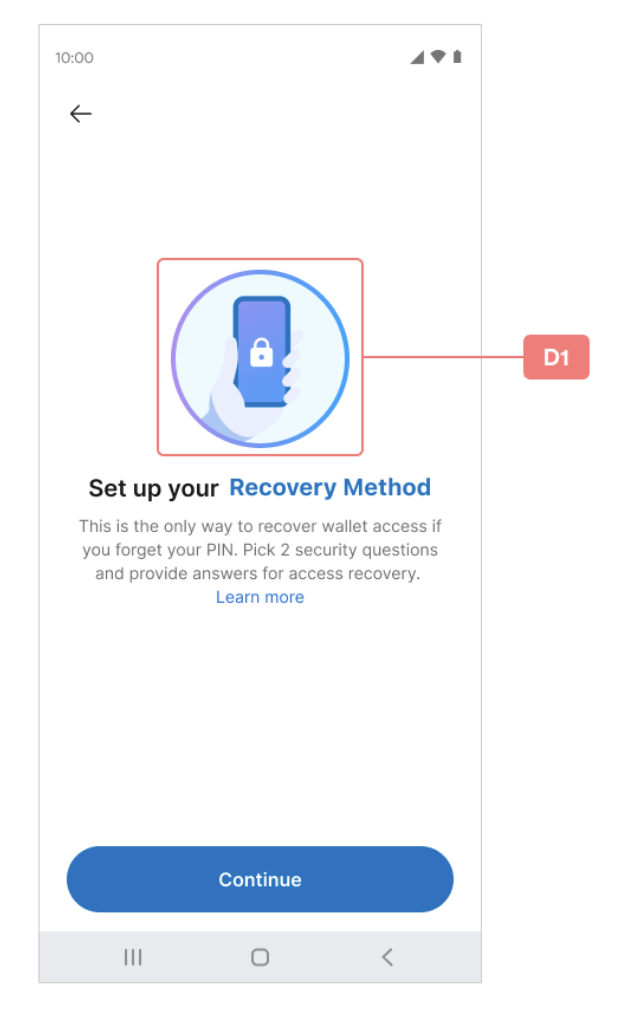
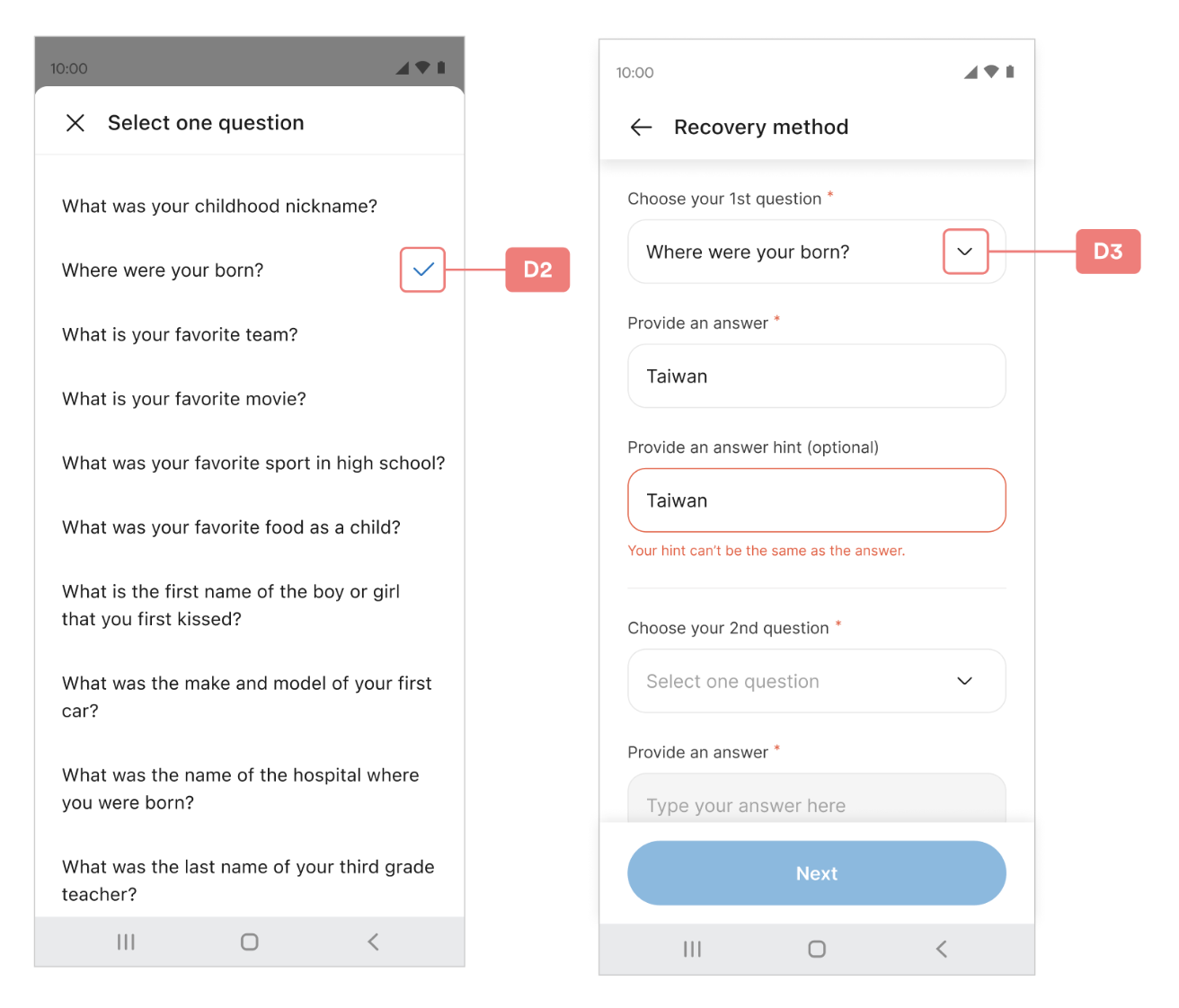
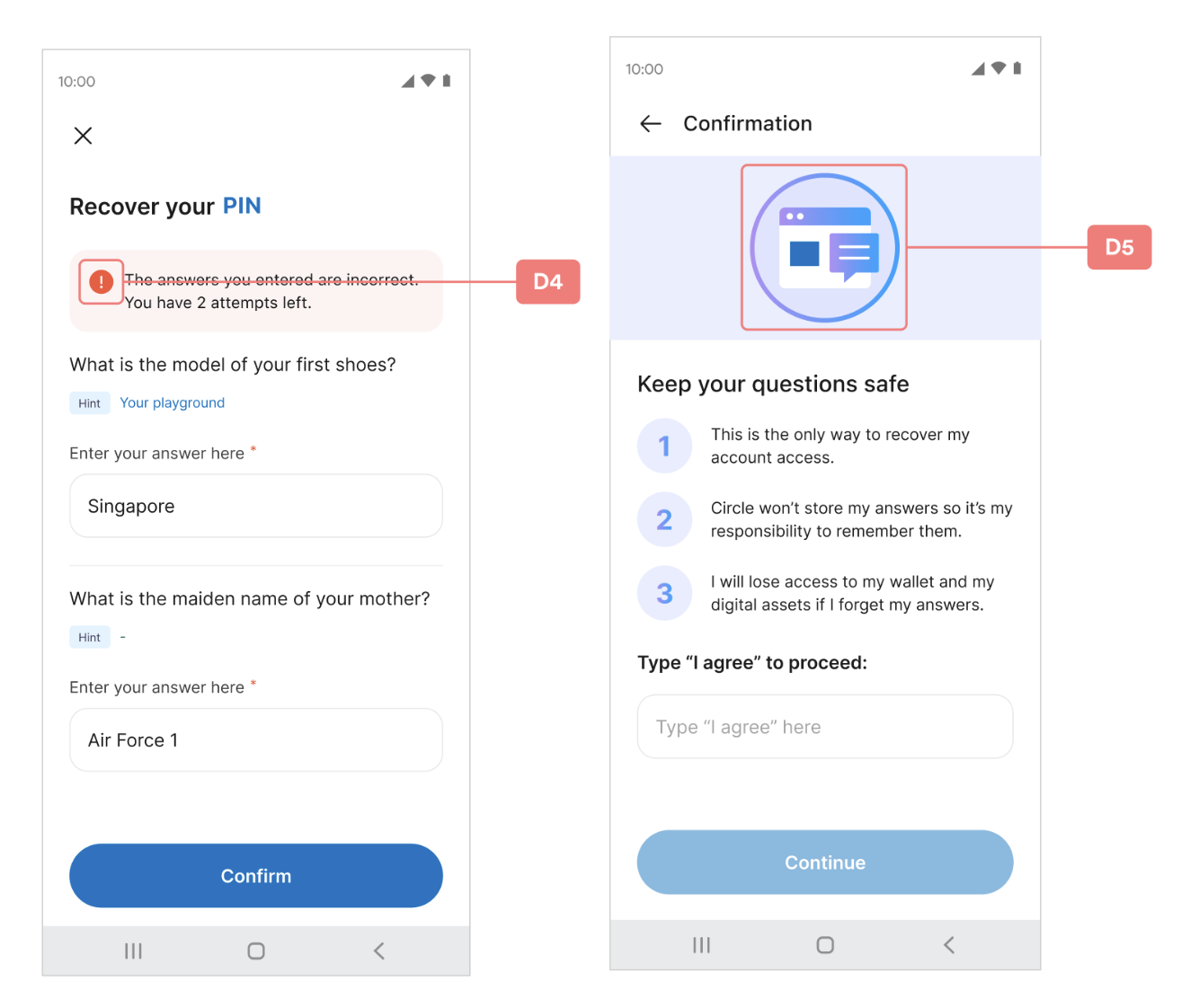
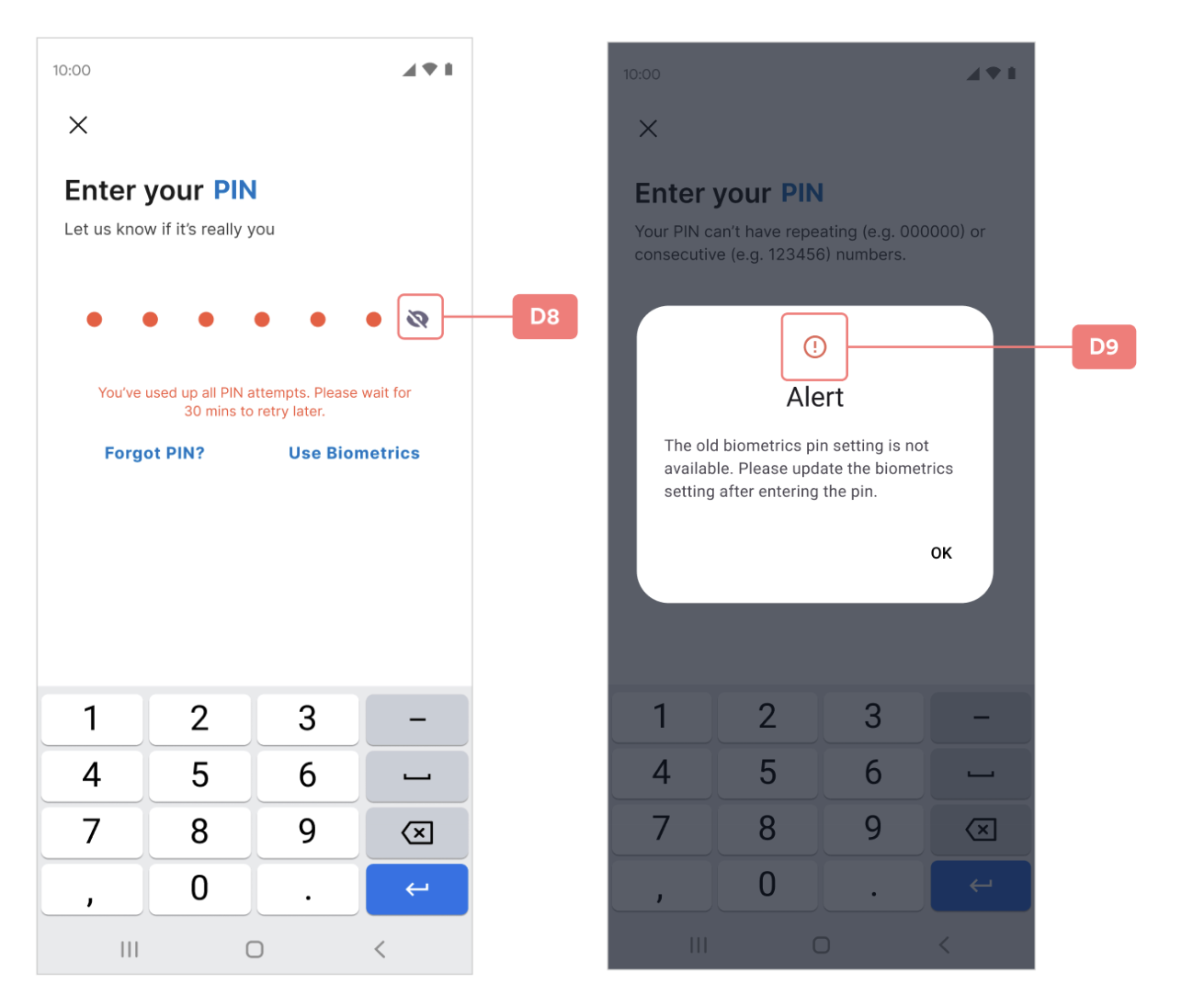
The SDK does not contain any image resources for the SDK; you must provide the icon images from either local assets or remote URLs.Each image has its suggested size of width and height shown in the index table’s Image view size column. Follow the suggested size to avoid the possibility of a broken layout or unexpected display.
ImageKey
D1~D9

D Index Table
| # | ImageKey | Image View size (dp) | Note | |
|---|---|---|---|---|
| width | height | |||
| D1 | securityIntroMain | 144 | 144 | |
| D2 | selectCheckMark | 24 | 24 | |
| D3 | dropdownArrow | 40 | 40 | |
| D4 | errorInfo | 21 | 21 | |
| D5 | securityConfirmMain | 144 | 144 | |
| D6 | biometricsAllowMain | 80 | 80 | |
| D7 | showPin | 20 | 15 | |
| D8 | hidePin | 20 | 15 | |
| D9 | alertWindowIcon | 24 | 24 | Android only |
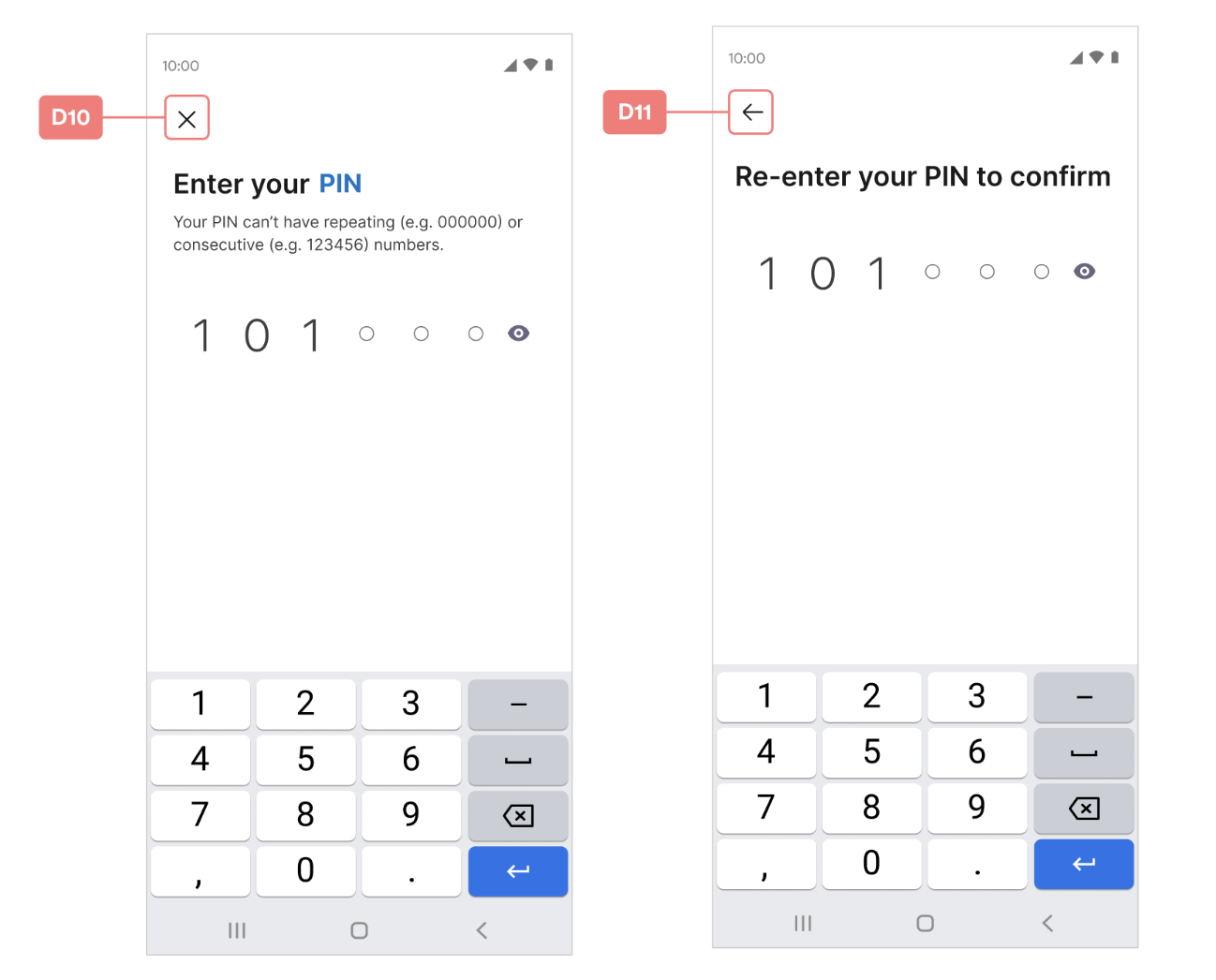
| D10 | close | 24 | 24 | |
| D11 | back | 24 | 24 | |
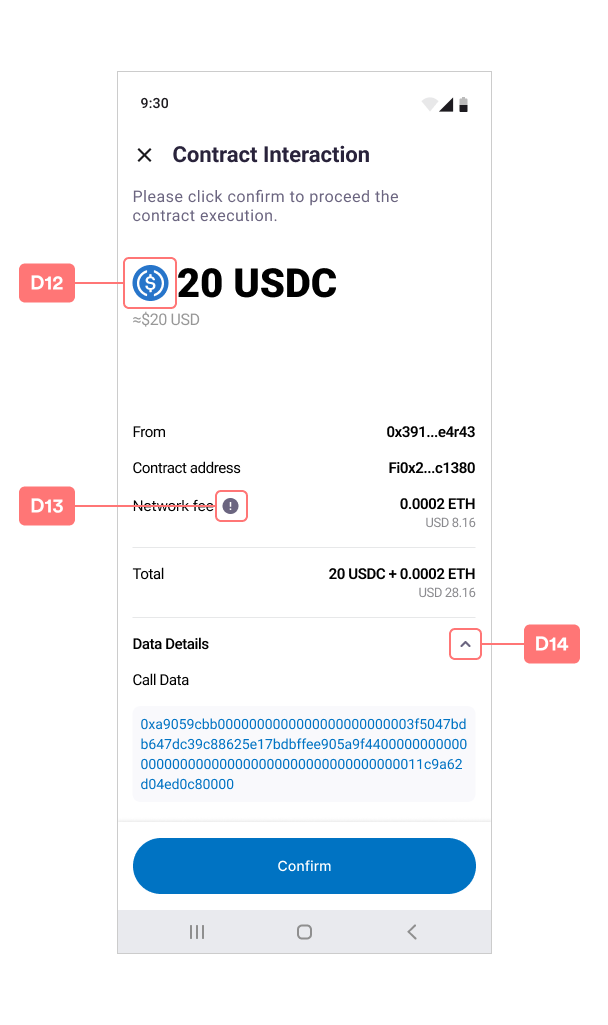
| D12 | transactionTokenIcon | 36 | 36 | |
| D13 | networkFeeTipIcon | 16 | 16 | |
| D14 | showLessDetailArrow | 20 | 20 | |
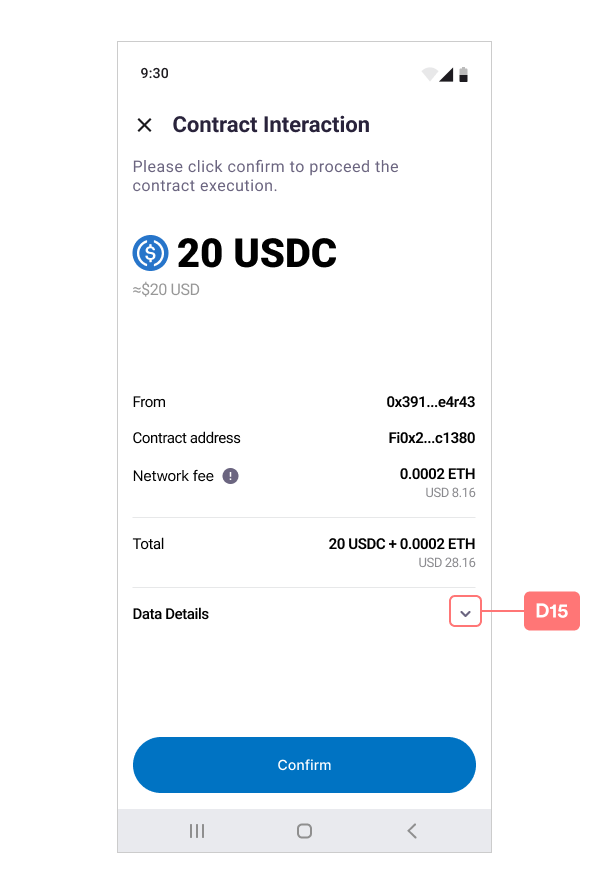
| D15 | showMoreDetailArrow | 20 | 20 | |
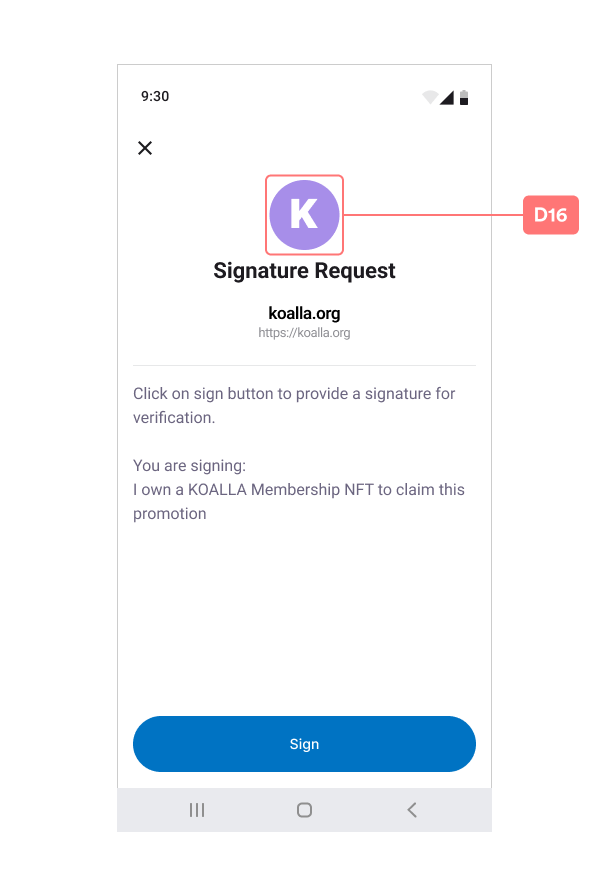
| D16 | requestIcon | 72 | 72 |
Color Customization
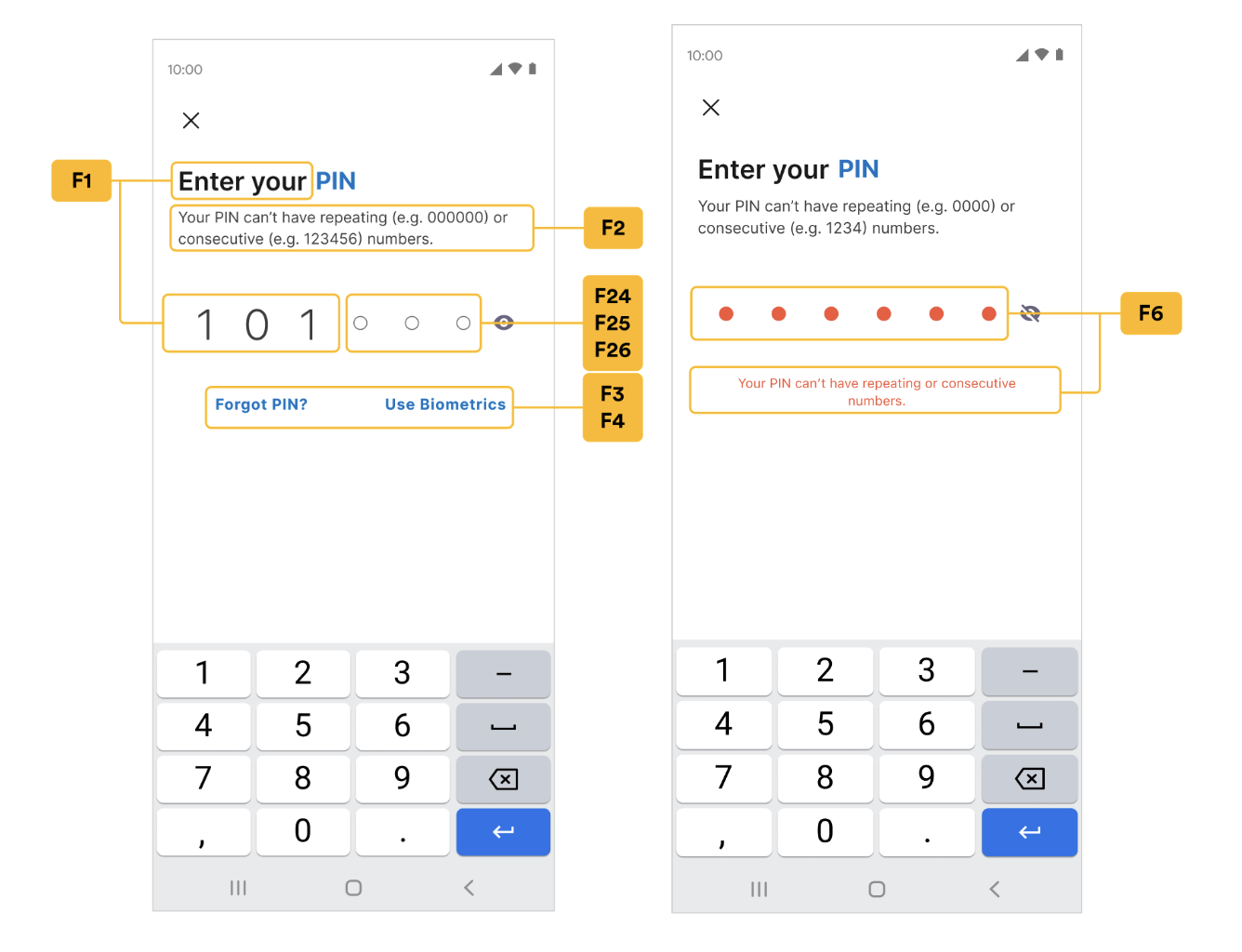
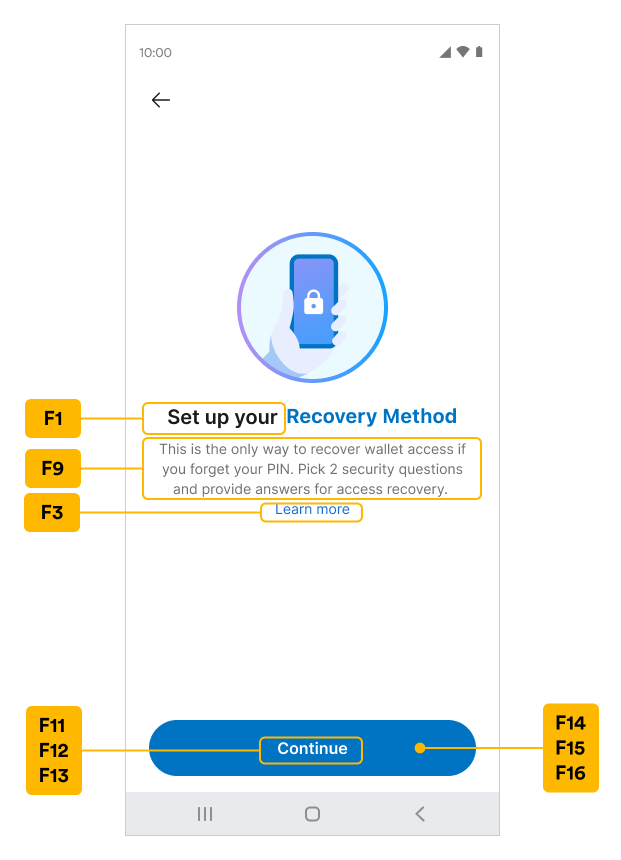
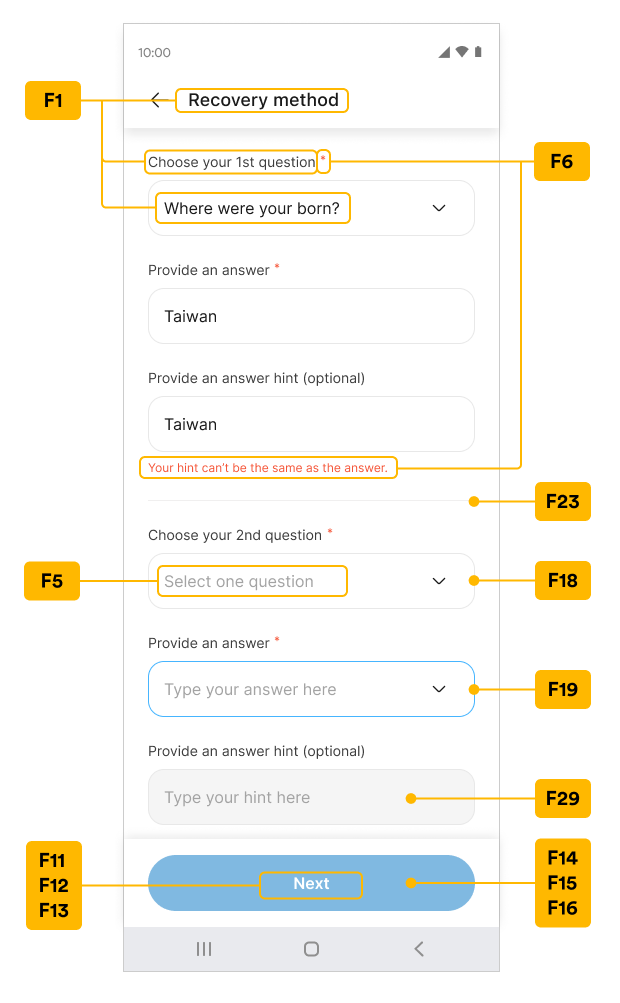
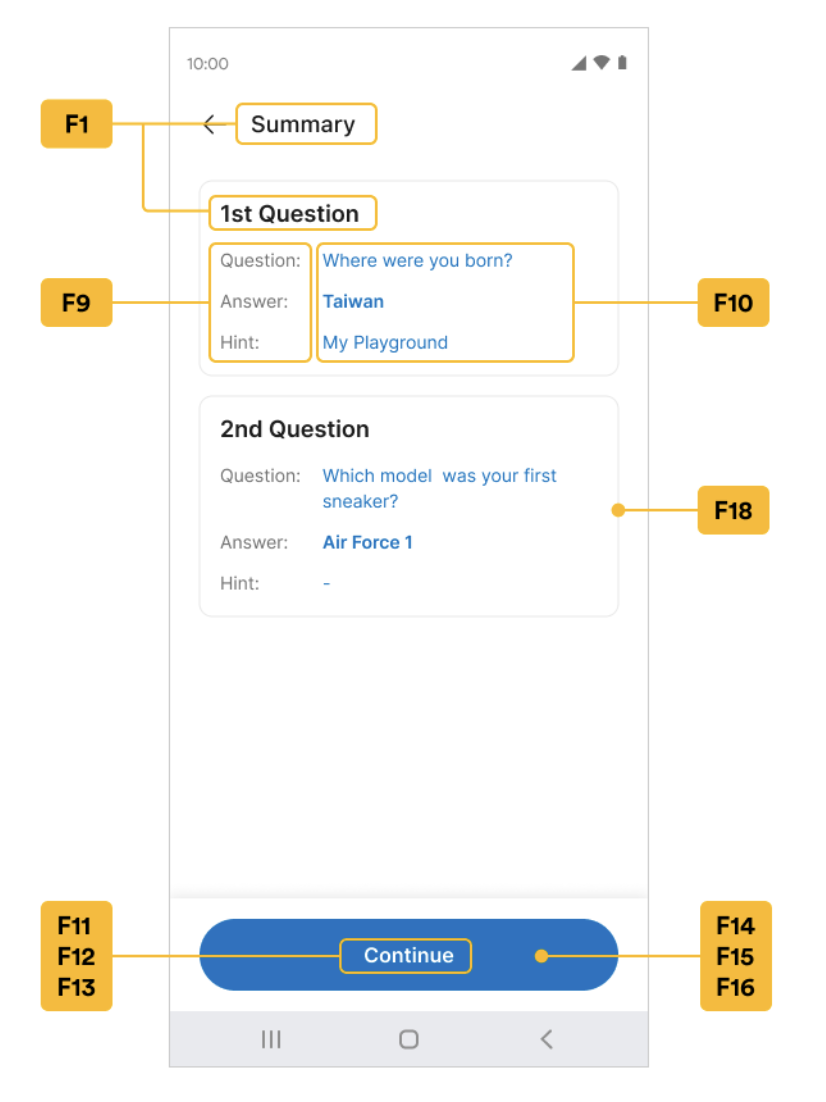
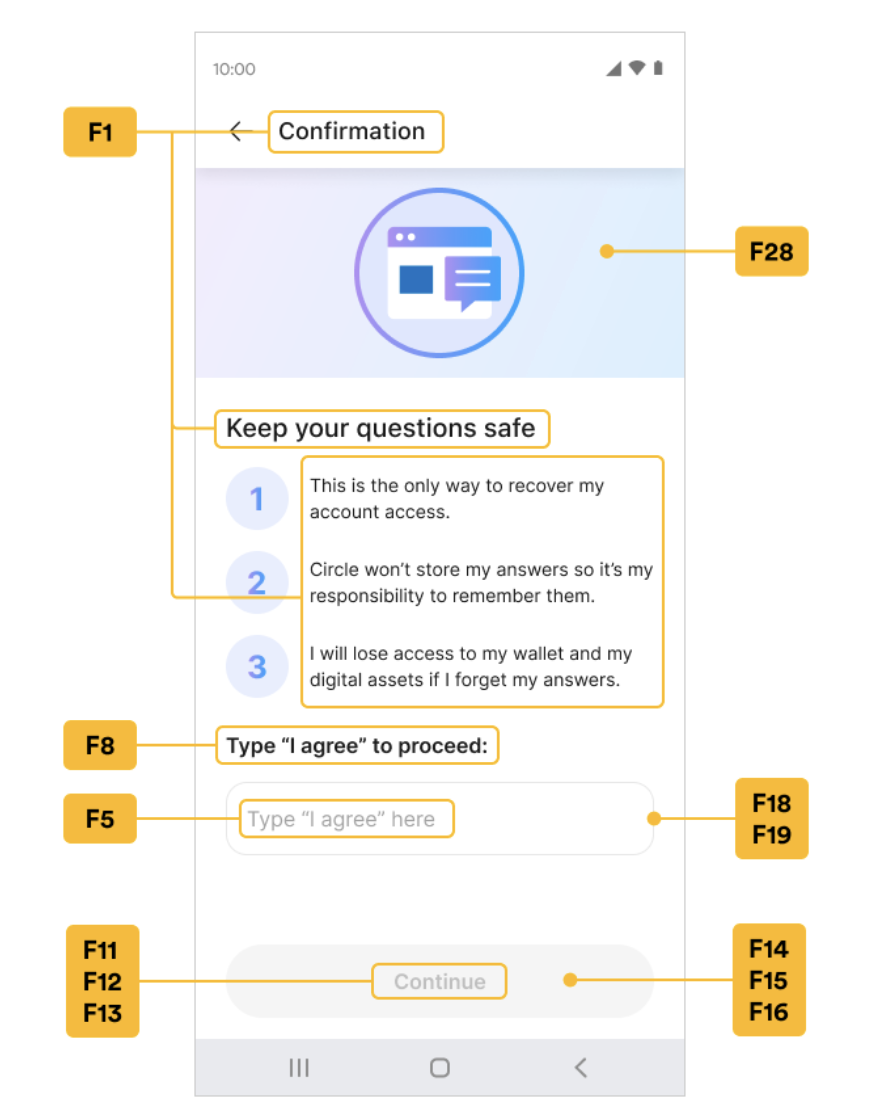
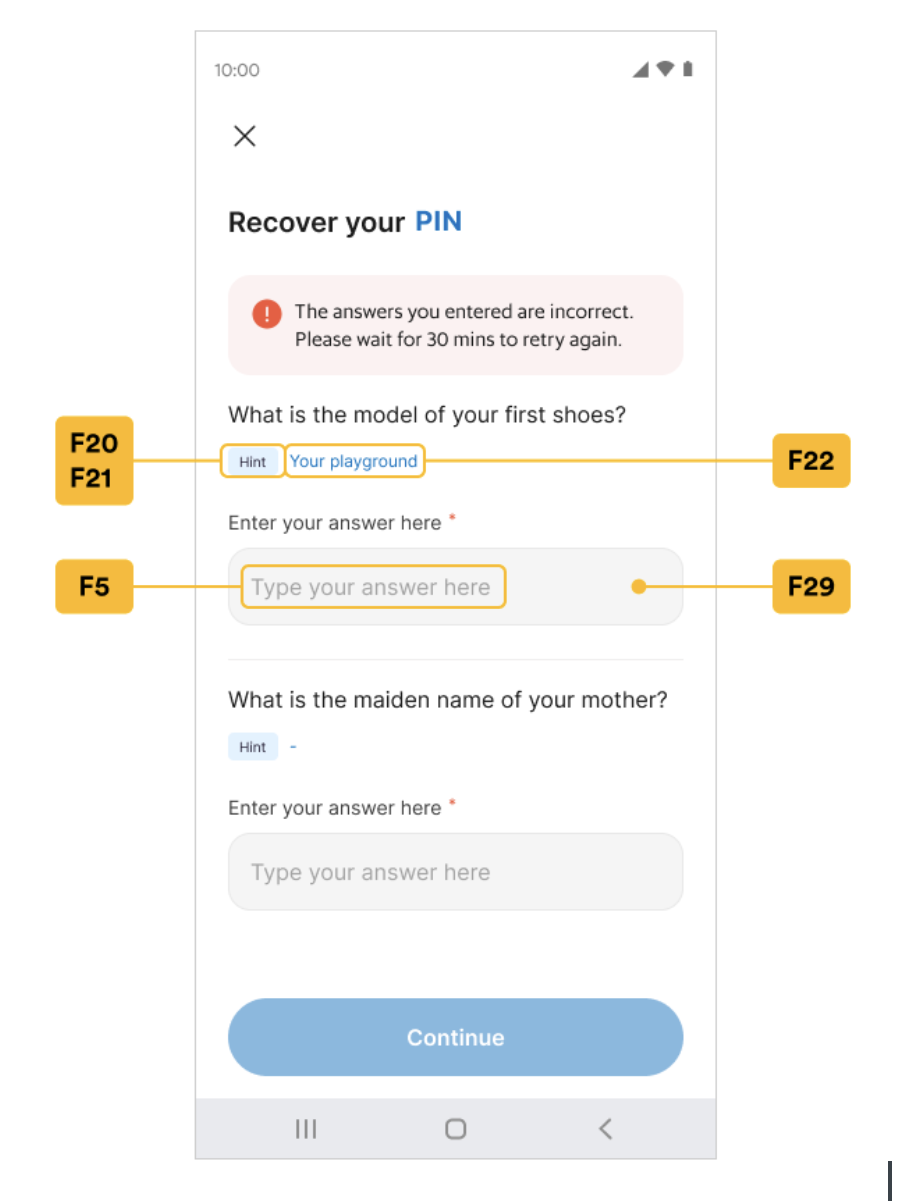
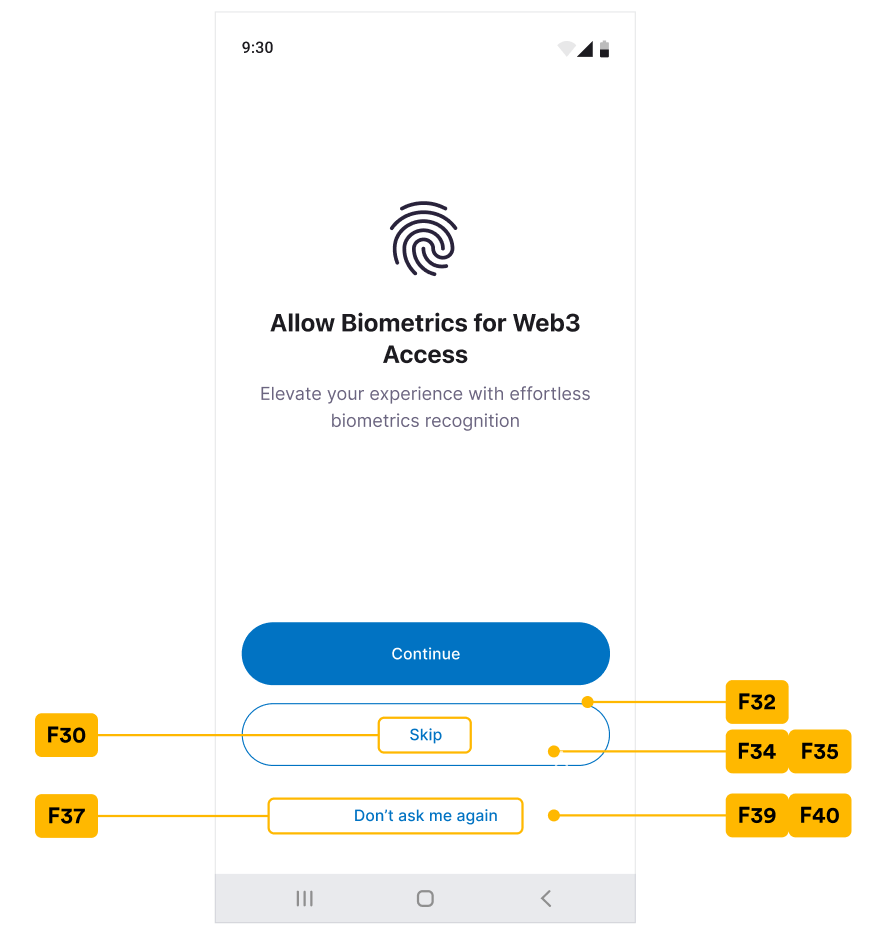
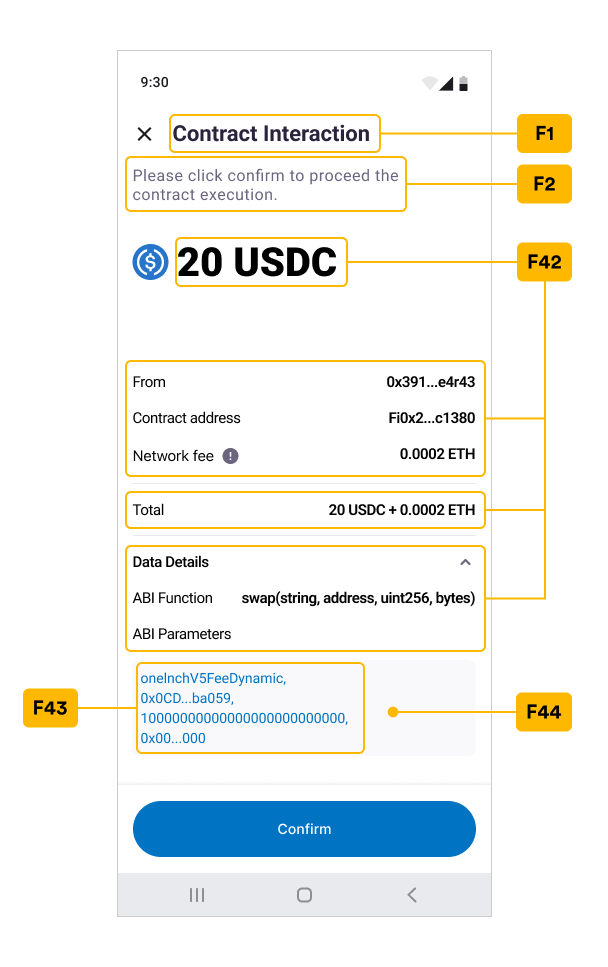
Colors can be customized in a static way as a static string; with the UI screenshots and Key mapping index table below, the colors of each string can be defined in the colors.xml.Note that some keys are not specified in the screenshot but can be referenced from the A and C index table in the colors.xml (for Android) and color(for iOS) column.To avoid dynamic customization, initialize a TextConfig that contains text only with no color value. For example, use a configuration with new TextConfig(key, undefined, font).
For the static resource usage, please check Android - colors.xml and iOS - CirclePWTheme.json.
New, Confirm, and Enter PIN Code
Security Intros
Security Questions
Security Summary
Security Confirm
Recover PIN Code
Biometrics PIN Protection
Contract Interaction
Confirm Transaction
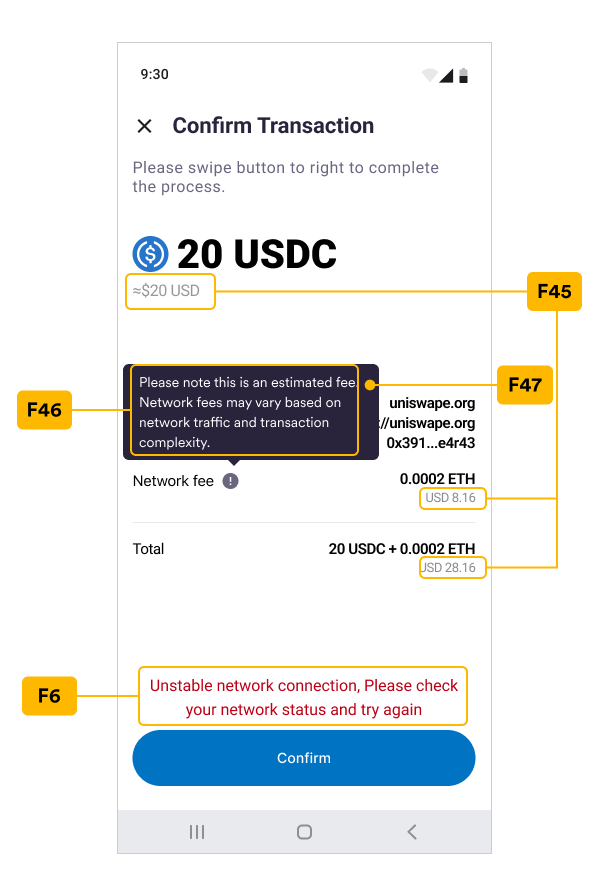
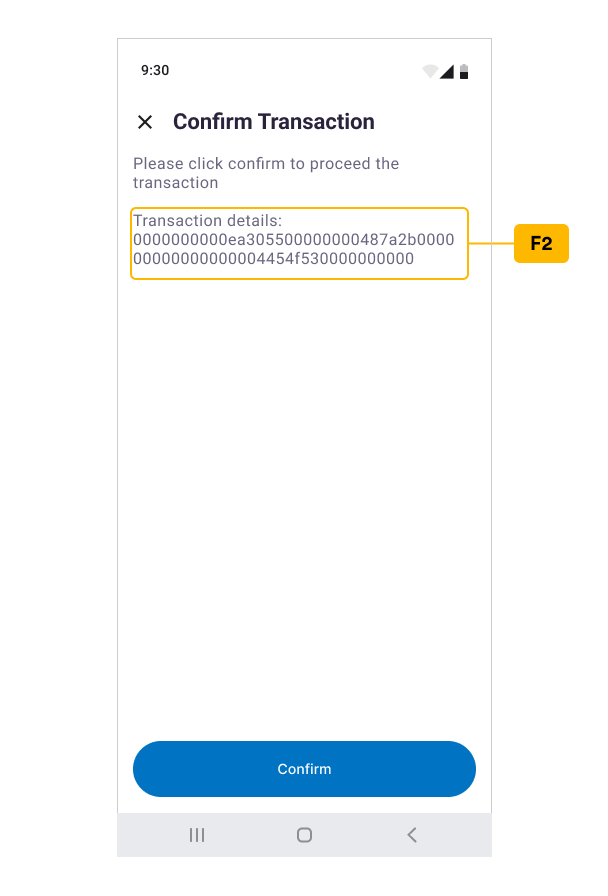
Signature Request
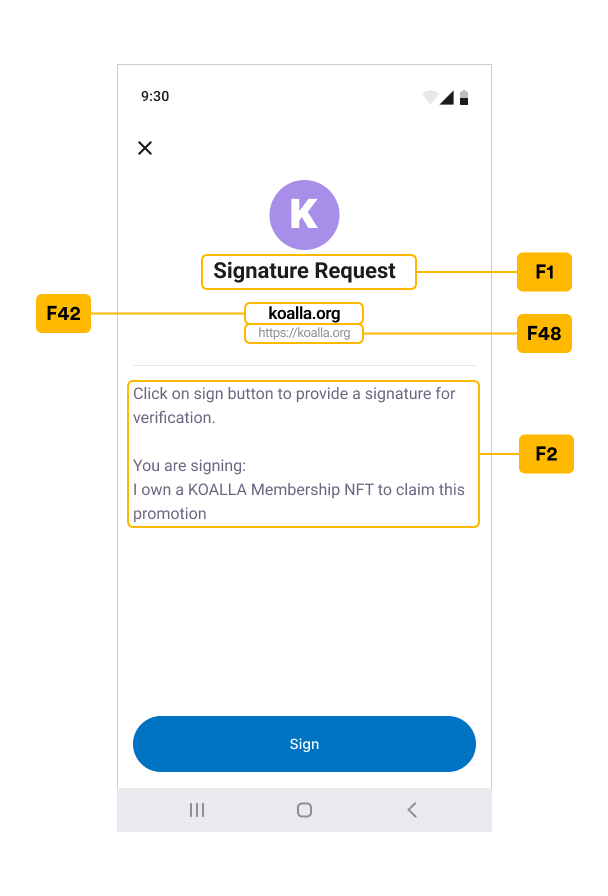
Verify OTP
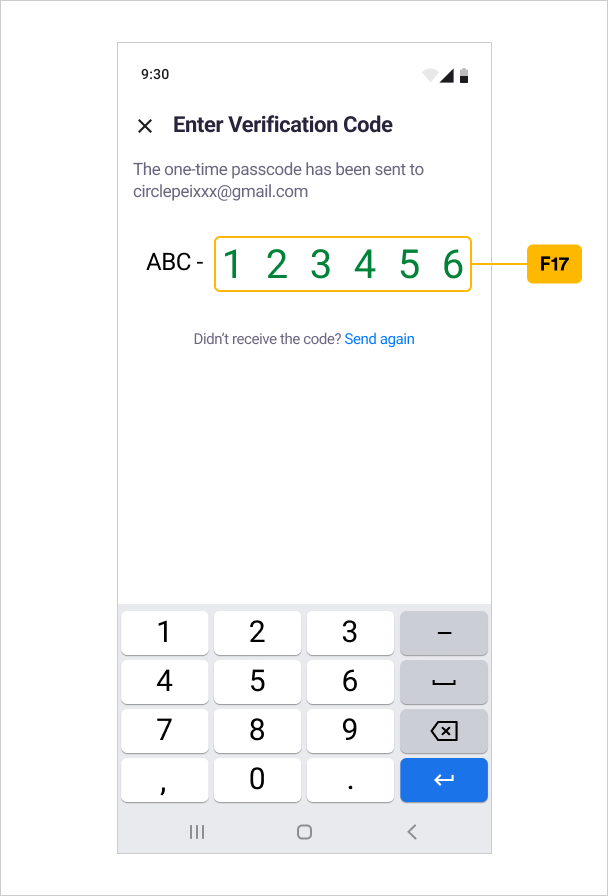
F Index Table
| # | colors.xml | iOS CirclePWTheme.json | Color Code | Note |
|---|---|---|---|---|
| F1 | circlepw_text_main | text_main | # 1A1A1A | |
| F2 | circlepw_text_auxiliary | text_auxiliary | # 3D3D3D | |
| F3 | circlepw_text_action | text_action | # 136FD8 | Normal action text color |
| F4 | circlepw_text_action_pressed | text_action_pressed | # B3136FD8 | Pressed action text color |
| F5 | circlepw_placeholder | text_placeholder | # A3A3A3 | |
| F6 | circlepw_error | error | # F55538 | |
| F7 | circlepw_error_background | error_background | # FDF2F2 | |
| F8 | circlepw_text_main2 | text_main2 | # 1C1C1C | |
| F9 | circlepw_text_auxiliary2 | text_auxiliary2 | # 707070 | |
| F10 | circlepw_text_summary | text_summary | # 0073C3 | |
| F11 | circlepw_disabled_main_bt_text | main_bt_text_disabled | # 80FFFFFF | Disabled button text color |
| F12 | circlepw_main_bt_text | main_bt_text | # FFFFFF | Normal button text color |
| F13 | circlepw_main_bt_text_pressed | main_bt_text_pressed | # FFFFFF | Pressed button text color |
| F14 | circlepw_disabled_main_bt_background | main_bt_background_disabled | # 800073C3 | Disabled button background color |
| F15 | circlepw_main_bt_background | main_bt_background | # 0073C3 | Normal button background color |
| F16 | circlepw_main_bt_background_pressed | main_bt_background_pressed | # 1AA3FF | Pressed button background color |
| F17 | circlepw_success | success | # 0B9C4A | |
| F18 | circlepw_input_boarder | input_border | # E8E8E8 | Normal input field border |
| F19 | circlepw_input_boarder_focused | input_border_focused | # 46B5FF | Focused input field border |
| F20 | circlepw_tag_text | recover_pin_hint_title | # 005339 | Tag text color |
| F21 | circlepw_tag_background | recover_pin_hint_title_bg | # E1F2FF | Tag background color |
| F22 | circlepw_tag_following_text | recover_pin_hint | # 0073C3 | |
| F23 | circlepw_divider | divider | # F0EFEF | |
| F24 | circlepw_pin_dot_base | pin_dot_base | # FFFFFF | PIN dot unfilled color |
| F25 | circlepw_pin_dot_base_boarder | pin_dot_base_boarder | # 707070 | PIN dot unfilled border color |
| F26 | circlepw_pin_dot_activated | pin_dot_activated | # 0073C3 | PIN dot filled color |
| F27 | circlepw_background | background | # FFFFFF | General background color |
| F28 | circlepw_security_confirm_main_bg | security_confirm_main_bg | # E9EEFE | |
| F29 | circlepw_disabled_input_background | input_background_disabled | # F5F5F5 | Disabled input field background color |
| F30 | circlepw_second_bt_text | second_bt_text | # 0073C3 | |
| F32 | circlepw_second_bt_border | second_bt_border | # 0073C3 | |
| F34 | circlepw_second_bt_background | second_bt_background | # FFFFFF | |
| F35 | circlepw_second_bt_background_pressed | second_bt_background_pressed | # F1F9FE | |
| F37 | circlepw_plain_bt_text | plain_bt_text | # 0073C3 | |
| F39 | circlepw_plain_bt_background | plain_bt_background | # FFFFFF | |
| F40 | circlepw_plain_bt_background_pressed | plain_bt_background_pressed | # F1F9FE | |
| F42 | circlepw_text_prompt | text_prompt | # 29233B | |
| F43 | circlepw_text_interactive | text_interactive | # 0073C3 | |
| F44 | circlepw_interactive_bg | interactive_background | # F9F9FC | |
| F45 | circlepw_text_exchange | text_exchange | # F0EFEF | |
| F46 | circlepw_tip_text | tip_text | # FFFFFF | |
| F47 | circlepw_transaction_request_fee_tip_bg | tip_background | # 29233B | |
| F48 | circlepw_text_sign_url | text_sign_url | # 8E8E93 | |
| F49 | circlepw_otp_head_text | text_prompt | # 000000 | |
| F50 | circlepw_otp_hint_text | text_auxiliary | # 6B6580 | |
| F51 | circlepw_otp_action_text | text_action | # 007AFF |
Text Style / Font Customization
Styles can be customized in a Static way as a static style by using the UI screenshots and Key mapping index table below. The styles of each string can be defined in the styles.xml file.To avoid dynamic customization, initialize a TextConfig that contains text and color only. For example, use a configuration with new TextConfig(key, color, undefined).
Note:Some keys (error message) are not specified in the screenshot but can be
referenced from the A and C index table at the
styles.xmlfile column.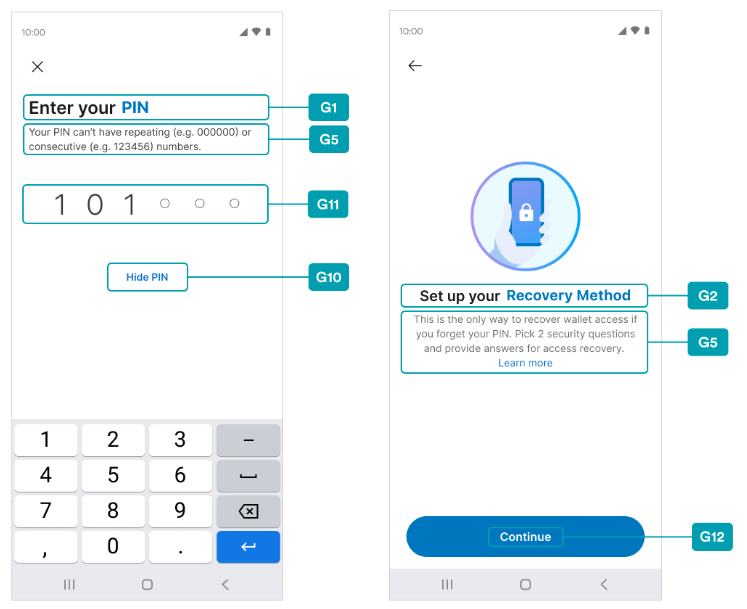
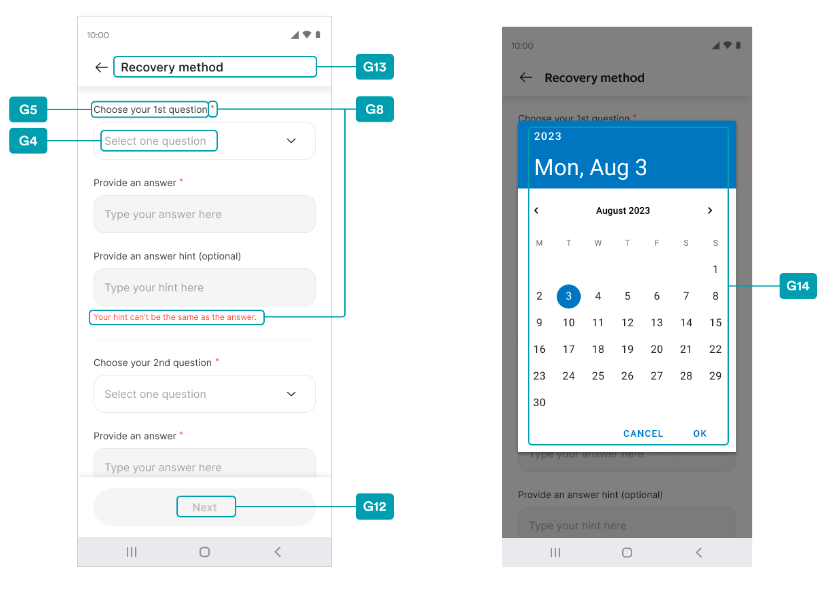
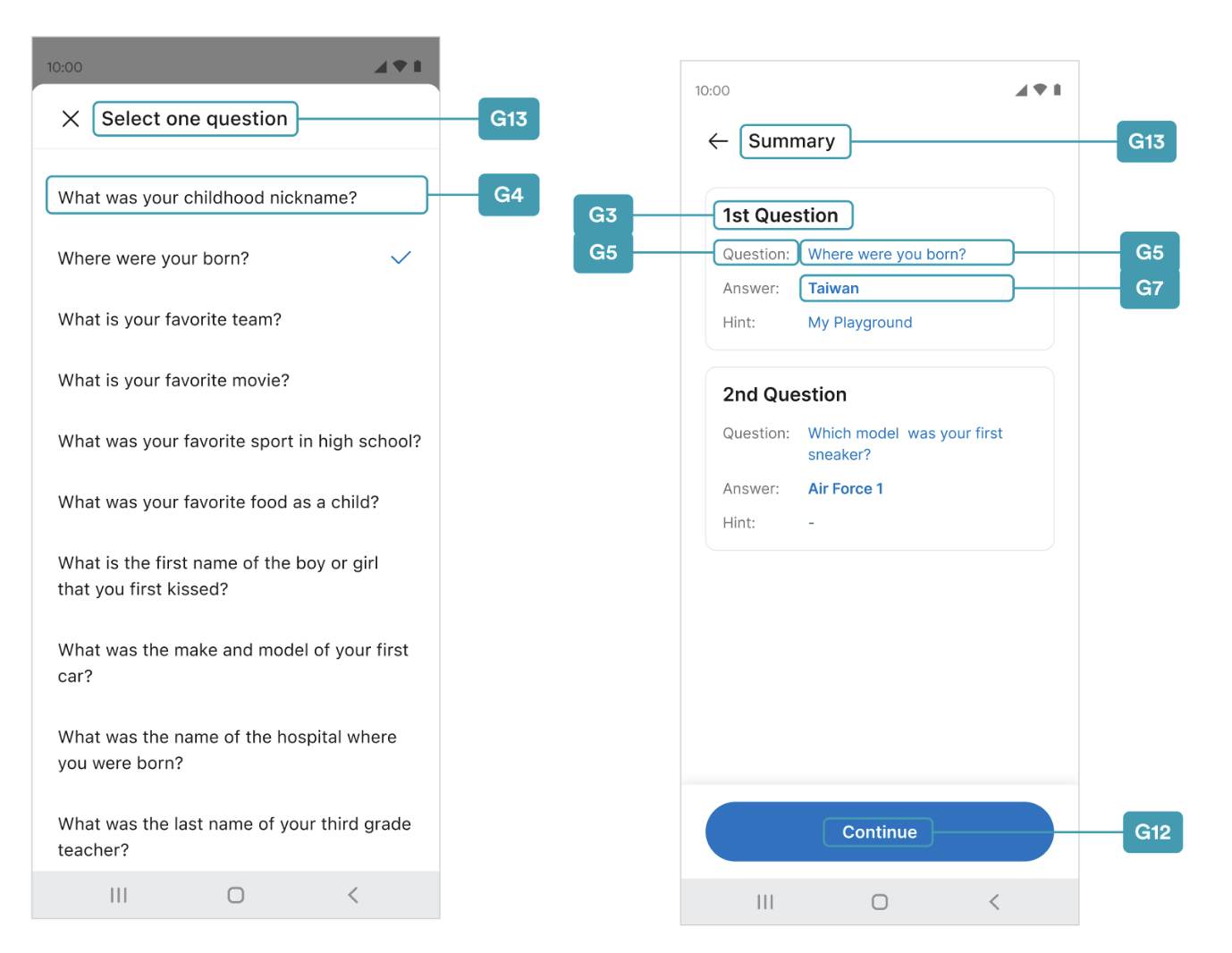
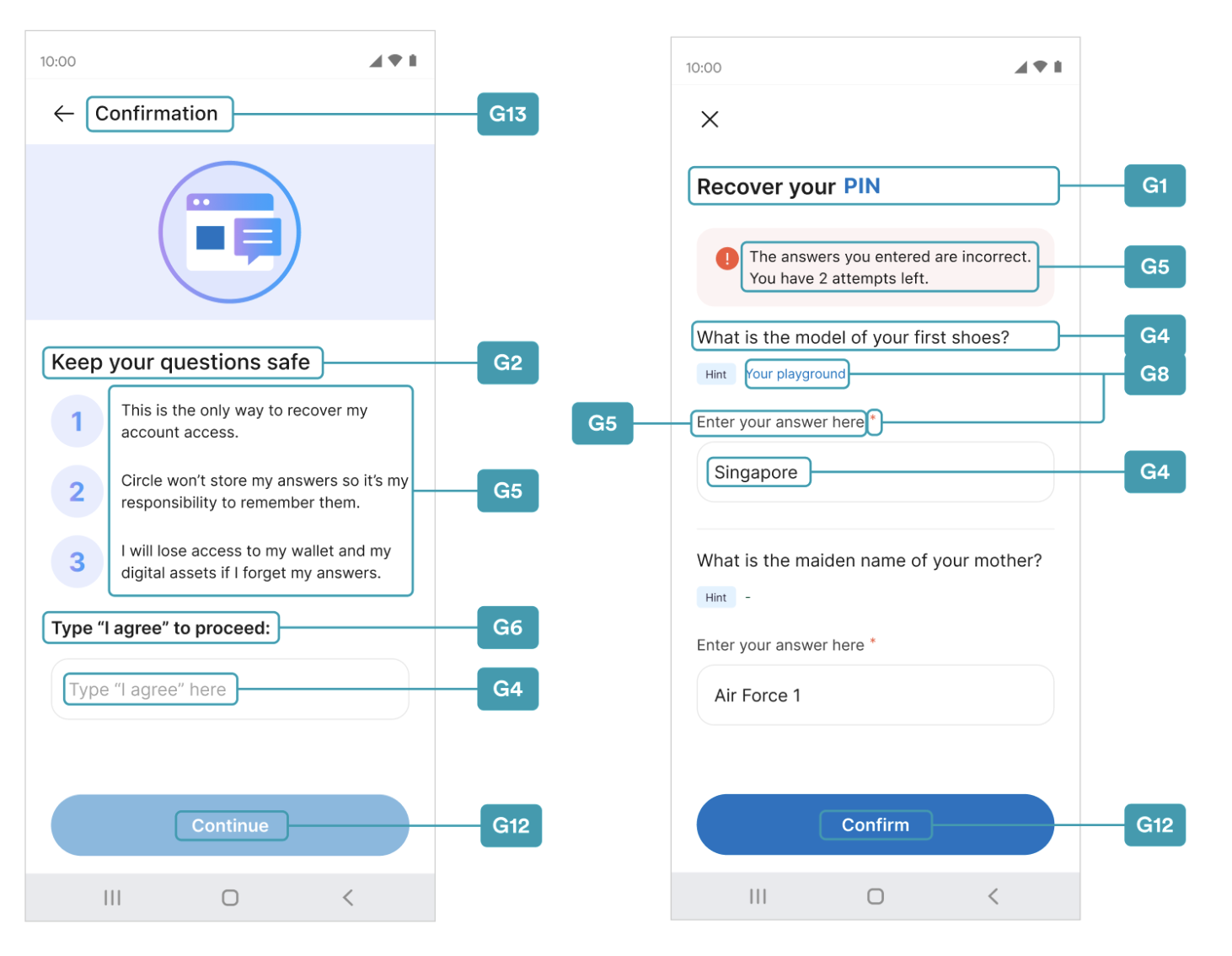
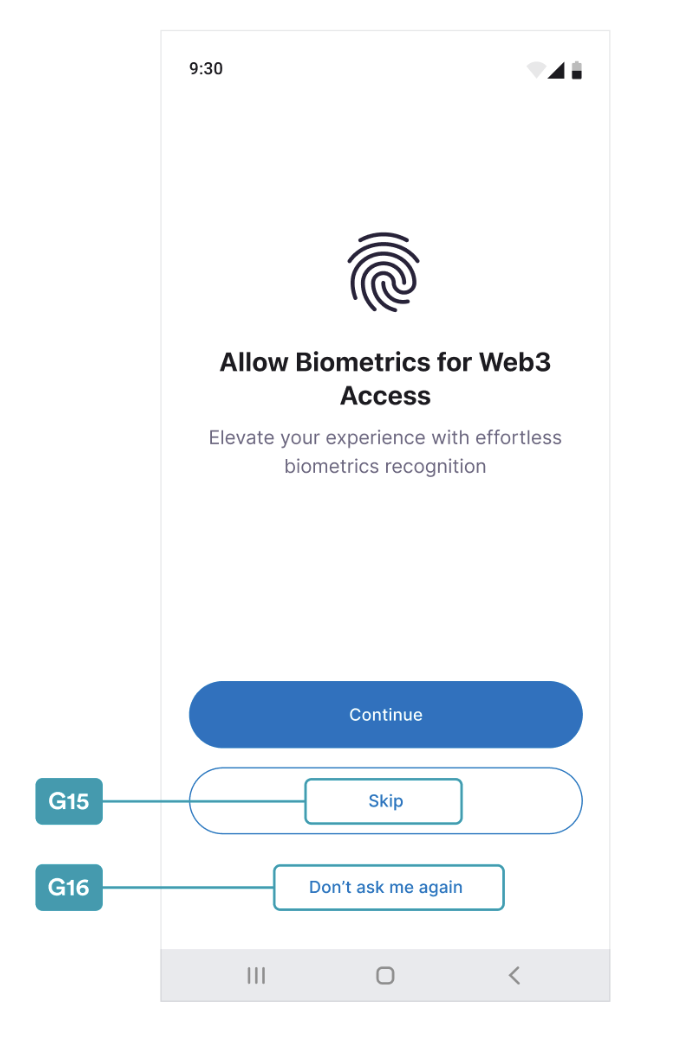
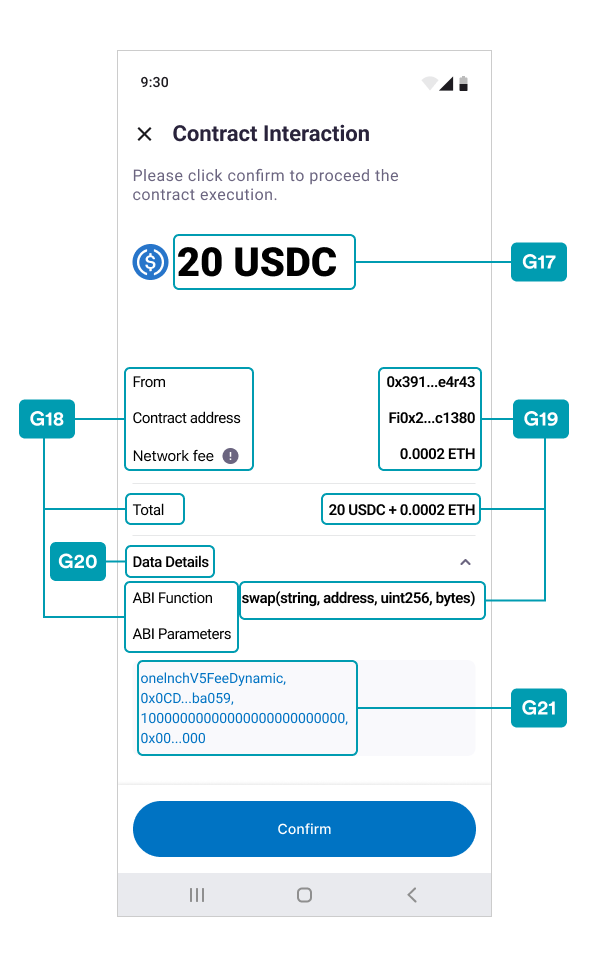
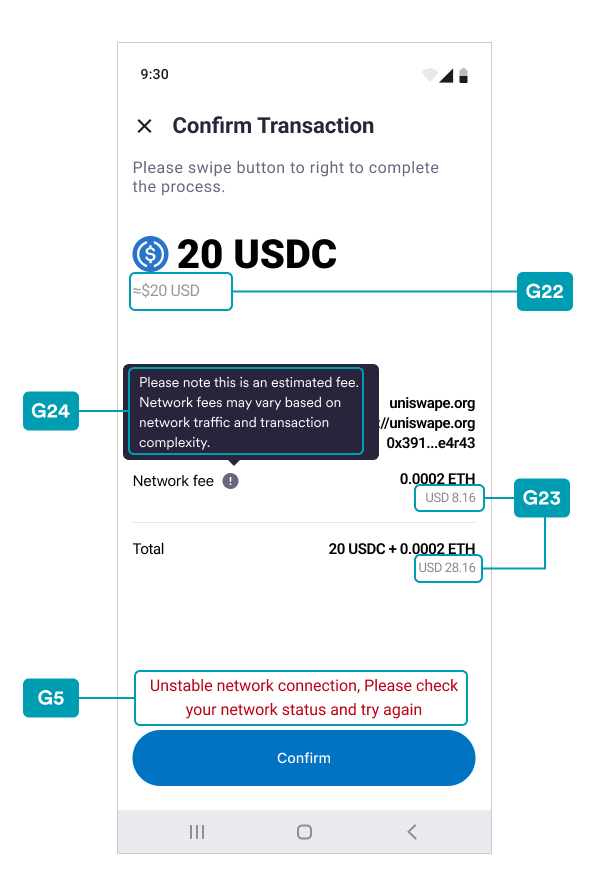
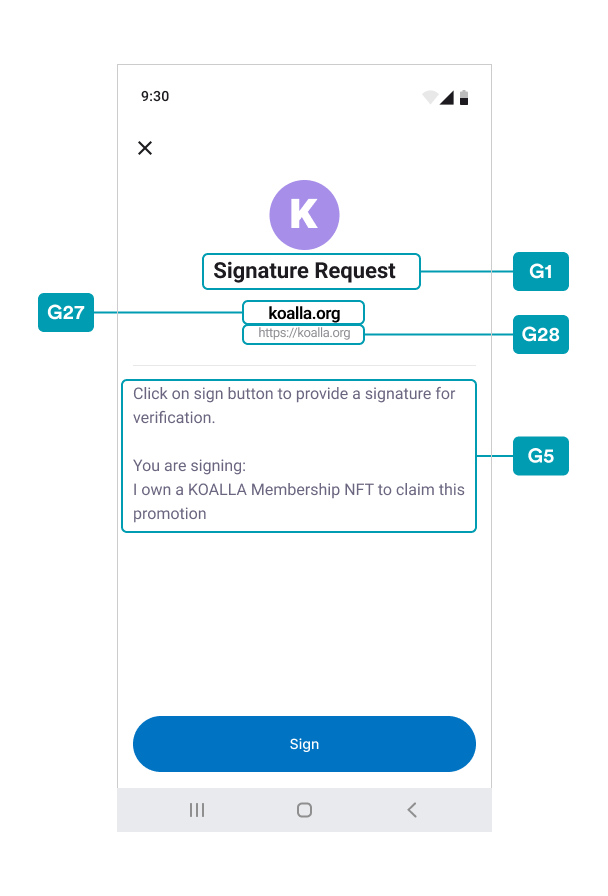
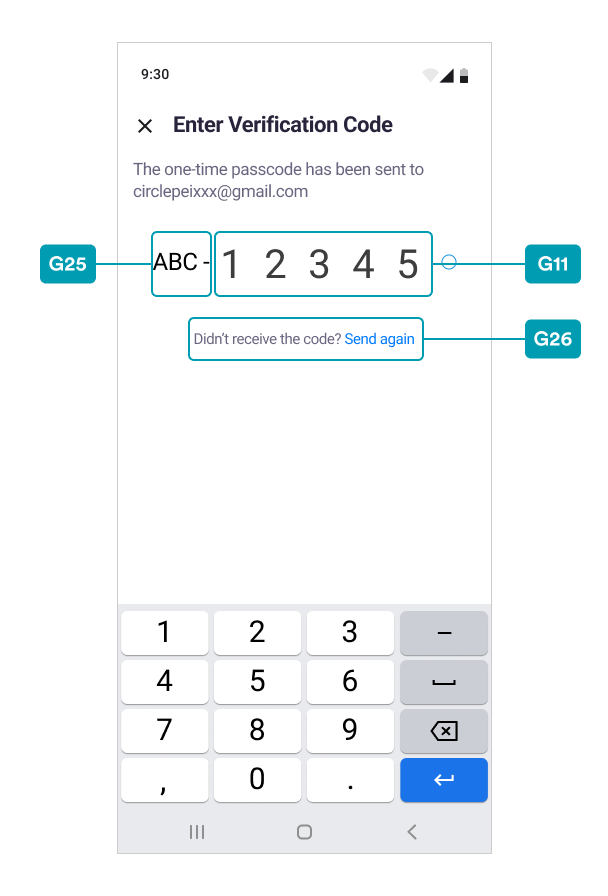
G Index Table
| # | styles.xml | iOS CirclePWTheme.json | Note |
|---|---|---|---|
| G1 | circlepw_heading3 | semibold | |
| G2 | circlepw_heading4 | semibold | |
| G3 | circlepw_heading5 | semibold | |
| G4 | circlepw_body1 | regular | |
| G5 | circlepw_body2 | regular | |
| G6 | circlepw_caption1 | semibold | |
| G7 | circlepw_caption2 | semibold | |
| G8 | circlepw_metadata1 | regular | |
| G9 | circlepw_metadata2 | regular | |
| G10 | circlepw_actionText | semibold | |
| G11 | circlepw_pinDigitText | light | |
| G12 | circlepw_mainButtonText | semibold | |
| G13 | circlepw_toolbarTitle | medium | |
| G14 | circlepw_datePicker | Android only | |
| G15 | circlepw_secondButtonText | semibold | |
| G16 | circlepw_plainButtonText | semibold | |
| G17 | circlepw_txAmountMainText | heavy | |
| G18 | circlepw_txInfoText | regular | |
| G19 | circlepw_txInfoValueText | semibold | |
| G20 | circlepw_detailToggleText | semibold | |
| G21 | circlepw_contractDataText | regular | |
| G22 | circlepw_txExchangeText | semibold | |
| G23 | circlepw_txInfoExchangeText | regular | |
| G24 | circlepw_feeTipText | regular | |
| G25 | circlepw_otpHeadText | regular | |
| G26 | circlepw_otpSendAgainHintText | regular | |
| G27 | circlepw_signNameText | semibold | |
| G28 | circlepw_signUrlText | regular |
Static Resources
This section describes how to customize the UI statically.Android - strings.xml
The example values in the strings.xml file below can be used for Static Customization. The fields also show the default string values in the SDK if you do not set dynamic customization.
Please reference this example and add/update any desired text string in your strings.xml under the res/values folder.
XML
<resources>
    <!-- [General] -->
    <string name="circlepw_continue">Continue</string>
    <string name="circlepw_next">Next</string>
    <string name="circlepw_skip">Skip</string>
    <string name="circlepw_question_label">Question:</string>
    <string name="circlepw_answer_label">Answer:</string>
    <string name="circlepw_hint_label">Hint:</string>
    <string name="circlepw_hint_tag">Hint</string>
    <string name="circlepw_empty"></string>
    <string name="circlepw_empty_placeholder">-</string>
    <string name="circlepw_confirm">Confirm</string>
    <string name="circlepw_pin_remain_attemps_template">You have %s attempts left.</string>
    <string name="circlepw_pin_lock_period_template">You've used up all PIN attempts. Please wait for %s mins to retry later.</string>
    <string name="circlepw_answer_remain_attemps_template">You have %s attempts left.</string>
    <string name="circlepw_answer_lock_period_template">Please wait for %s mins to retry later.</string>

    <!-- [Page] EnterPINCode -->
    <string name="circlepw_enter_pincode_subhead">Let us know if it's really you.</string>
    <string name="circlepw_enter_pincode_forgot_pin">Forgot PIN?</string>
    <string name="circlepw_enter_pincode_use_biometrics">Use Biometrics</string>

    <!-- [Page] NewPINCode -->
    <string name="circlepw_new_pincode_subhead">Your PIN can't have repeating (e.g. 000000) or consecutive (e.g. 123456) numbers.</string>
    <!-- [Page] ConfirmPINCode -->
    <string name="circlepw_confirm_pincode_headline">Re-enter your PIN to confirm</string>
    <string name="circlepw_confirm_pincode_subhead"></string>
    <!-- [Page] SecurityIntros -->
    <string name="circlepw_security_intros_description">This is the only way to recover wallet access if you forget your PIN. Pick 2 security questions and provide answers for access recovery.</string>

    <!-- [Page] SecurityQuestions -->
    <string name="circlepw_security_questions_title">Recovery method</string>
    <string name="circlepw_security_questions_required_mark">*</string>
    <string name="circlepw_security_questions_question_placeholder">Select one question</string>
    <string name="circlepw_security_questions_answer_header">Provide an answer</string>
    <string name="circlepw_security_questions_answer_placeholder">Type your answer here</string>
    <string name="circlepw_security_questions_answer_hint_header">Provide an answer hint (optional)</string>
    <string name="circlepw_security_questions_answer_hint_placeholder">Type your hint here</string>

    <!-- [Page] SelectQuestion -->
    <string name="circlepw_select_question_title">Select one question</string>
    <!-- [Page] SecuritySummary -->
    <string name="circlepw_security_summary_title">Summary</string>

    <!-- [Page] SecurityConfirm -->
    <string name="circlepw_security_confirm_title">Confirmation</string>
    <string name="circlepw_security_confirm_headline">Keep your questions safe</string>
    <string name="circlepw_security_confirm_input_headline">Type \"I agree\" to proceed:</string>
    <string name="circlepw_security_confirm_input_placeholder">Type \"I agree\" here</string>
    <string name="circlepw_security_confirm_input_match">I agree</string>

    <!-- [Page] RecoverPINCode -->
    <string name="circlepw_recover_pincode_answer_input_header">Enter your answer here</string>
    <string name="circlepw_recover_pincode_answer_input_placeholder">Type your answer here</string>

    <!-- [Page] BiometricsAllowFragment -->
    <string name="circlepw_pin_biometrics_allow_title">Allow Biometrics for Web3 Access</string>
    <string name="circlepw_pin_biometrics_allow_subtitle">Elevate your experience with effortless biometrics  recognition</string>
    <string name="circlepw_pin_biometrics_disable">Don\'t ask me again</string>
    <string name="circlepw_pin_biometrics_encrypt_title">Verify It\'s Youe</string>
    <string name="circlepw_pin_biometrics_encrypt_negative_text">Cancel</string>
    <string name="circlepw_pin_biometrics_encrypt_subtitle"></string>
    <string name="circlepw_pin_biometrics_encrypt_desc"></string>
    <string name="circlepw_pin_biometrics_decrypt_title">Verify It\'s Youe</string>
    <string name="circlepw_pin_biometrics_decrypt_negative_text">Cancel</string>
    <string name="circlepw_pin_biometrics_decrypt_subtitle"></string>
    <string name="circlepw_pin_biometrics_decrypt_desc"></string>

    <string name="circlepw_pin_biometrics_update_title">Update Biometrics for Web3 Access</string>
    <string name="circlepw_pin_biometrics_update_subtitle">Please update your biometrics</string>
    <string name="circlepw_transaction_request_title">Confirm transaction</string>
    <string name="circlepw_transaction_request_subtitle">Please click confirm to proceed the transaction</string>
    <string name="circlepw_transaction_request_from_label">From</string>
    <string name="circlepw_transaction_request_to_label">To</string>
    <string name="circlepw_transaction_request_network_fee_label">Network fee</string>
    <string name="circlepw_transaction_request_total_label">Total</string>
    <string name="circlepw_transaction_request_fee_tip">Please note this is an estimated fee. Network fees may vary based on network traffic and transaction complexity.</string>
    <string name="circlepw_transaction_request_raw_tx_description">Transaction details:</string>
    <string name="circlepw_signature_request_title">Signature Request</string>
    <string name="circlepw_signature_request_subtitle">Click on sign button to provide a signature for verification.</string>
    <string name="circlepw_signature_request_description">You are signing:</string>

    <string name="circlepw_contract_interaction_title">Contract Interaction</string>
    <string name="circlepw_contract_interaction_subtitle">Please click confirm to proceed the  contract execution.</string>
    <string name="circlepw_contract_interaction_contract_address_label">Contract address</string>
    <string name="circlepw_contract_interaction_data_details">Data Details</string>
    <string name="circlepw_contract_interaction_abi_function_label">ABI Function</string>
    <string name="circlepw_contract_interaction_abi_parameter_label">ABI Parameters</string>
    <string name="circlepw_contract_interaction_call_data_label">Call Data</string>
    <string name="circlepw_email_otp_title">Enter verification code</string>
    <string name="circlepw_email_otp_description">The one-time passcode has been sent to %s</string>
    <string name="circlepw_email_otp_email">your email</string>
    <string name="circlepw_email_otp_dash">-</string>
    <string name="circlepw_email_otp_send_again_hint">Don't receive the code?</string>
    <string name="circlepw_email_otp_send_again">Send again</string>

    <!-- [Social log in] -->
    <string name="google_web_client_id">YOUR_WEB_CLIENT_ID</string>
    <string name="facebook_app_id">YOUR_APP_ID</string>
    <string name="fb_login_protocol_scheme">your_protocol_scheme</string>
    <string name="facebook_client_token">YOUR_CLIENT_TOKEN</string>
</resources>
iOS - CirclePWLocalizable.strings
Setup
- Create a file CirclePWLocalizable.strings in your main bundle.
- Provide your strings. Partial override is supported.
Note:You can provide specific keys and values you want to override and others keys
will still refer to the default values.
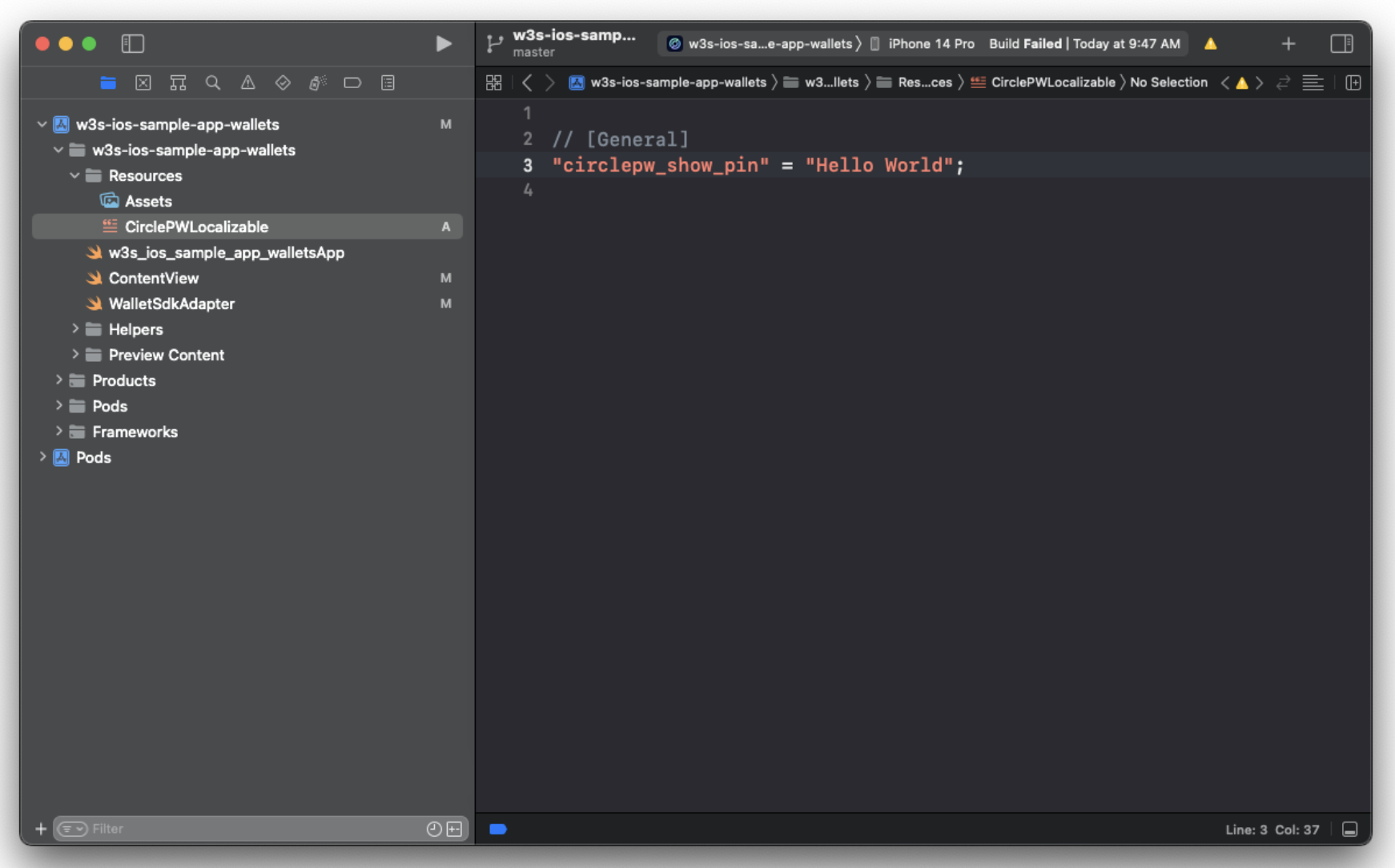
- Localization is supported. For more information, see Localization | Apple Developer Documentation.
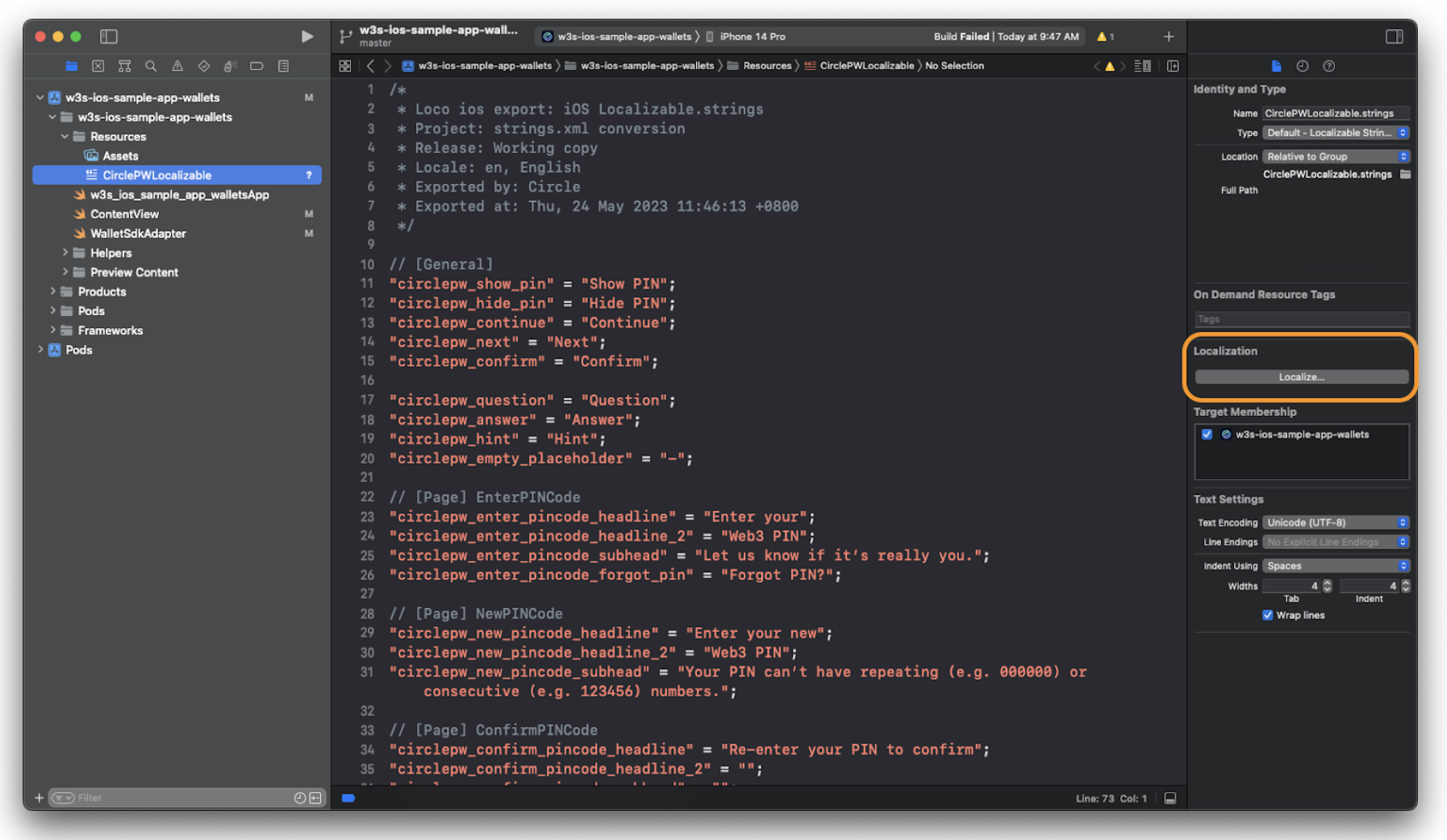
Example CirclePWLocalizable.strings
XML
/*
 * Loco ios export: iOS Localizable.strings
 * Project: strings.xml conversion
 * Release: Working copy
 * Locale: en, English
 * Exported by: Circle
 * Exported at: Tue, 27 Jun 2023 23:35:22 +0800
 */


// [General]
"circlepw_show_pin" = "Show PIN";
"circlepw_hide_pin" = "Hide PIN";
"circlepw_continue" = "Continue";
"circlepw_next" = "Next";
"circlepw_confirm" = "Confirm";
"circlepw_skip" = "Skip";


"circlepw_question" = "Question";
"circlepw_answer" = "Answer";
"circlepw_hint" = "Hint";
"circlepw_empty_placeholder" = "-";


// [Page] EnterPINCode
"circlepw_enter_pincode_headline" = "Enter your";
"circlepw_enter_pincode_headline_2" = "PIN";
"circlepw_enter_pincode_subhead" = "Let us know if it's really you.";
"circlepw_enter_pincode_forgot_pin" = "Forgot PIN?";
"circlepw_enter_pincode_use_biometrics" = "Use Biometrics";


// [Page] NewPINCode
"circlepw_new_pincode_headline" = "Enter your";
"circlepw_new_pincode_headline_2" = "New PIN";
"circlepw_new_pincode_subhead" = "Your PIN can't have repeating (e.g. 000000) or consecutive (e.g. 123456) numbers.";


// [Page] ConfirmPINCode
"circlepw_confirm_pincode_headline" = "Re-enter your PIN to confirm";
"circlepw_confirm_pincode_headline_2" = "";
"circlepw_confirm_pincode_subhead" = "";


// [Page] SecurityIntros
"circlepw_security_intros_title" = "Recovery Method";
"circlepw_security_intros_headline" = "Set up your";
"circlepw_security_intros_headline_2" = "Recovery Method";
"circlepw_security_intros_description" = "This is the only way to recover wallet access if you forget your PIN. Pick 2 security questions and provide answers for access recovery.";
"circlepw_security_intros_link" = "Learn more";


// [Page] SecurityQuestions
"circlepw_security_questions_title" = "Recovery method";
"circlepw_security_questions_question_header" = "Choose your %@ question";
"circlepw_security_questions_question_placeholder" = "Select one question";
"circlepw_security_questions_required_mark" = "*";
"circlepw_security_questions_answer_header" = "Provide an answer";
"circlepw_security_questions_answer_placeholder" = "Type your answer here";
"circlepw_security_questions_answer_hint_header" = "Provide an answer hint (optional)";
"circlepw_security_questions_answer_hint_placeholder" = "Type your hint here";


// [Page] SelectQuestion
"circlepw_select_question_title" = "Select one question";


// [Page] SecuritySummary
"circlepw_security_summary_title" = "Summary";


// [Page] SecurityConfirm
"circlepw_security_confirm_title" = "Confirmation";
"circlepw_security_confirm_headline" = "Keep your questions safe";
"circlepw_security_confirm_input_headline" = "Type “I agree” to proceed:";
"circlepw_security_confirm_input_placeholder" = "Type “I agree” here";
"circlepw_security_confirm_input_match" = "I agree";


// [Page] RecoverPINCode
"circlepw_recover_pincode_headline" = "Recover your";
"circlepw_recover_pincode_headline_2" = "Web3 PIN";
"circlepw_recover_pincode_subhead" = "Please enter the answer of the security questions provided below.";
"circlepw_recover_pincode_answer_input_header" = "Enter your answer here";
"circlepw_recover_pincode_answer_input_placeholder" = "Type your answer here";


// [Page] BiometricsPrompt
"circlepw_pin_biometrics_allow_title" = "Allow Biometrics for Web3 Access";
"circlepw_pin_biometrics_allow_subtitle" = "Elevate Your Experience with Effortless Biometrics";
"circlepw_pin_biometrics_failed_title" = "Failed Biometrics for Web3 Access";
"circlepw_pin_biometrics_update_title" = "Update Biometrics for Web3 Access";
"circlepw_pin_biometrics_update_subtitle" = "Please update your biometrics";
"circlepw_pin_biometrics_disable" = "Don't ask me again";
"circlepw_pin_touch_id_dialog_subtitle" = "Using Touch ID protect PIN";
Android - colors.xml
The example values in the colors.xml file can be used for Static Customization. The fields also show the default string values in the SDK if you do not set dynamic customization.Please reference this example and add/update any desired text color in your colors.xml under the res/values folder of the App project.
XML
<?xml version="1.0" encoding="utf-8"?>
<resources>
    <color name="circlepw_text_main">#1A1A1A</color>
    <color name="circlepw_text_auxiliary">#3D3D3D</color>
    <color name="circlepw_text_action">#136FD8</color>
    <color name="circlepw_text_action_pressed">#B3136FD8</color>
    <color name="circlepw_placeholder">#A3A3A3</color>
    <color name="circlepw_error">#F55538</color>
    <color name="circlepw_error_background">#FDF2F2</color>
    <color name="circlepw_text_main2">#1C1C1C</color>
    <color name="circlepw_text_auxiliary2">#707070</color>
    <color name="circlepw_text_summary">#0073C3</color>
    <color name="circlepw_disabled_main_bt_text">#80FFFFFF</color>
    <color name="circlepw_disabled_main_bt_background">#800073C3</color>
    <color name="circlepw_main_bt_text">#FFFFFF</color>
    <color name="circlepw_main_bt_background">#0073C3</color>
    <color name="circlepw_main_bt_text_pressed">#FFFFFF</color>
    <color name="circlepw_main_bt_background_pressed">#1AA3FF</color>
    <color name="circlepw_second_bt_text">#0073C3</color>
    <color name="circlepw_second_bt_text_disabled">#800073C3</color>
    <color name="circlepw_second_bt_border">#0073C3</color>
    <color name="circlepw_second_bt_border_disabled">#800073C3</color>
    <color name="circlepw_second_bt_background">#FFFFFF</color>
    <color name="circlepw_second_bt_background_pressed">#F1F9FE</color>
    <color name="circlepw_second_bt_background_disabled">#80F1F9FE</color>
    <color name="circlepw_plain_bt_text">#0073C3</color>
    <color name="circlepw_plain_bt_text_disabled">#800073C3</color>
    <color name="circlepw_plain_bt_background">#FFFFFF</color>
    <color name="circlepw_plain_bt_background_pressed">#F1F9FE</color>
    <color name="circlepw_plain_bt_background_disabled">#80F1F9FE</color>
    <color name="circlepw_success">#0B9C4A</color>
    <color name="circlepw_input_boarder">#E8E8E8</color>
    <color name="circlepw_input_boarder_focused">#46B5FF</color>
    <color name="circlepw_input_boarder_focused_shadow">#00B1EABA</color>
    <color name="circlepw_tag_text">#3D3652</color>
    <color name="circlepw_tag_background">#E1F2FF</color>
    <color name="circlepw_tag_following_text">#0073C3</color>
    <color name="circlepw_divider">#F0EFEF</color>
    <color name="circlepw_pin_dot_base">#ffffff</color>
    <color name="circlepw_pin_dot_base_boarder">#707070</color>
    <color name="circlepw_pin_dot_activated">#0073C3</color>
    <color name="circlepw_background">#FFFFFF</color>
    <color name="circlepw_security_confirm_main_bg">#E9EEFE</color>
    <color name="circlepw_ripple_material_light">#08000000</color>
    <color name="circlepw_disabled_input_background">#F5F5F5</color>
    <color name="circlepw_alert_pop_window_background">#B3111827</color>
    <color name="circlepw_alert_pop_title_text">#1D1B20</color>
    <color name="circlepw_alert_pop_description_text">#49454F</color>
    <color name="circlepw_alert_pop_btn_text">#000000</color>
    <color name="circlepw_pin_dot_focused_boarder">#1894E8</color>
    <color name="circlepw_swipe_bt_text">#FFFFFF</color>
    <color name="circlepw_swipe_bt_main_background">#0073C3</color>
    <color name="circlepw_swpie_bt_secondary_background">#F1F9FE</color>
    <color name="circlepw_swpie_bt_confirming_progress_end">#33F1F9FE</color>
    <color name="circlepw_text_prompt">#29233B</color>
    <color name="circlepw_text_exchange">#979797</color>
    <color name="circlepw_text_sign_url">#8E8E93</color>
    <color name="circlepw_transaction_request_fee_tip_bg">#29233B</color>
    <color name="circlepw_tip_text">#FFFFFF</color>
    <color name="circlepw_interactive_bg">#F9F9FC</color>
    <color name="circlepw_text_interactive">#0073C3</color>
    <color name="transparent">#00000000</color>
    <color name="circlepw_otp_head_text">#000000</color>
    <color name="circlepw_otp_hint_text">#6B6580</color>
    <color name="circlepw_otp_action_text">#007AFF</color>
</resources>
Android - styles.xml
The example values in the styles.xml file can be used for Static Customization. The fields also show the default style values in the SDK if you do not set dynamic customization.Please reference this example and add or update any desired text styles in your styles.xml file under the res/values folder of the App project.
The style can be used to define textSize and fontWeight, and it can also be used in conjunction with the static colors key defined in colors.xml, such as in the following:
XML
<item name="colorControlActivated">@color/circlepw_input_boarder_focused</item>
XML
<resources>
    <style name="circlepw_heading3">
        <item name="android:textSize">24sp</item>
    </style>
    <style name="circlepw_heading4">
        <item name="android:textSize">20sp</item>
    </style>
    <style name="circlepw_heading5">
        <item name="android:textSize">18sp</item>
    </style>
    <style name="circlepw_body1">
        <item name="android:textSize">16sp</item>
    </style>
    <style name="circlepw_body2">
        <item name="android:textSize">14sp</item>
    </style>
    <style name="circlepw_caption1">
        <item name="android:textSize">16sp</item>
    </style>
    <style name="circlepw_caption2">
        <item name="android:textSize">14sp</item>
    </style>
    <style name="circlepw_metadata1">
        <item name="android:textSize">12sp</item>
    </style>
    <style name="circlepw_metadata2">
        <item name="android:textSize">10sp</item>
    </style>
    <style name="circlepw_actionText">
        <item name="android:textSize">14sp</item>
    </style>
    <style name="circlepw_pinDigitText">
        <item name="android:textSize">40sp</item>
    </style>
    <style name="circlepw_mainButtonText">
        <item name="android:textSize">16sp</item>
    </style>
    <style name="circlepw_secondButtonText">
        <item name="android:textSize">16sp</item>
    </style>
    <style name="circlepw_plainButtonText">
        <item name="android:textSize">16sp</item>
    </style>
    <style name="circlepw_toolbarTitle">
        <item name="android:textSize">18sp</item>
    </style>

    <style name="circlepw_datePicker" parent="Theme.AppCompat.Light.Dialog">
        <!-- Top background-->
        <item name="colorAccent">@color/circlepw_main_bt_background</item>
        <!--selected Item color-->
        <item name="colorControlActivated">@color/circlepw_main_bt_background</item>
        <!-- arrow bordercolor(<>)-->
        <item name="android:selectableItemBackgroundBorderless">@color/circlepw_background</item>
        <!--Calender Background color -->
        <item name="android:windowBackground">@color/circlepw_background</item>
        <!-- Ok Cancel Color-->
        <item name="colorOnPrimary">@color/circlepw_main_bt_background</item>
        <!-- Week TextColor-->
        <item name="android:textColorSecondary">@color/circlepw_text_main</item>
        <!-- Calender Number color arrow color (< >) -->
        <item name="android:textColorPrimary">@color/circlepw_text_main</item>
        <!--day , month-->
        <item name="android:textColorPrimaryInverse">@color/circlepw_background</item>
        <!-- year-->
        <item name="android:textColorSecondaryInverse">@color/circlepw_background</item>
    </style>
    <style name="circlepw_txAmountMainText">
        <item name="android:textSize">40sp</item>
    </style>
    <style name="circlepw_txExchangeText">
        <item name="android:textSize">16sp</item>
    </style>
    <style name="circlepw_txInfoText">
        <item name="android:textSize">15sp</item>
    </style>
    <style name="circlepw_detailToggleText">
        <item name="android:textSize">16sp</item>
    </style>
    <style name="circlepw_txInfoValueText">
        <item name="android:textSize">15sp</item>
    </style>
    <style name="circlepw_contractDataText">
        <item name="android:textSize">14sp</item>
    </style>
    <style name="circlepw_txInfoExchangeText">
        <item name="android:textSize">13sp</item>
    </style>
    <style name="circlepw_feeTipText">
        <item name="android:textSize">14sp</item>
    </style>
    <style name="circlepw_signNameText">
        <item name="android:textSize">17sp</item>
    </style>
    <style name="circlepw_signUrlText">
        <item name="android:textSize">13sp</item>
    </style>
    <style name="circlepw_otpHeadText">
        <item name="android:textSize">24sp</item>
    </style>
    <style name="circlepw_otpSendAgainHintText">
        <item name="android:textSize">15sp</item>
    </style>
</resources>
iOS - CirclePWTheme.json
Setup
- Copy the file CirclePWTheme.json into your main bundle. You can use
Cmd + drag and drop.
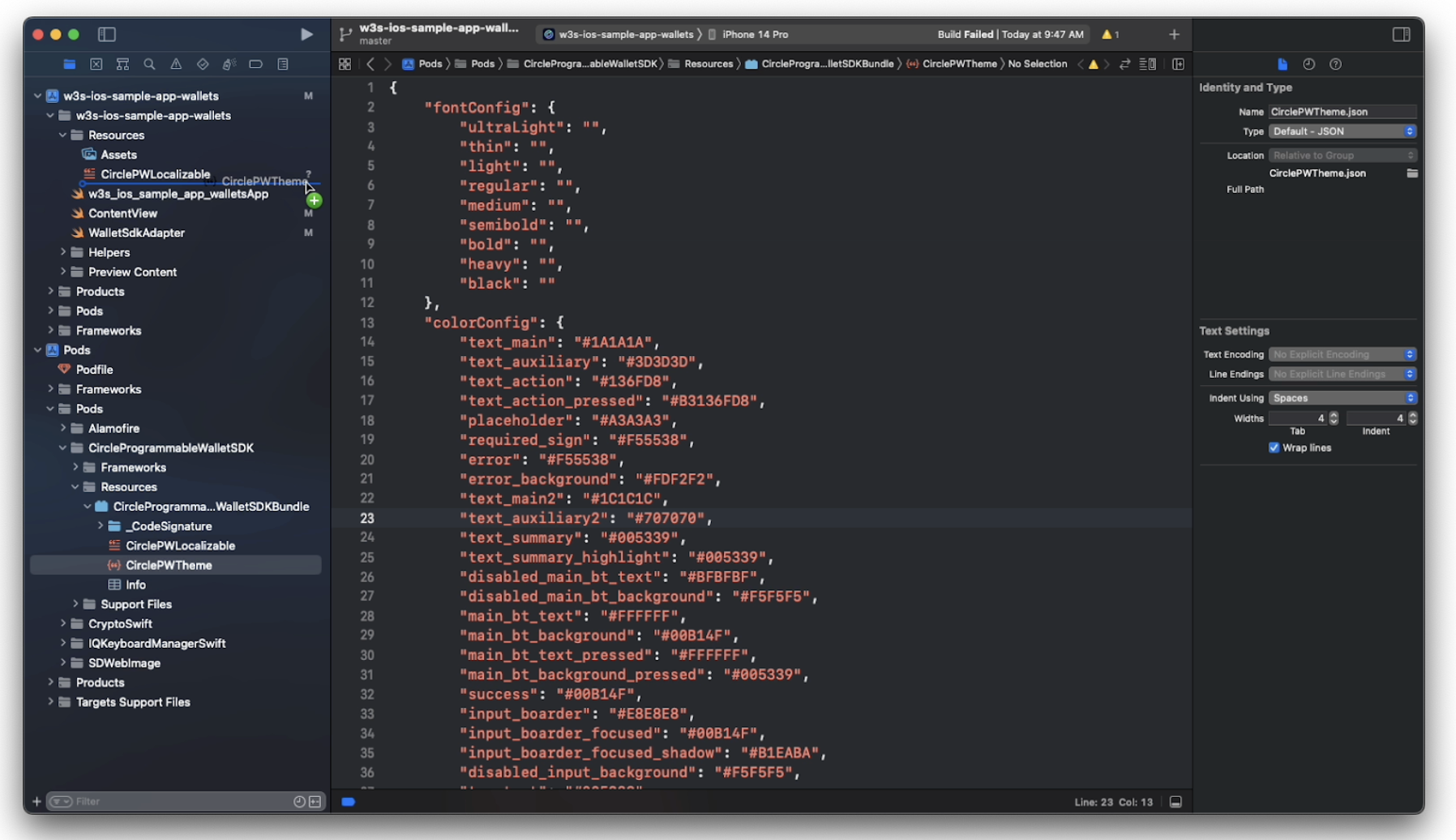
- Make sure you have selected the
Target Membership.
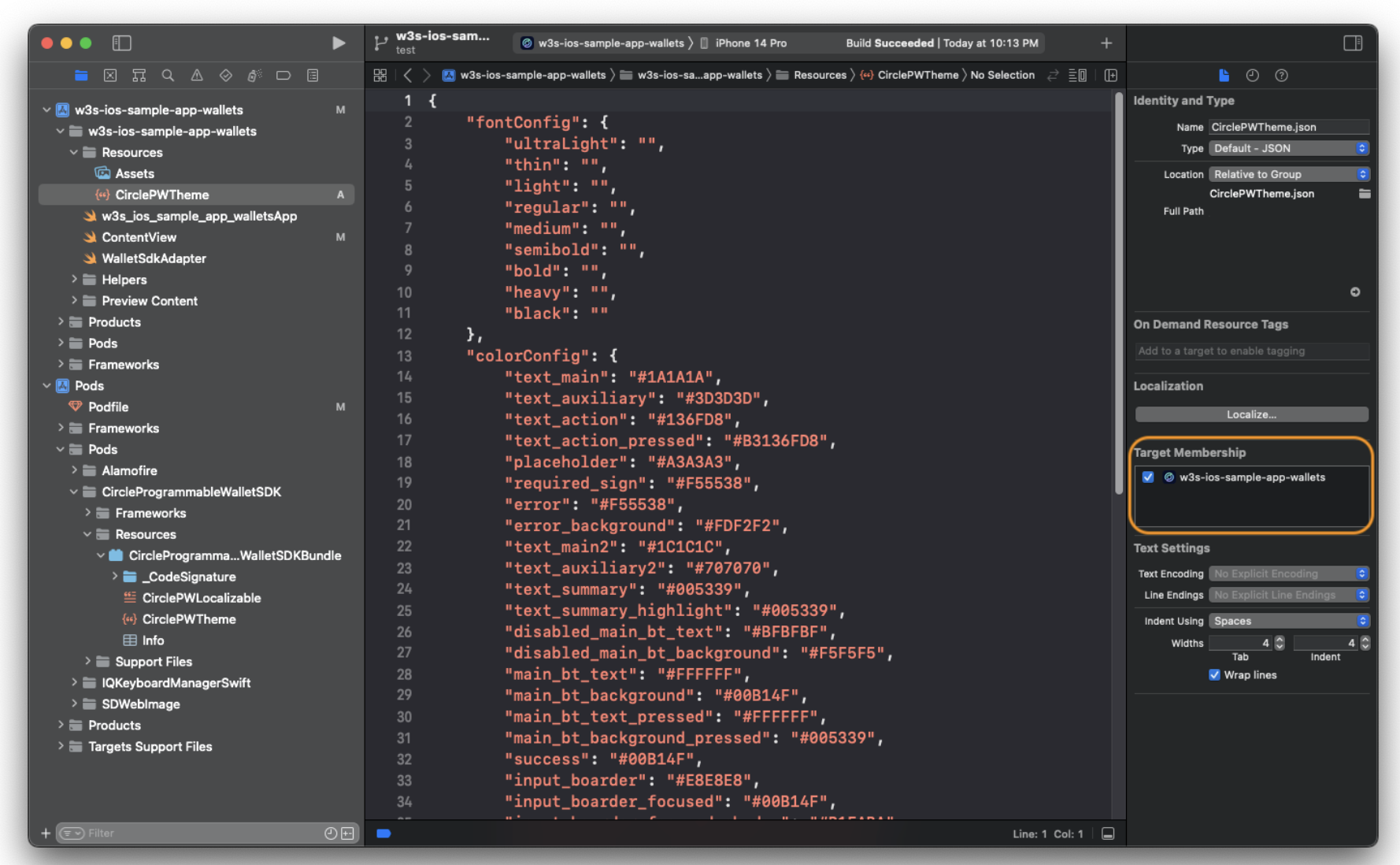
- Provide values to set the font: To use a custom font, refer to this document: Adding a Custom Font to Your App | Apple Developer Documentation.
- Set the color with a hex string:
Example: CirclePWTheme.json
XML
{
  "font": {
    "ultraLight": "",
    "thin": "",
    "light": "",
    "regular": "CustomFont-Regular",
    "medium": "CustomFont-Medium",
    "semibold": "",
    "bold": "",
    "heavy": "",
    "black": ""
  },
  "color": {
    "background": "#FFFFFF",
    "divider": "#F0EFEF",
    "success": "#0B9C4A",
    "error": "#F55538",
    "error_background": "#FDF2F2",


    "text_main": "#1A1A1A",
    "text_main2": "#1C1C1C",
    "text_auxiliary": "#3D3D3D",
    "text_auxiliary2": "#707070",
    "text_summary": "#0073C3",
    "text_summary_highlight": "#0073C3",
    "text_placeholder": "#A3A3A3",
    "text_action": "#136FD8",
    "text_action_pressed": "#B3136FD8",
    "text_prompt": "#29233B",
    "text_prompt2": "#6B6580",


    "pin_dot_base": "#FFFFFF",
    "pin_dot_base_border": "#707070",
    "pin_dot_activated": "#3D3D3D",
    "pin_dot_focused": "#0073C3",


    "input_border": "#E8E8E8",
    "input_border_focused": "#46B5FF",
    "input_background_disabled": "#F5F5F5",


    "main_bt_text": "#FFFFFF",
    "main_bt_text_pressed": "#80FFFFFF",
    "main_bt_text_disabled": "#BFBFBF",
    "main_bt_background": "#0073C3",
    "main_bt_background_pressed": "#1AA3FF",
    "main_bt_background_disabled": "#F5F5F5",


    "second_bt_text": "#0073C3",
    "second_bt_border": "#0073C3",
    "second_bt_background": "#FFFFFF",
    "second_bt_background_pressed": "#F1F9FE",


    "plain_bt_text": "#0073C3",
    "plain_bt_background": "#FFFFFF",
    "plain_bt_background_pressed": "#F1F9FE",


    "recover_pin_hint_title": "#3D3652",
    "recover_pin_hint_title_bg": "#E1F2FF",
    "recover_pin_hint": "#0073C3",


    "security_confirm_main_bg": "#E9EEFE",


    "title_gradients": ["#0073C3", "#0073C3"],
  }
}